
How to set up Opera Browser Connector for ChatGPT
Share


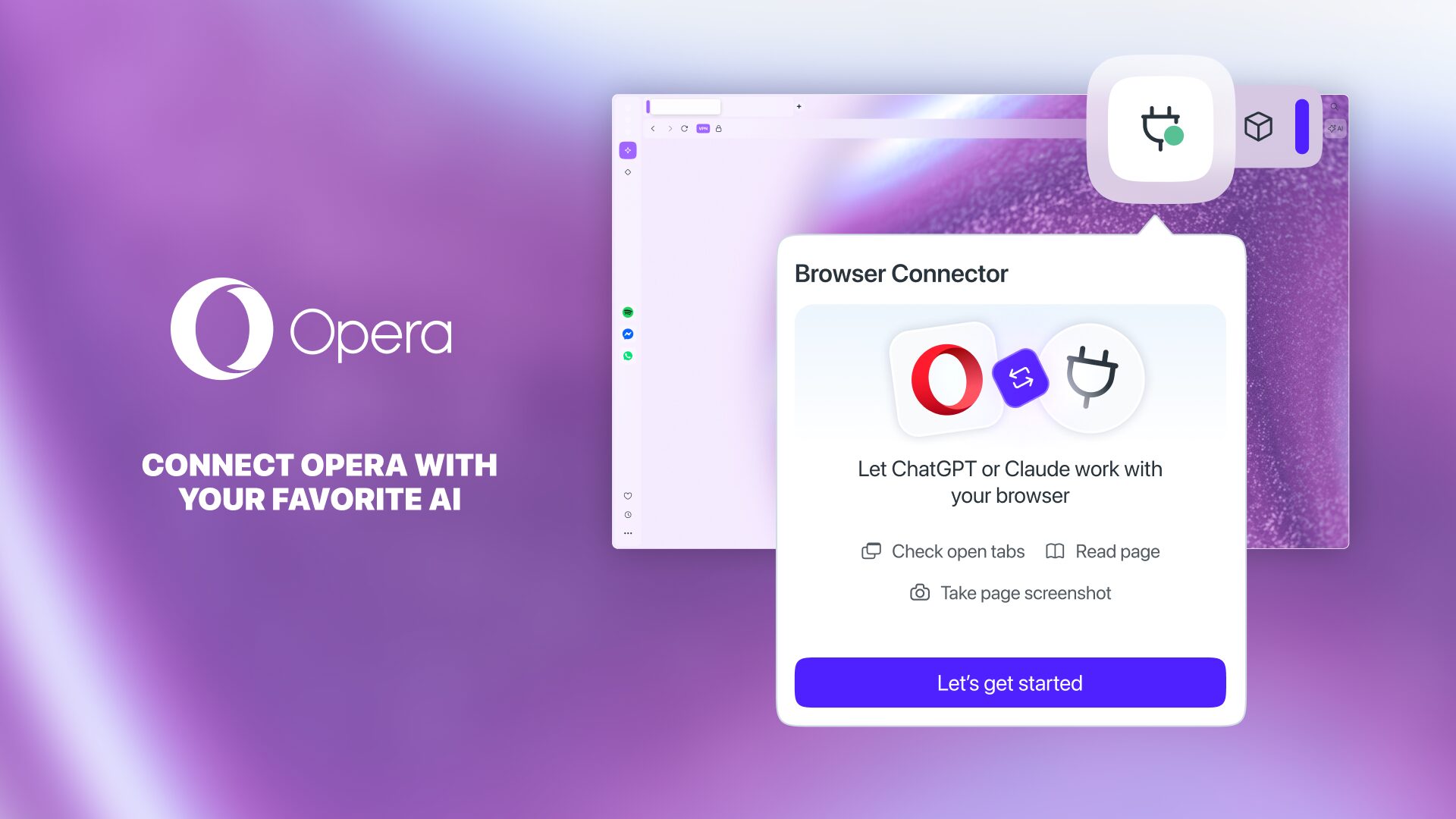
Browser Connector is a feature for Opera One and Opera GX that lets you connect ChatGPT to your Opera browser and let it see what you’re working on.
When you enable this feature, ChatGPT can see which tabs you have open, read the page content, take screenshots, and navigate to a page. And, based on the permissions you allow, it could also see your browsing history and close tabs.
So, this guide showcases how to connect ChatGPT to your Opera browser via Browser Connector. It’s not rocket science, let’s check it out!
First: activate Early Bird mode in your Opera browser
The Browser Connector feature is available for now in Early Bird mode – our testing environment where you’ll find the latest features we’re planning to add to the browser.
So, to enable Browser Connector you’ll need to activate Early Bird:
- Go to the Opera browser settings (or copy and paste the following path in your address bar: opera://settings/?search=early+bird).
- Search for “Early bird.”
- Toggle it on.
- Relaunch Opera and you’re done.
Second: enable the Browser Connector feature in Opera
Now that you’ve activated the Early Bird mode, the Browser Connector feature will be available to you, follow the next steps to activate it:
- Log in with your Opera account or Sign up if you haven’t already – this can be done in the profile icon at the top-right corner of your browser.
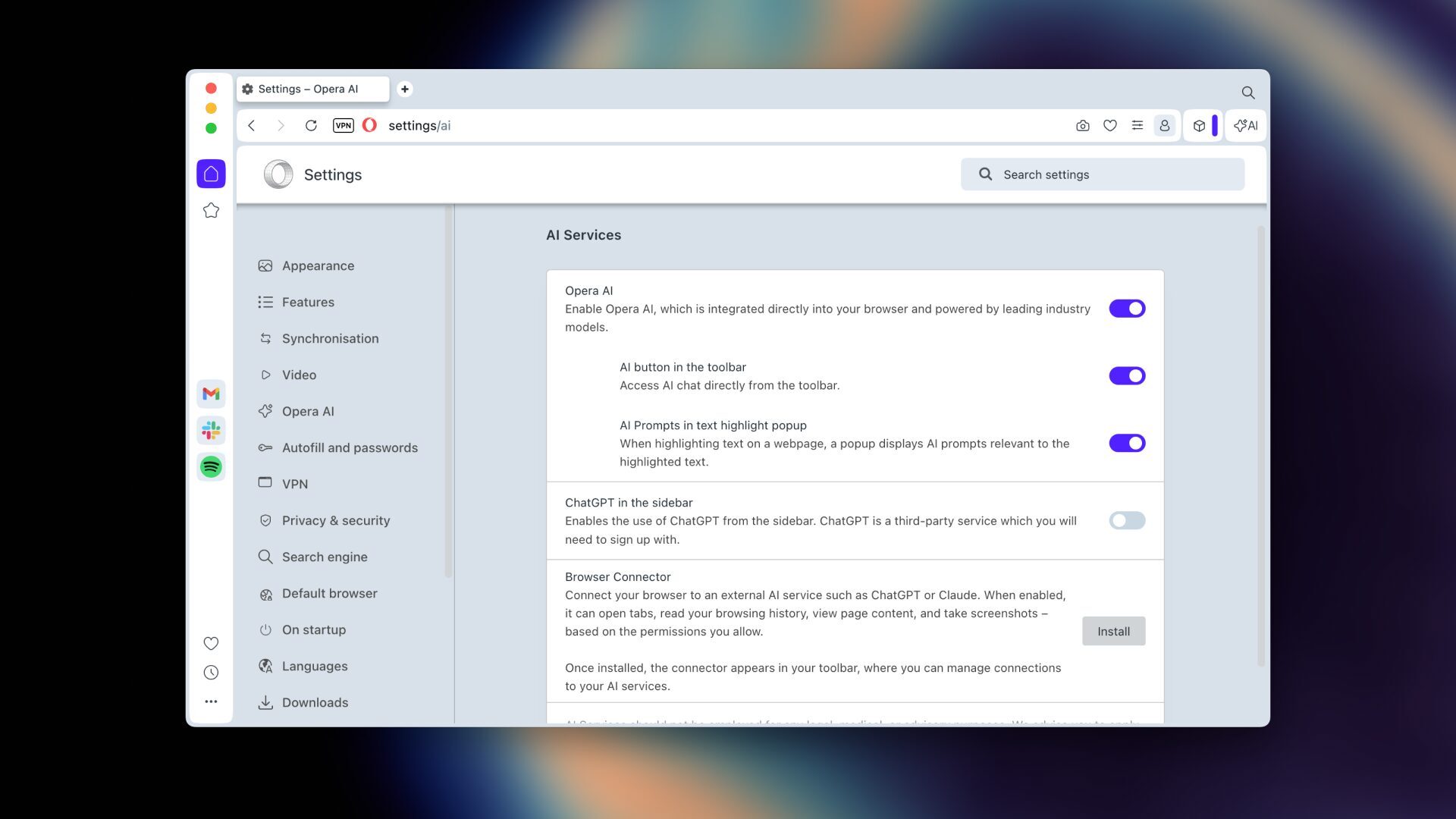
- Go to the Opera browser settings (or copy and paste this path in the address bar: opera://settings/?search=AI+services).
- Search for “AI Services.”
- On the menu depicted in the image below, go to Browser Connector and click Install.
- Once installed, you’ll be able to see it at the top-right of your screen as a pinned extension in the toolbar, as depicted in the image below.
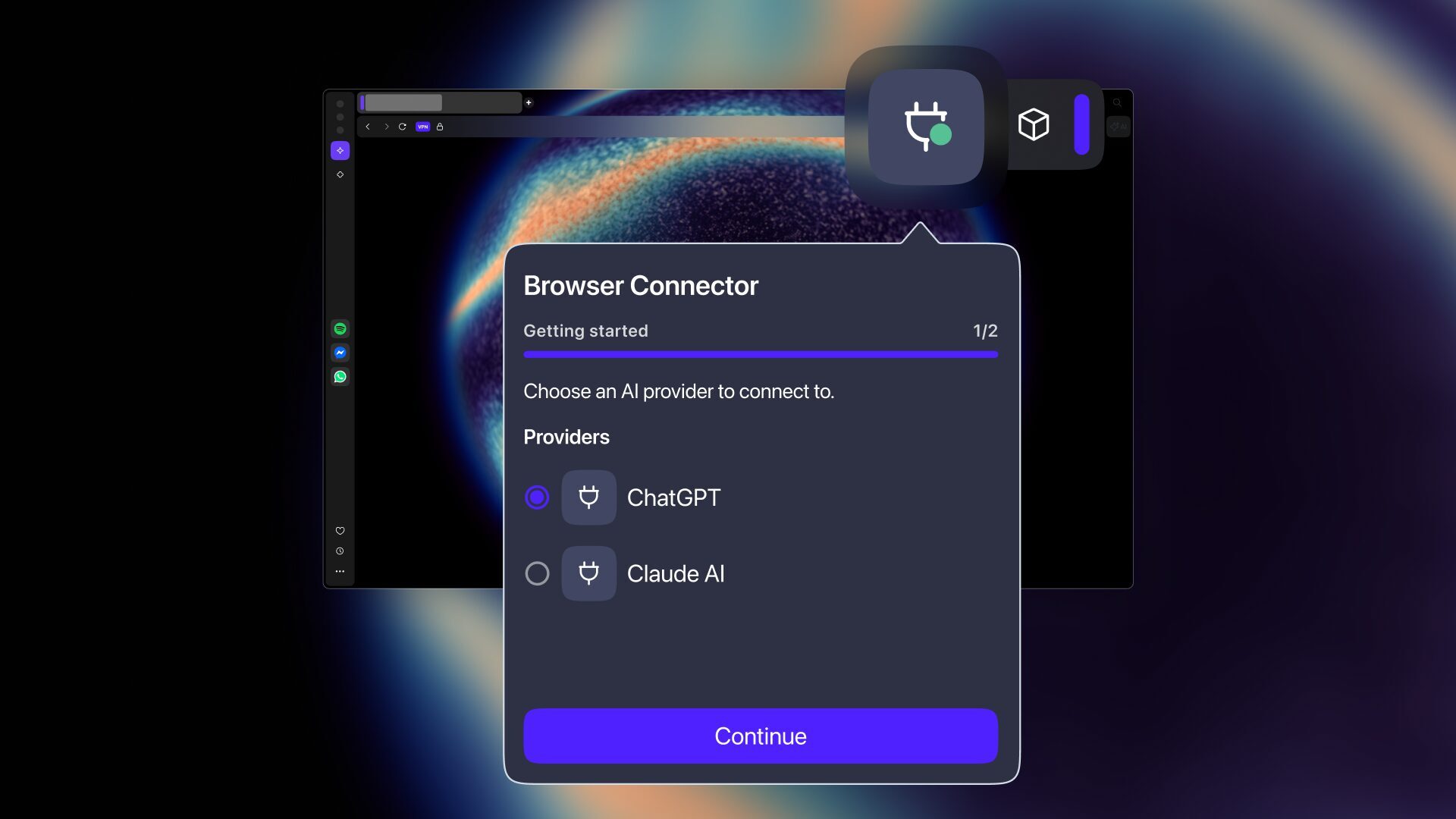
After activating the Browser Connector Feature, you’ll need to install the Opera Browser Connector app in ChatGPT.
Third: Installing the Opera Browser Connector app in ChatGPT
Important: for this step to work you must have successfully installed and turned on the Browser Connector feature in your Opera browser, and you need to be logged in the browser with your Opera account.
So, to connect Opera to your ChatGPT:
- Go to the ChatGPT app store and search for “Opera Browser Connector,” or simply click on this link: https://chatgpt.com/apps/opera-browser-connector/asdk_app_69d669e1d5c88191957786fbcd38b411
- Click the “Connect” button.
- Then click on “Sign in with Opera Browser Connector” and sign in with the Opera account that you used to sign into the browser.
- Start a chat with ChatGPT – you’ll see the Opera logo in the bottom left corner of the chat input field.
- Try typing something like “Open opera.com.”
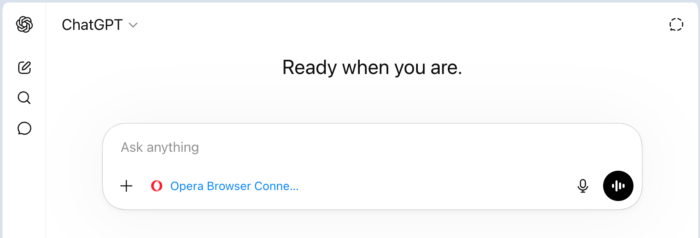
Now you’re all set, and have connected ChatGPT and your Opera browser through the Browser Connector Feature.

User comments
Turn ideas into action
Chat, create, and get things done with Opera Neon, the AI-powered browser that researches, builds, and acts for you.


You deserve a better browser
Opera's free VPN, Ad blocker, and Flow file sharing. Just a few of the must-have features built into Opera for faster, smoother and distraction-free browsing designed to improve your online experience.