
Stop copy-pasting: Opera’s new Browser Connector brings Claude & ChatGPT into the browser
Share


Hey everyone,
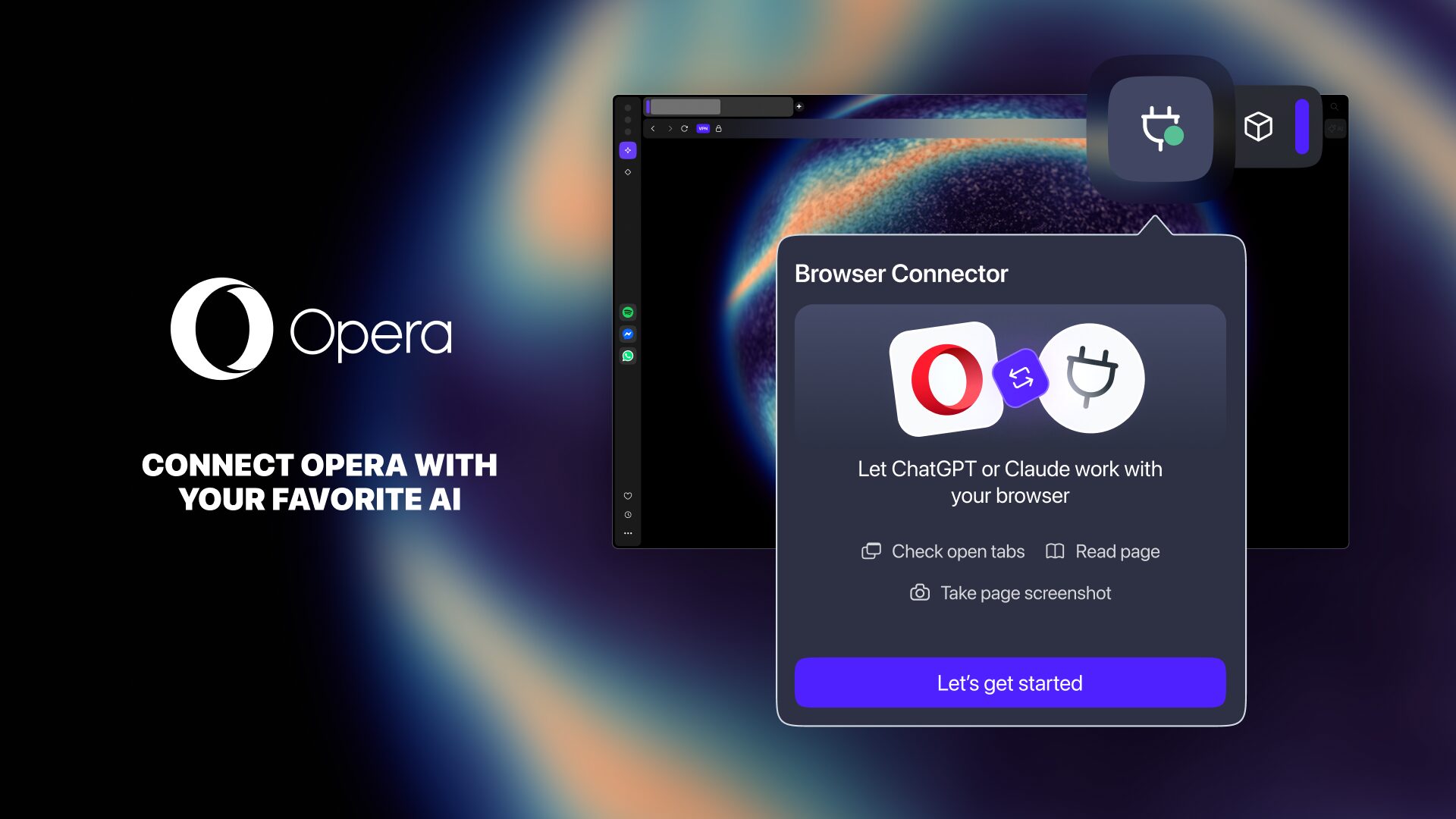
Have you ever noticed how much time you spend giving context to your AI in order to get better results from it? It would be much easier if ChatGPT or Claude could just see into your browser and understand what you’re working on. This is precisely the free feature we’re shipping today in Opera One and Opera GX – in Early Bird. Browser Connector allows you to connect your favorite AI to your Opera browser and let it see what you’re working on.
By introducing this, we’re empowering you to connect your favorite AI tools with your browser, not binding you to any specific ecosystem provided by one company. Exciting and liberating, isn’t it? So let’s get to it.
What is Browser Connector?
Browser Connector is a new feature that lets you connect your Opera browser directly with ChatGPT or Claude AI via Model Context Protocol (MCP). Instead of forcing you to be the person-in-the-middle who constantly ferries information back and forth, ChatGPT or Claude can now access your real-time web context. This way, your AI will better understand what you’re trying to do because it now comes to where your work is already happening.
If you use ChatGPT or Claude, you’ll know that it’s a routine exercise to give it context about your task. While this is a necessary step to get anything done with these tools, it takes time and becomes frustrating when you have to repeat things all the time.
Usually, external AI tools hit a wall because they’re not connected to the actual websites and tabs you are logged into and where you do your reading, researching, shopping, and overall browsing. With the new Opera Browser Connector, you can invite ChatGPT or Claude to step directly into your live browser session.
How will this upgrade your daily browsing?
For the everyday AI user, this opens up a whole new level of convenience. Once connected, your AI can open pages, read and take screenshots of them, as well as understand your open tabs. Here is how this changes the game:
- No more copy-pasting: reading a dense document, a long recipe, or a complicated news article? Just ask your connected AI to explain a specific concept, it can take screenshots if it needs to understand an image or a graph. Since the AI is connected to your browser, it already knows exactly what page you’re on.
- Assisted comparisons and research: if you are shopping and comparing different PC parts across five different tabs, your AI can navigate to and read those open tabs and help you compare the specs without you having to feed it the links or text manually. It can open new pages and tabs to compare more options, and close them afterwards to leave a clean working space.
- Power-up your AI tools: whether you prefer chatting with ChatGPT or Claude, this update turns your browser into an open playground for the AI tools you already know and use.
Here’s an example of that in which we use Claude to help us understand the academic debate around Frida Kahlo’s art:
How do I enable the Browser Connector?
This feature is completely optional and you can enable it and install it whenever you want – for free. First and foremost you’ll need to activate Early Bird mode – our testing environment – in the browser settings, and then relaunch it. Once you’ve done that, follow this path:
- Go to the Opera browser settings > search for “AI Services” > On Browser Connector click install.
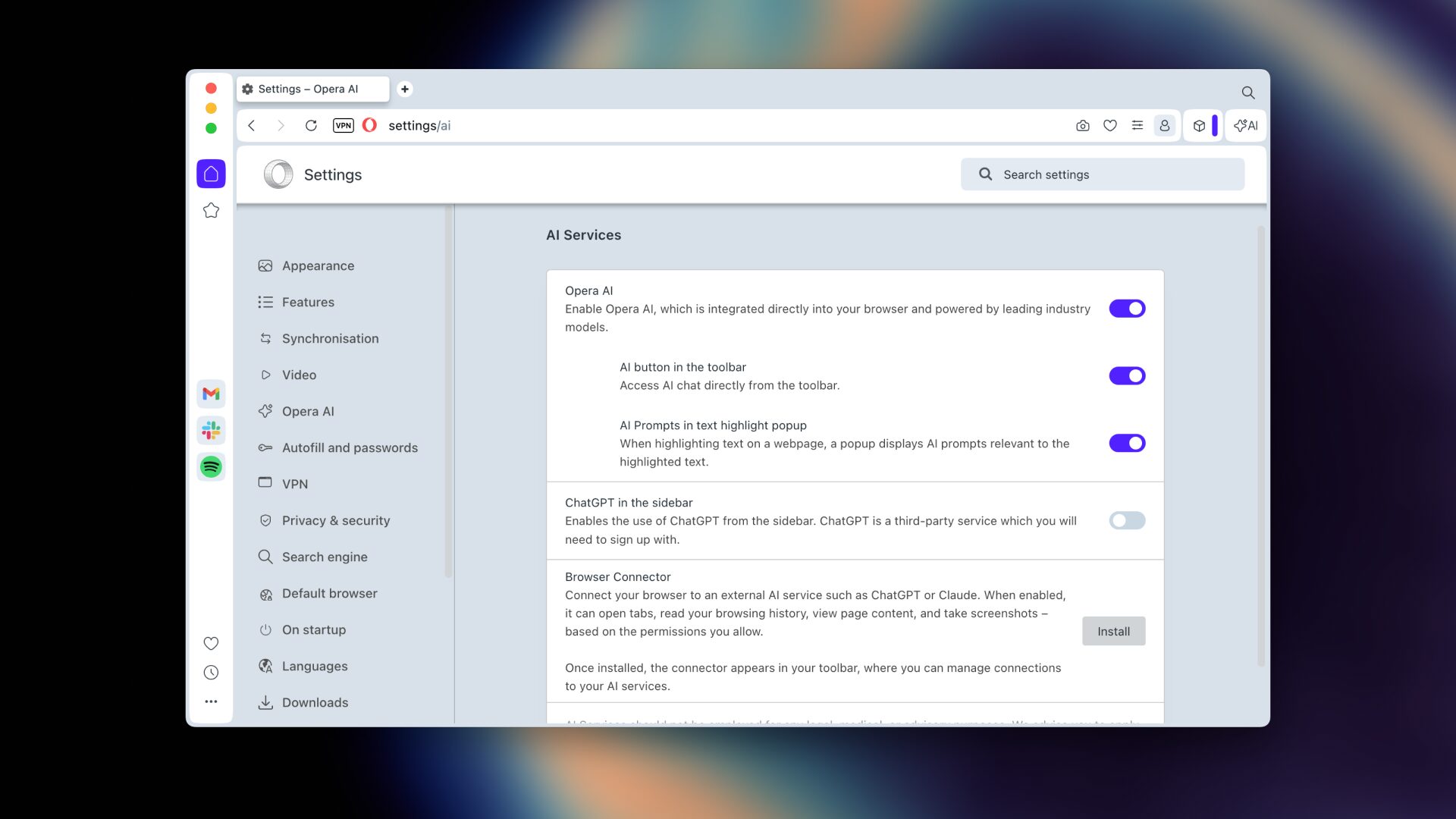
Once installed, you’ll be able to see it at the top-right of your screen as a pinned extension in the toolbar:
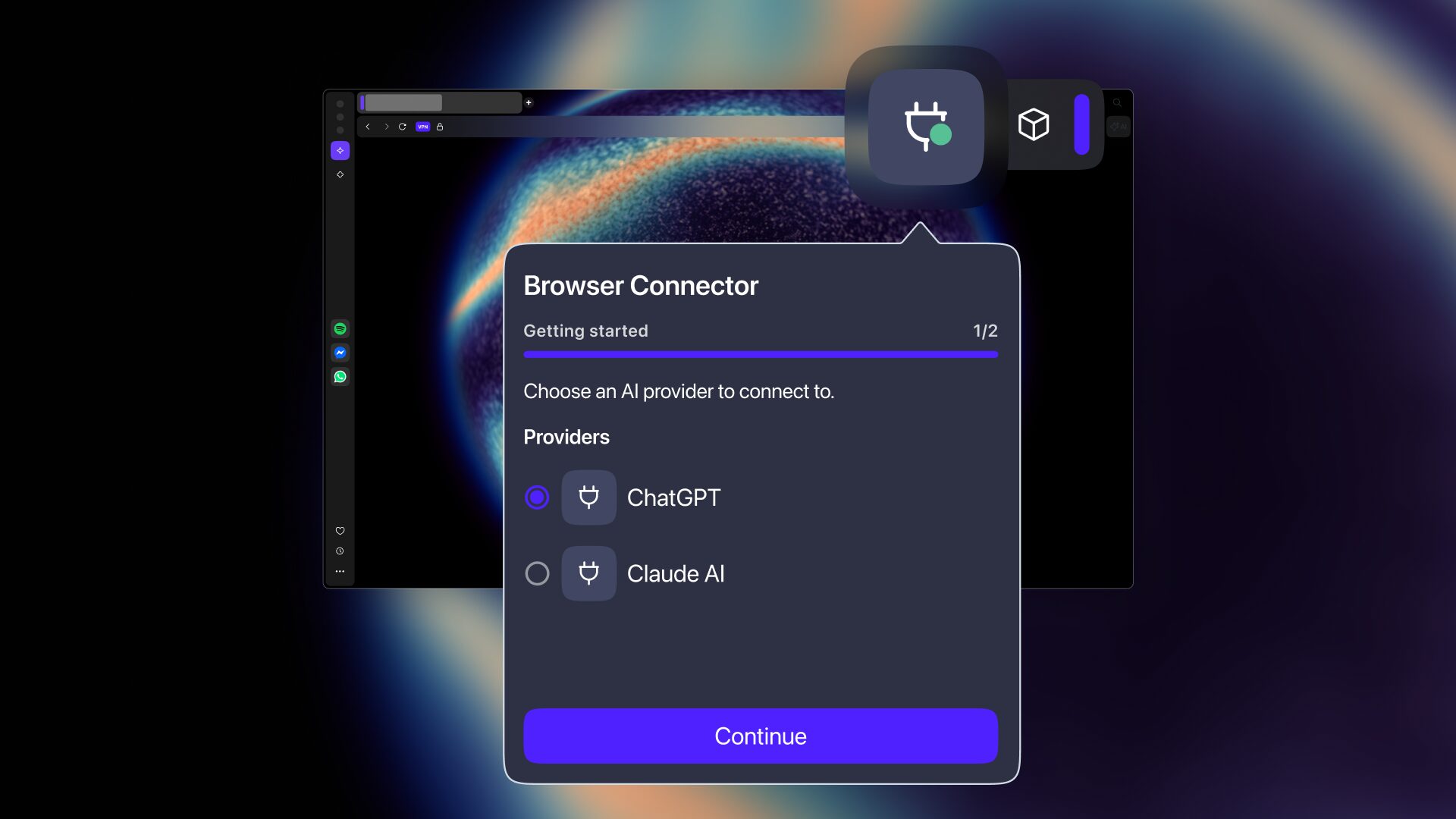
It will allow your ChatGPT or Claude AI to:
- Read open tabs
- Read tab content
- Take a screenshot of the tab
- Read your history
- Navigate to a page
- Opening tab with a page
- Closing a tab
Additionally, bear in mind that once you install the Browser Connector, ChatGPT or Claude AI will be able to read your open tabs or take screenshots – these are capabilities that are on by default. Having said that, other actions such as reading your browsing history or closing your tabs are disabled by default and you can turn them on if you want to. You can always control what ChatGPT or Claude can do in your browser, taking into account that they won’t be able to interact with webpages themselves – meaning clicking, filling forms, and generally operating autonomously.
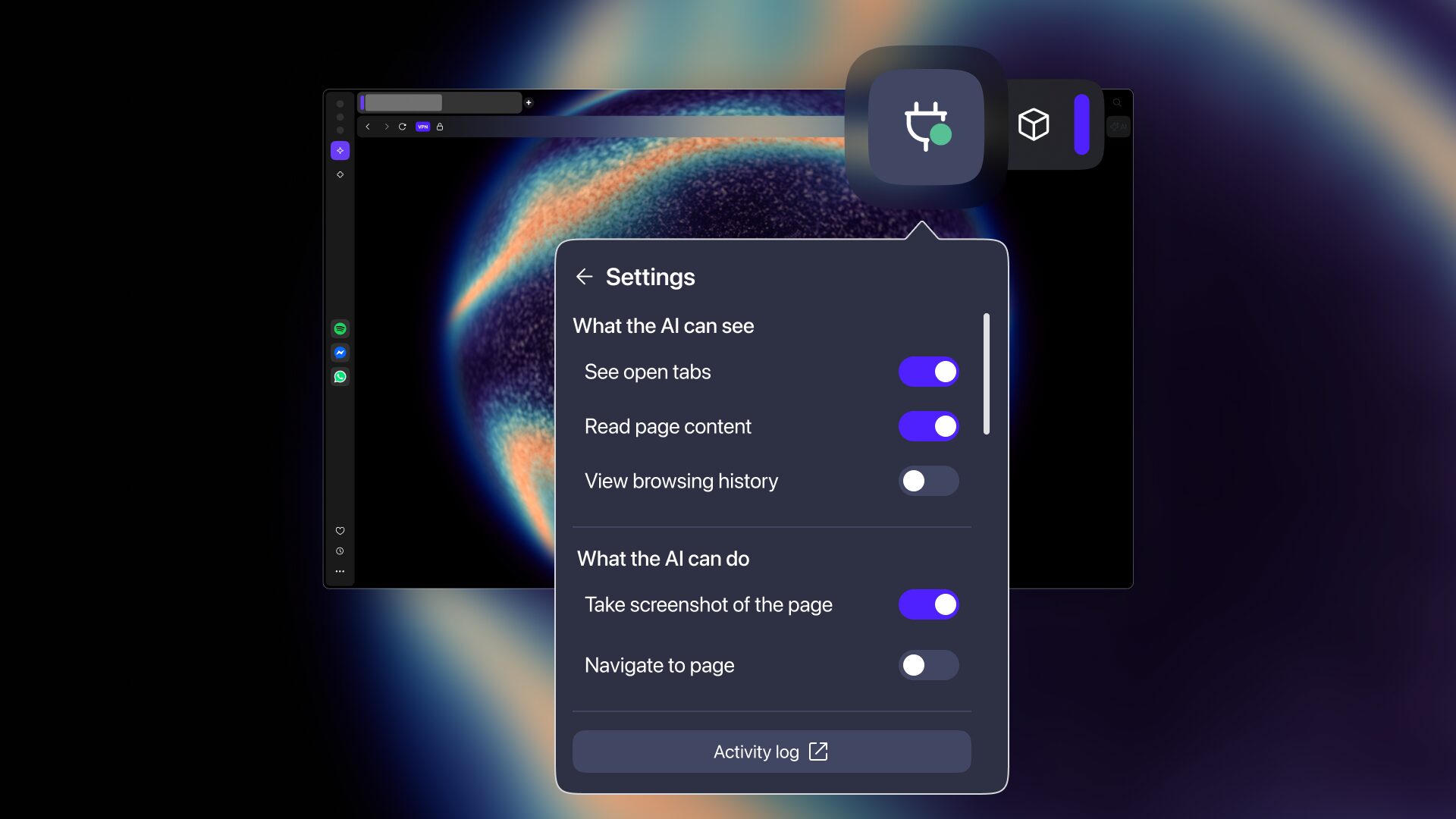
Connect ChatGPT & Claude to Opera today
After you’ve installed the Browser Connector feature in Opera One or Opera GX, you need to connect your ChatGPT or Claude. To do that, do the following:
- Ensure that the Browser Connector is installed and enabled.
- Click and open the pinned Browser Connector extension in the toolbar.
- Log in with your Opera account or Sign up if you haven’t already.
- Choose the AI provider you want to use (ChatGPT or Claude AI).
- Follow the instructions to Setup ChatGPT or Claude AI in their respective apps.
- Success! You’re set and ready to go.
Download Opera One or Opera GX and connect them to ChatGPT and Claude AI.

User comments
Turn ideas into action
Chat, create, and get things done with Opera Neon, the AI-powered browser that researches, builds, and acts for you.


You deserve a better browser
Opera's free VPN, Ad blocker, and Flow file sharing. Just a few of the must-have features built into Opera for faster, smoother and distraction-free browsing designed to improve your online experience.