
Opera updates with a redesigned History, new Themes, and an experimental feature
Share


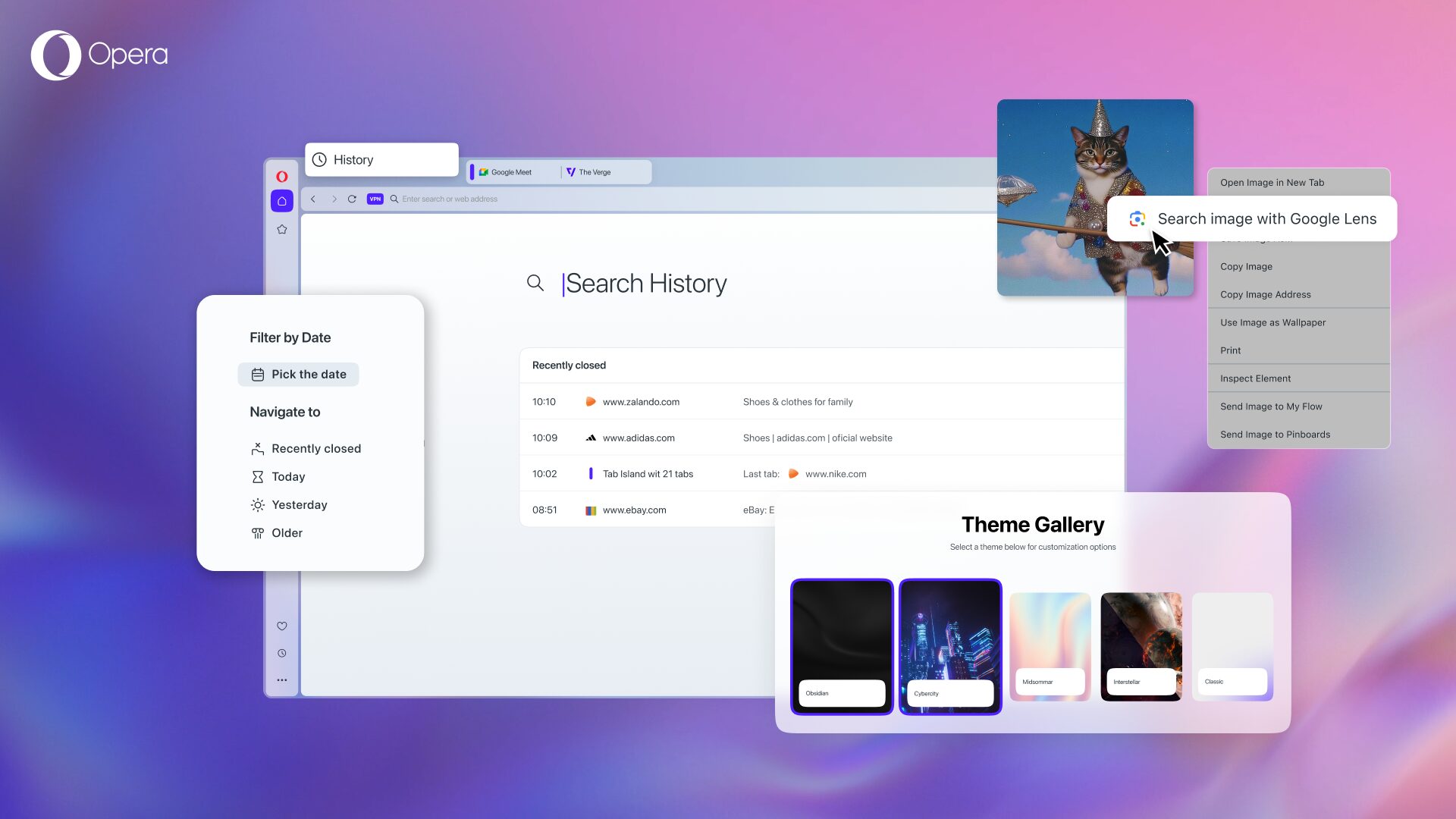
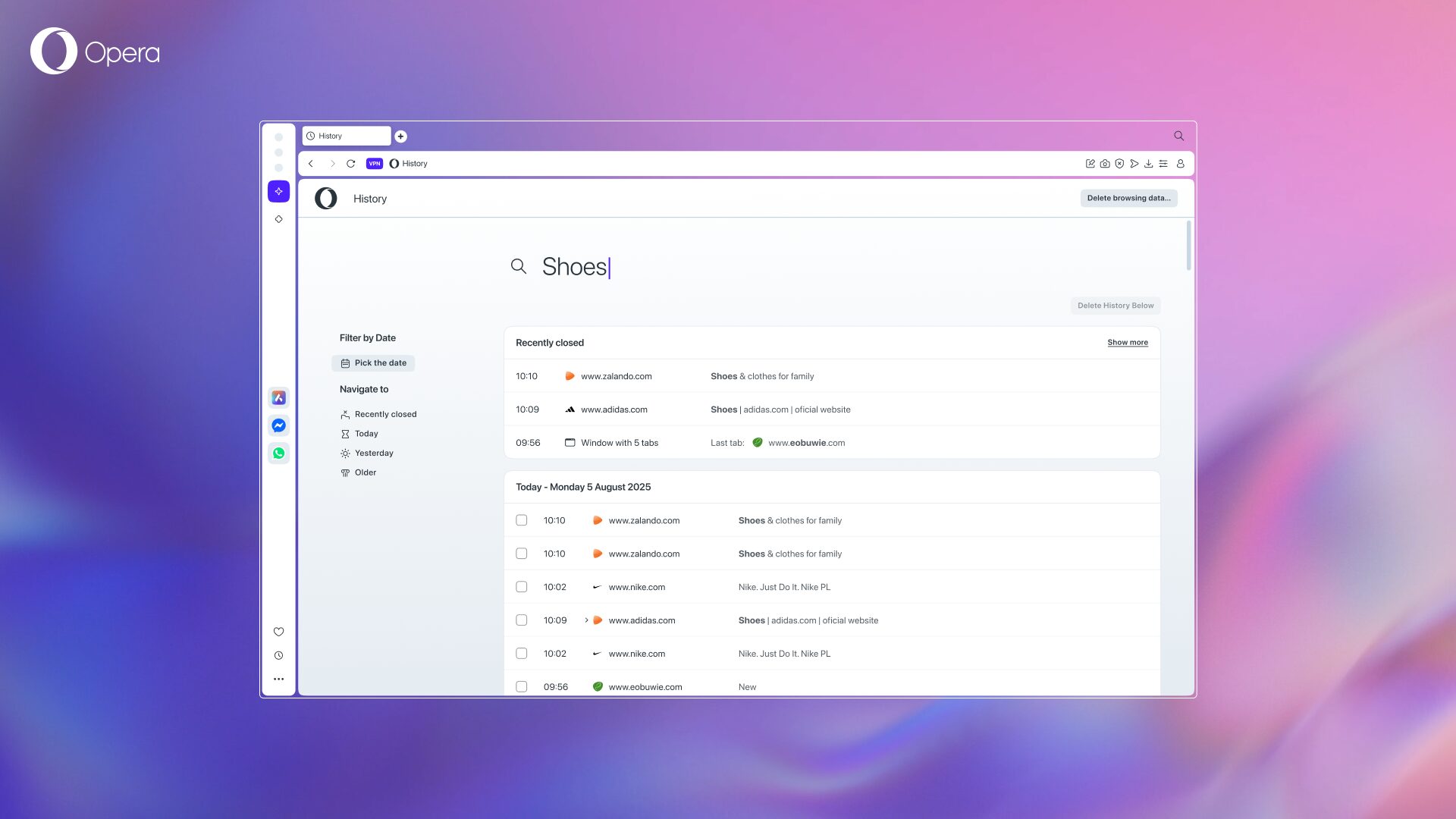
In today’s update, we’ve redesigned the browsing History interface in Opera One, making it more intuitive and easier to use. Now, the History feature works more like we humans when we remember things: showing you tabs from today, yesterday, older, or recently closed. This redesign makes it easier for you to find the sites you’ve closed to get back to what you were doing.
We’re also introducing the search image with Google Lens option into the browser so you can quickly search for those things that cannot easily be put into words.
Additionally, this update also brings two new dynamic Themes into Opera One:
- Obsidian – another black noir Theme that brings minimalistic, sleek, and elegant resemblance to nature’s black glass flowing on your screen.
- Cybercity – a futuristic-looking city created by Mitch Myers where neon lights and urban nightscapes become the backdrop of your browser.
Finally, we’re introducing Video Skip to Opera One, Opera GX, and Opera Air. It’s an experimental feature that lets you skip over video ads or unwanted content that appears before what you want to watch.
Browsing History redesigned in Opera One
History is a key feature that saves you loads of time – as well as a couple of neurons that might go kaput if you’re trying to remember what you were browsing last Wednesday at 12:47am. This redesign makes the History feature more intuitive because it better reflects the way in which we actually remember things: by broader categories. This means that you can more easily find that research paper you need to revise, or that trip offer you found when looking into your next vacation.
So what’s new? You can now select multiple webpages from your History and reopen your selection as a Tab Island – meaning you can get the best of our tab management system even when reopening tabs from your browsing History.
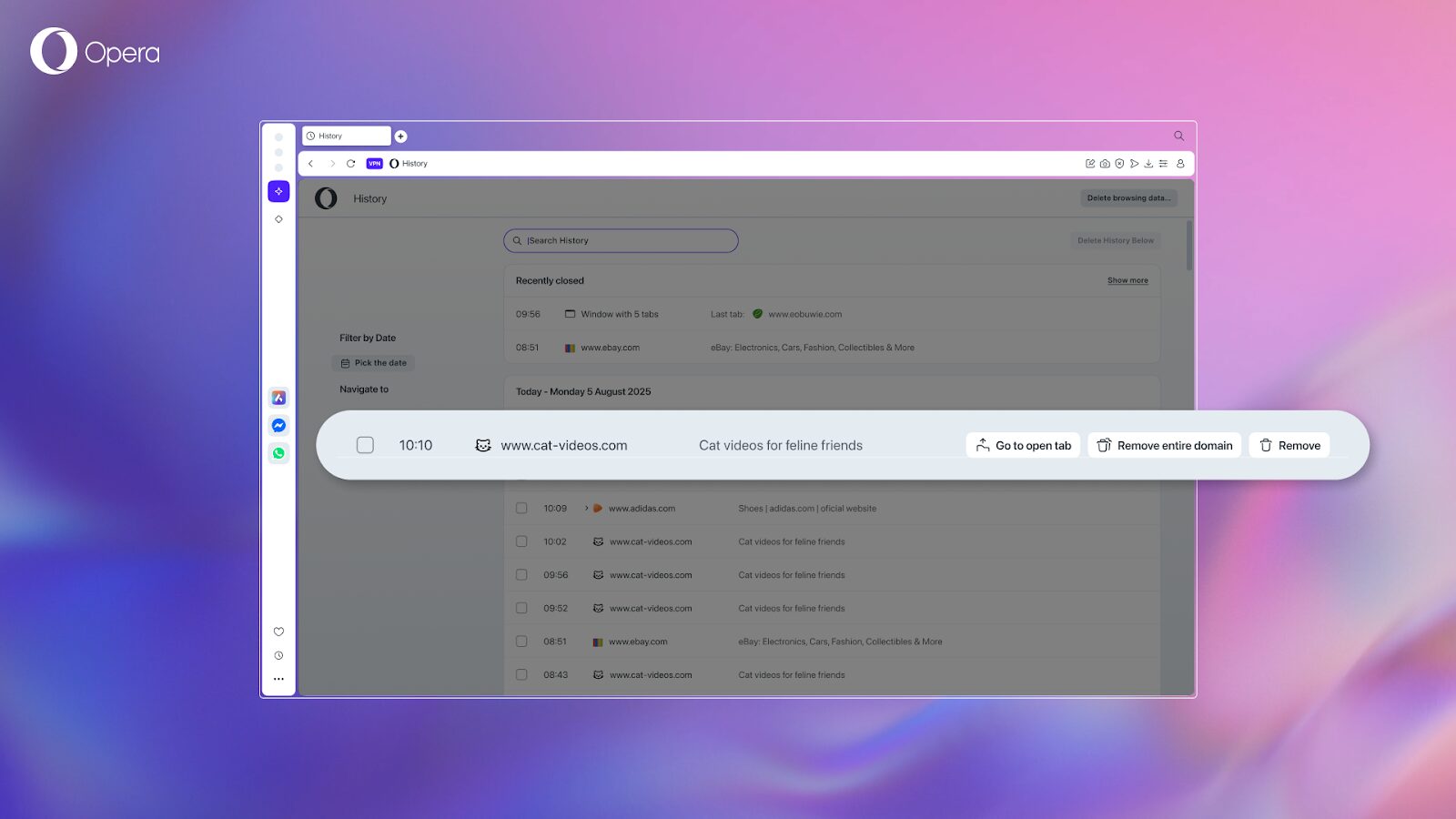
Another cool functionality that we’ve implemented into the History feature is the ability to delete an entire domain. To do so, you simply need to hover over any webpage when in the browser History, and click on “Remove entire domain.” Whichever domain you choose to delete from your History is up to you – we don’t judge, your secret will never see the light of day.
Search image with Google Lens in Opera One
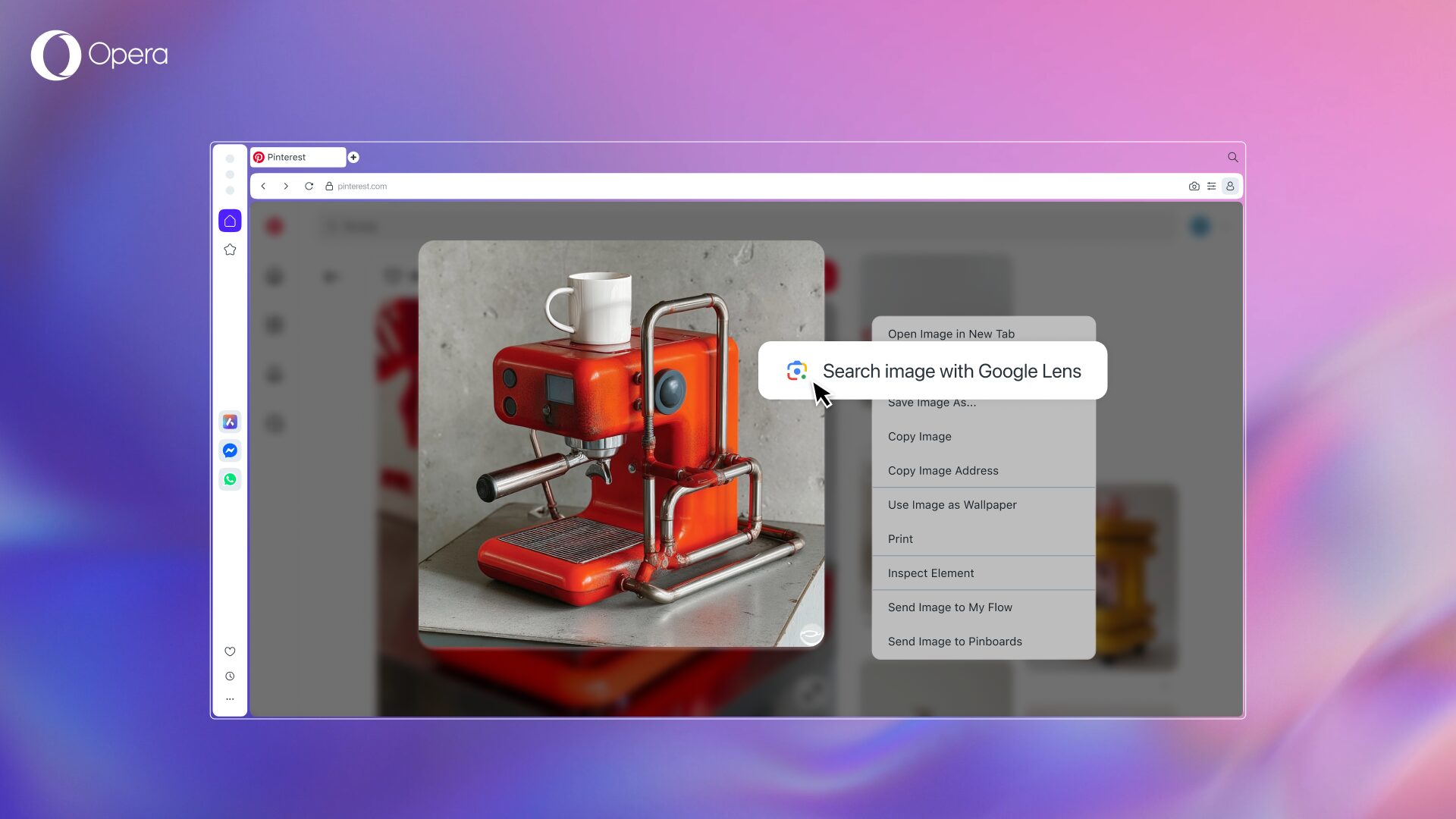
We know that sometimes it’s difficult to describe some things with words, and we’re also aware that an image says more than a thousand words. So, in addition to letting you send an image directly to our built-in browser AI –Aria– to learn more about it, we’re also including the Google Lens image search feature into the browser.
In order to use it you simply need to right click on the image you want to search, and select the “Search image with Google Lens” option.
New dynamic Themes from your feedback
Finally, we’re adding two new dynamic Themes based on your recent feedback – especially after the introduction of our first black noir dark Theme, Mirage. So let’s check them out:
Obsidian
We’re adding a dynamic Theme that joins the category of black noir and brings a sophisticated look to your browser. What is obsidian? It’s nature’s liquid glass made of lava, and this theme is just like the material that inspired it. With deep, dark silky textures that flow dynamically in the background, this Theme evokes a minimalistic style that’s calm and elegant like a polished obsidian stone. It’s made for those of you who appreciate refined darkness – whether you’re focusing deeply, working late, or simply love your interface to feel as smooth as it looks. This black noir dynamic Theme is easy on the eyes and gives you a backdrop of pure visual calm.
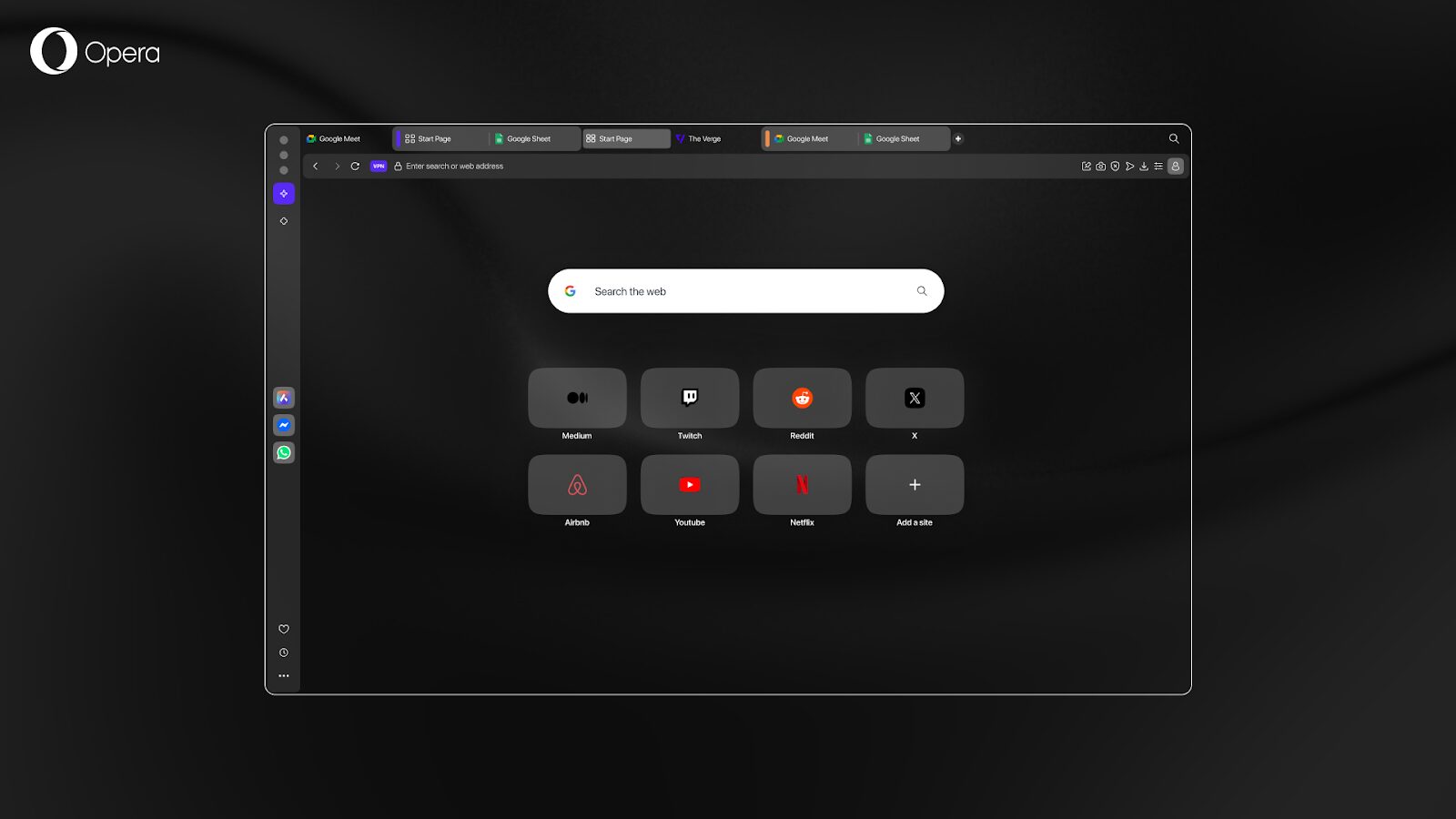
The Obsidian Theme comes with an animated background, browser and keyboard sounds, as well as background music. All of this you can edit on the Theme configuration screen that you can access from the Easy Setup menu in the toolbar.
Cybercity
Finally, if you like the cyberpunk style, we’ve got something for you: The Cybercity dynamic Theme immerses your browser in a futuristic-looking city with neon towers and a digital haze. Cybercity presents rich contrasts that transform your workspace into a sleek and dystopian scene that was built for dark mode – perfect for the night owls in the cyber space.
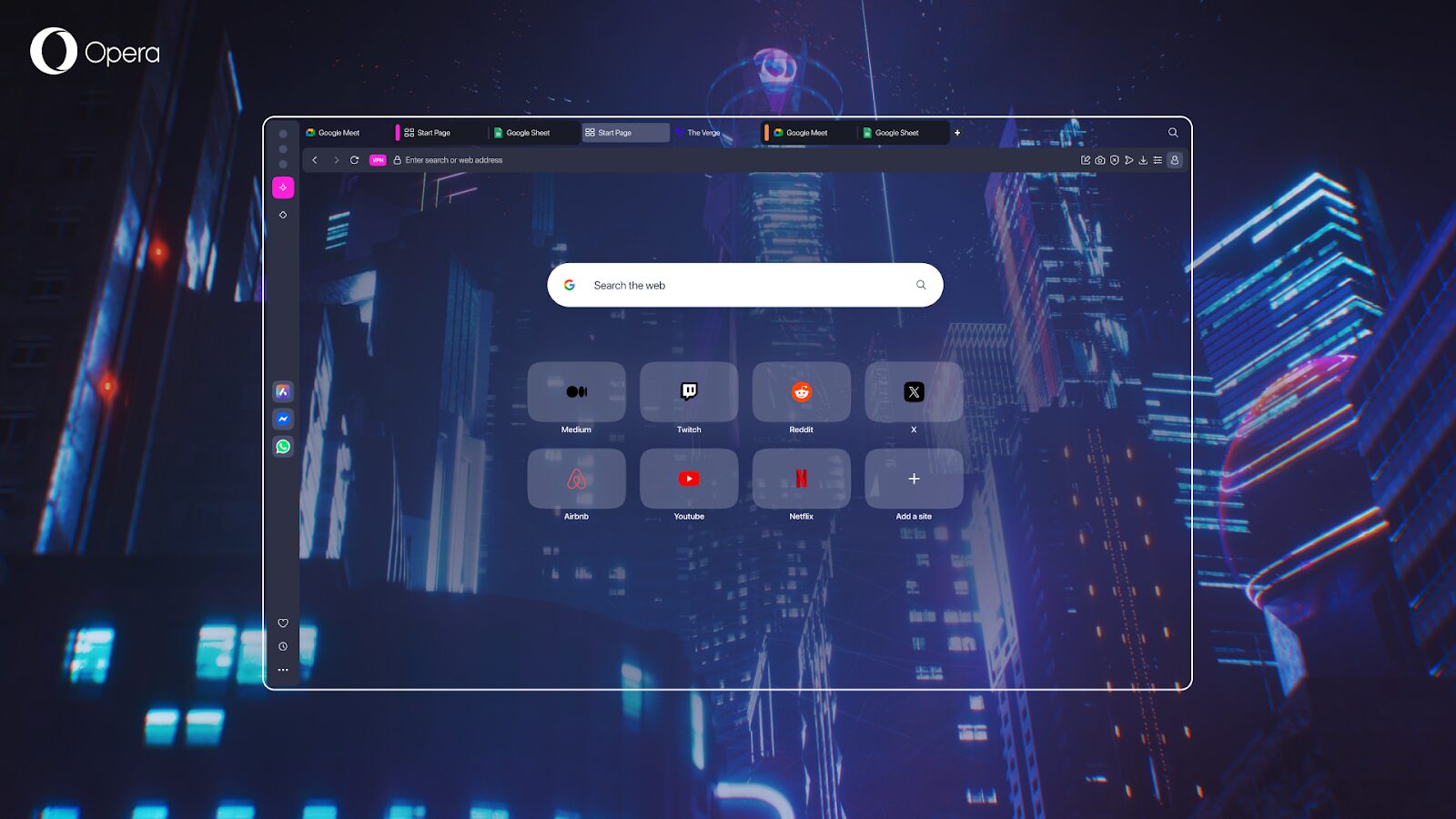
With this Theme we’re once again collaborating with a renowned artist: Mitch Myers. He created Cybercity and is an art director and 3D artist with over 12 years of experience creating high-end visuals for globally recognized brands and AAA game studios. If you want to check out his work, head to his website or his Instagram profile.
The Cybercity Theme is dynamic, which means that the backdrop is animated, and it includes browser and keyboard sounds as well as background music; you can activate the things you like the most in the Theme setup menu.
Video Skip lets you jump over ads and get right to the content you want to watch
What the Video Skip button does is pretty straightforward: it skips videos. But, how is this useful for you? Well, let’s just say that it lets you manually skip any video ad you want. With this experimental feature we’re giving you the choice to see more or less ads, and we hope to get some feedback from you on this one.
We’re constantly thinking about ways of improving the core functionalities of the browser – one of them certainly being watching videos. For instance, in the past we’ve added Lucid Mode, RGX Mode in Opera GX, and the video popout feature. Actually, the medium is so important right now that the estimates for 2025 indicate that over 82% of all the internet’s traffic will be video.
This feature is complementary to our native ad blocker, and it works regardless of the ad blocker being turned on or off – that’s why it gives you further control and flexibility over the content that you want to see in your browser.
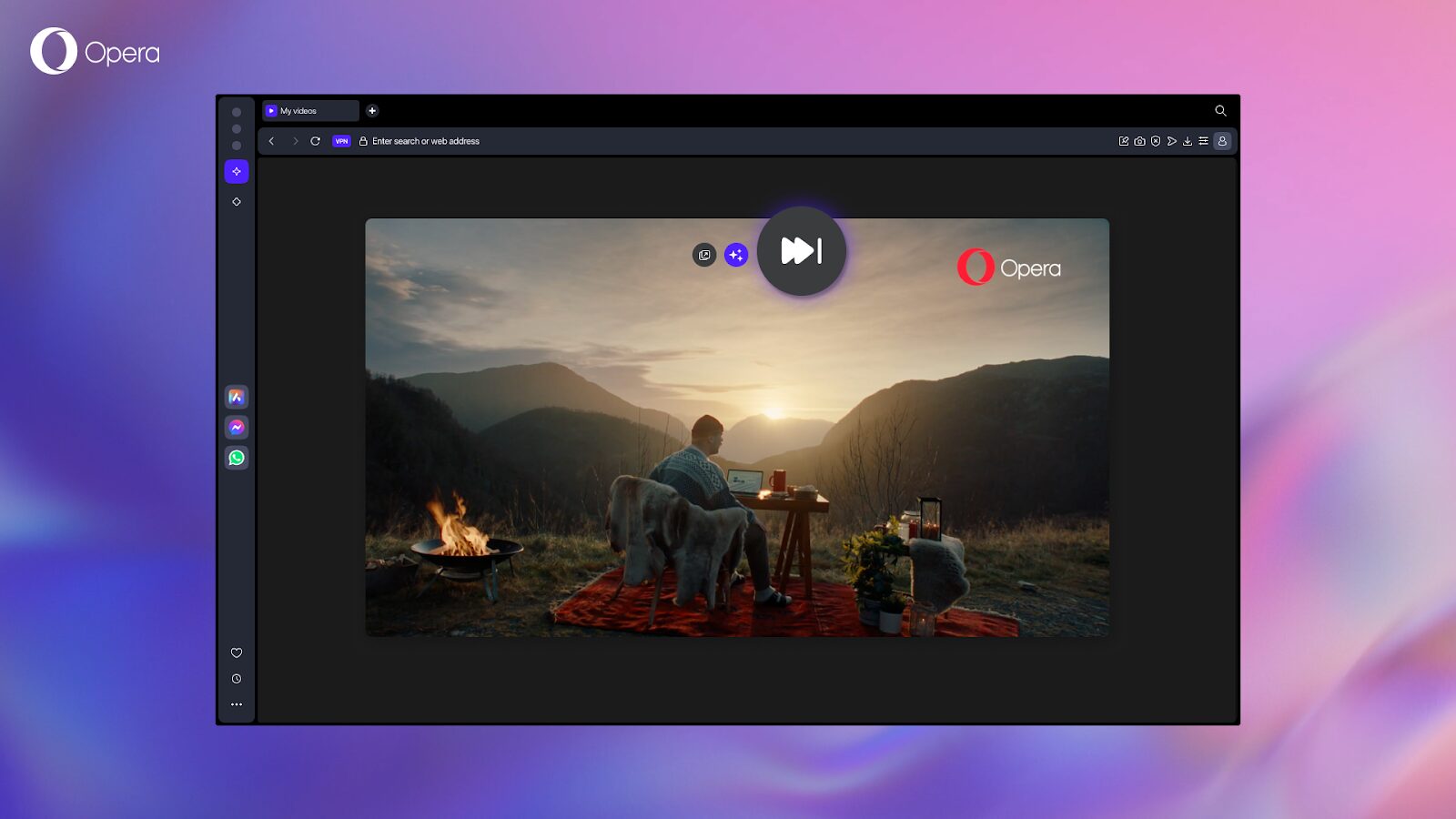
The Video Skip button will appear on hover at the top of the video that you’re watching, along with the Lucid Mode, RGX and Video pop out buttons. To skip a video, simply hover over it and click the Video Skip button; once you do, you’ll be taken to the end of the video. So, if an unwanted video ad pops up, or if you simply want to move to the next video on a playlist, you can use the Video Skip button.
Just like with the Lucid Mode and Video pop out buttons, you can activate or deactivate it in the settings menu, giving you control of how the media that you’re playing appears in the browser. You can find the option to activate it or deactivate it under “Video skip” in the settings menu.
Download Opera
Get your hands on the Video Skip feature by downloading Opera One, Opera GX, or Opera Air. Leave us your feedback in the comments down below!
You can check the change log for this update here.

User comments
You deserve abetter browser
Faster, safer and smarter than default browsers. Fully-featured for privacy, security, and so much more.


You deserve a better browser
Opera's free VPN, Ad blocker, and Flow file sharing. Just a few of the must-have features built into Opera for faster, smoother and distraction-free browsing designed to improve your online experience.