
How Vertical Tabs work in Opera One
Share


Hey all,
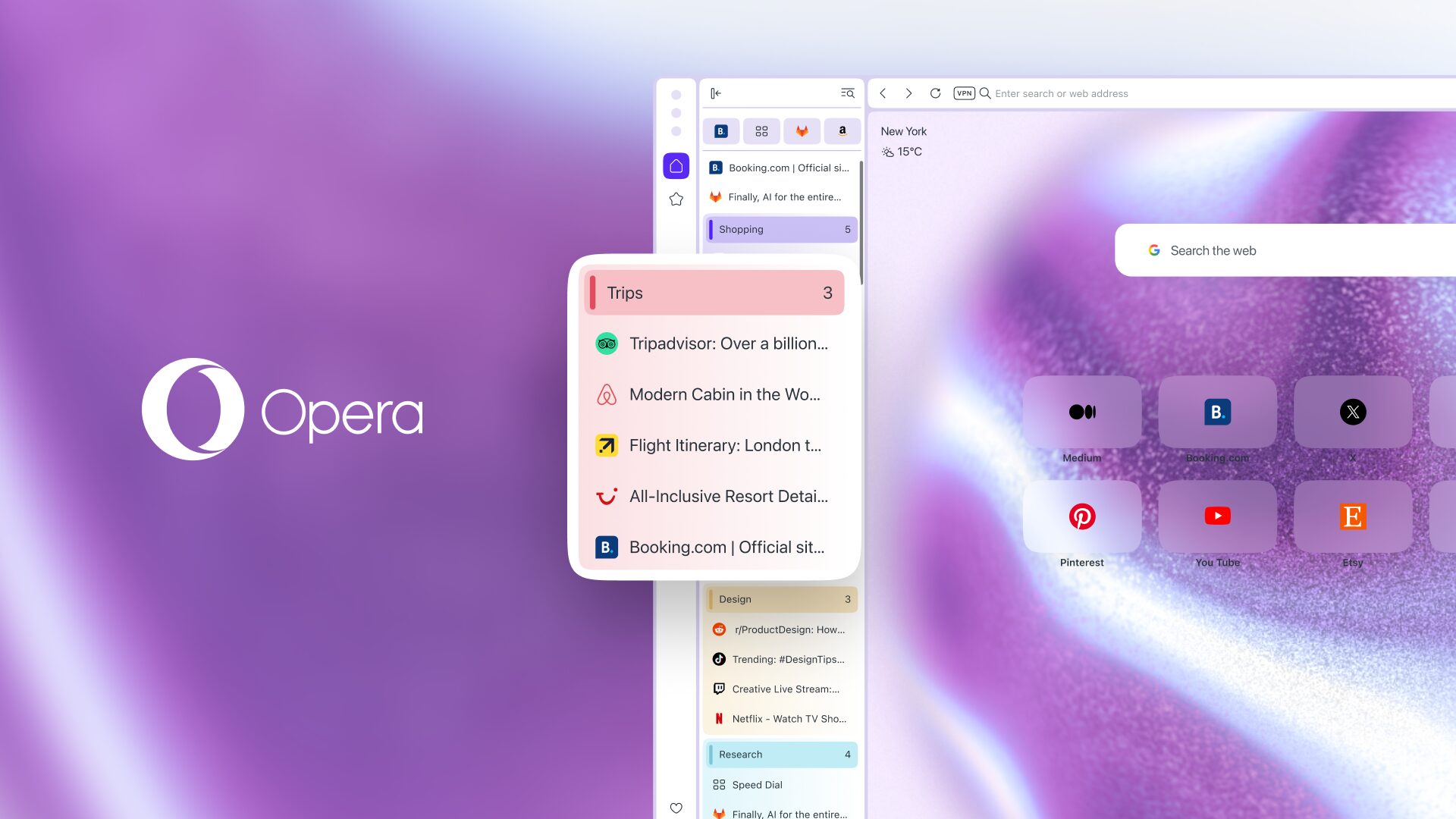
When you’re browsing with several tabs open and frequently need to switch between them – be it for work, studies, research, or even some shopping – you might want to switch to the vertical tab strip in Opera One. It makes it easier for you to see which tab is which, as the vertical disposition of the layout avoids the title of the tab from shrinking when you have many tabs open.
In this blog we’ll go over how this feature works in Opera One and all the caveats around it.
How to enable Vertical Tabs in Opera One
There are three ways to enable the vertical tab strip in Opera One:
- Right click any tab in the current tab bar and select “Use vertical tab strip” at the bottom of the context menu. This is the fastest entry point and requires no settings navigation. You can switch back by right clicking and choosing “Use horizontal tab strip.”
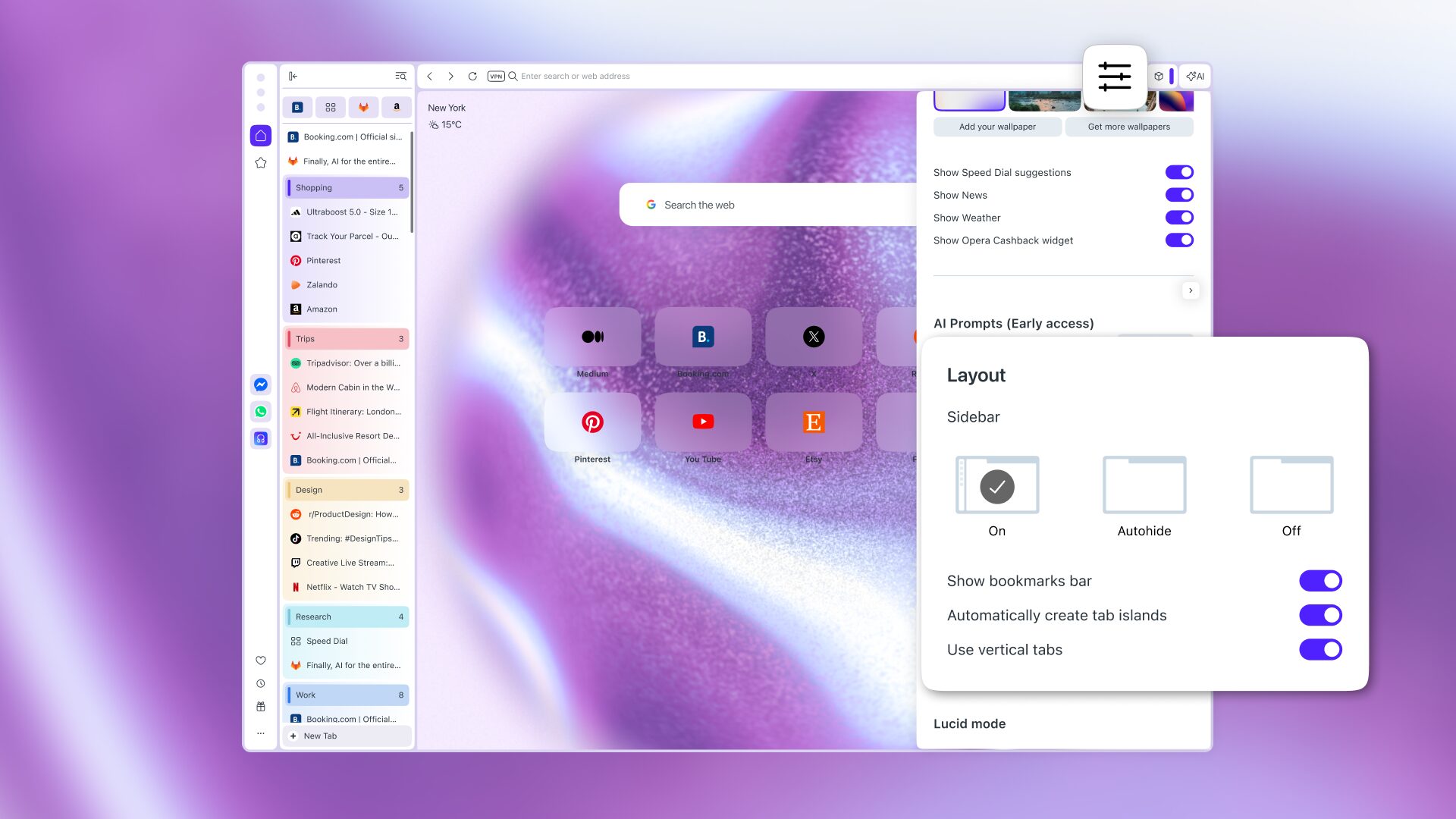
- Open the Easy Setup panel (the icon with the three horizontal bars to the right of the browser’s toolbar) and toggle “Use vertical tab strip” on.
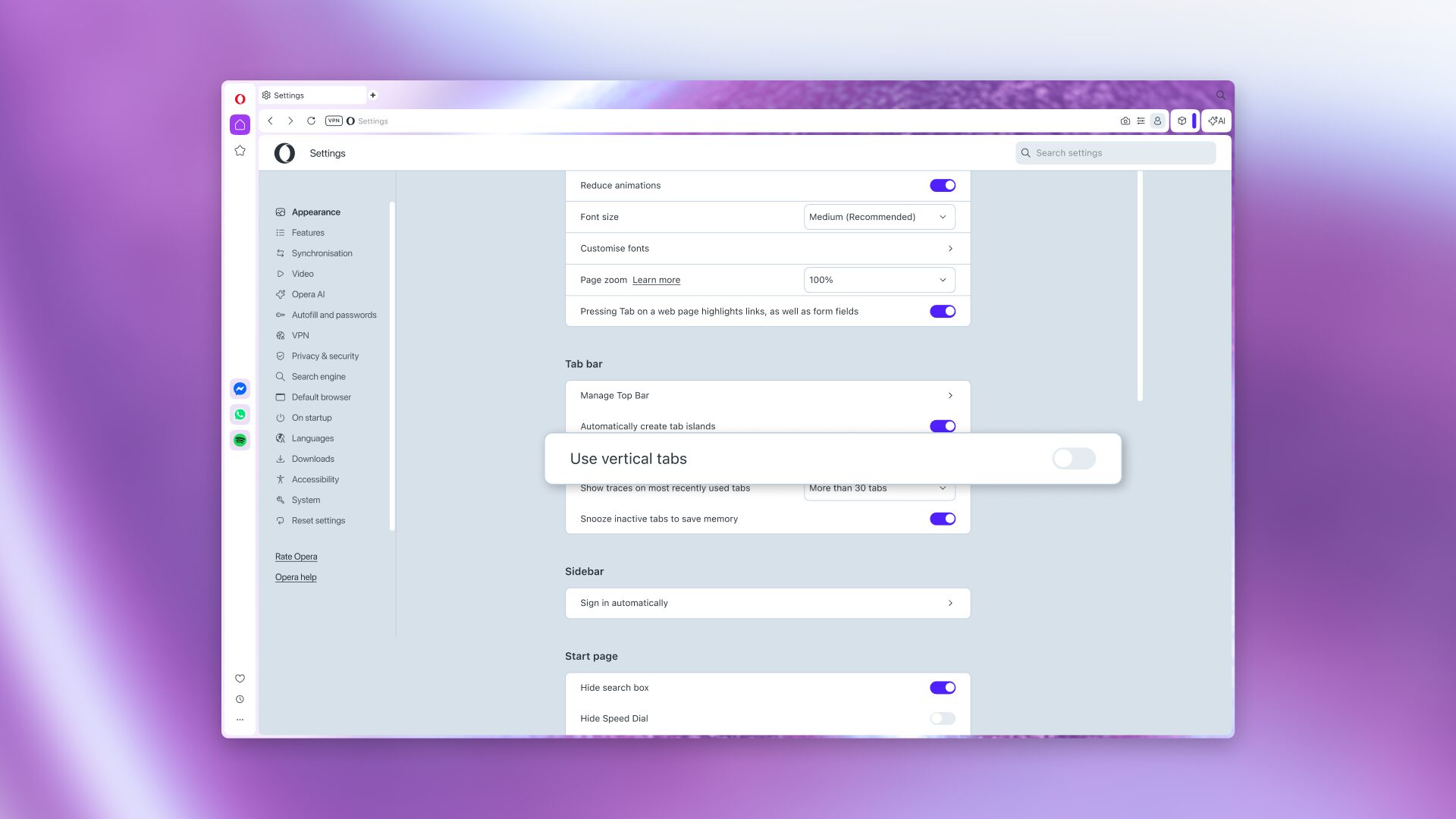
- Go to Settings (opera://settings) → Browser → Tabs → toggle “Use vertical tab strip” on.
Once you’ve enabled the vertical tab strip
These are the characteristics of the feature that you might want to take into consideration:
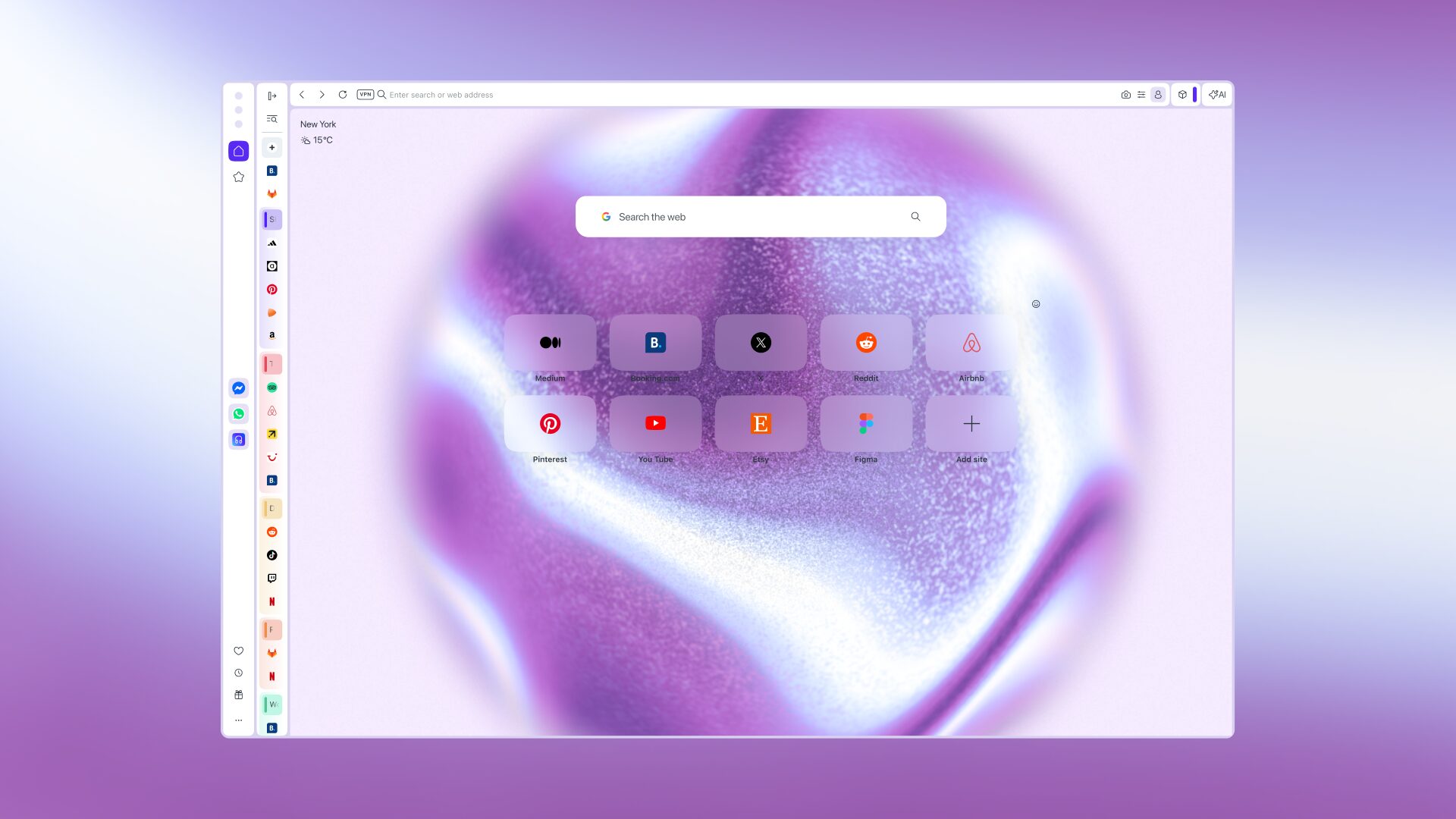
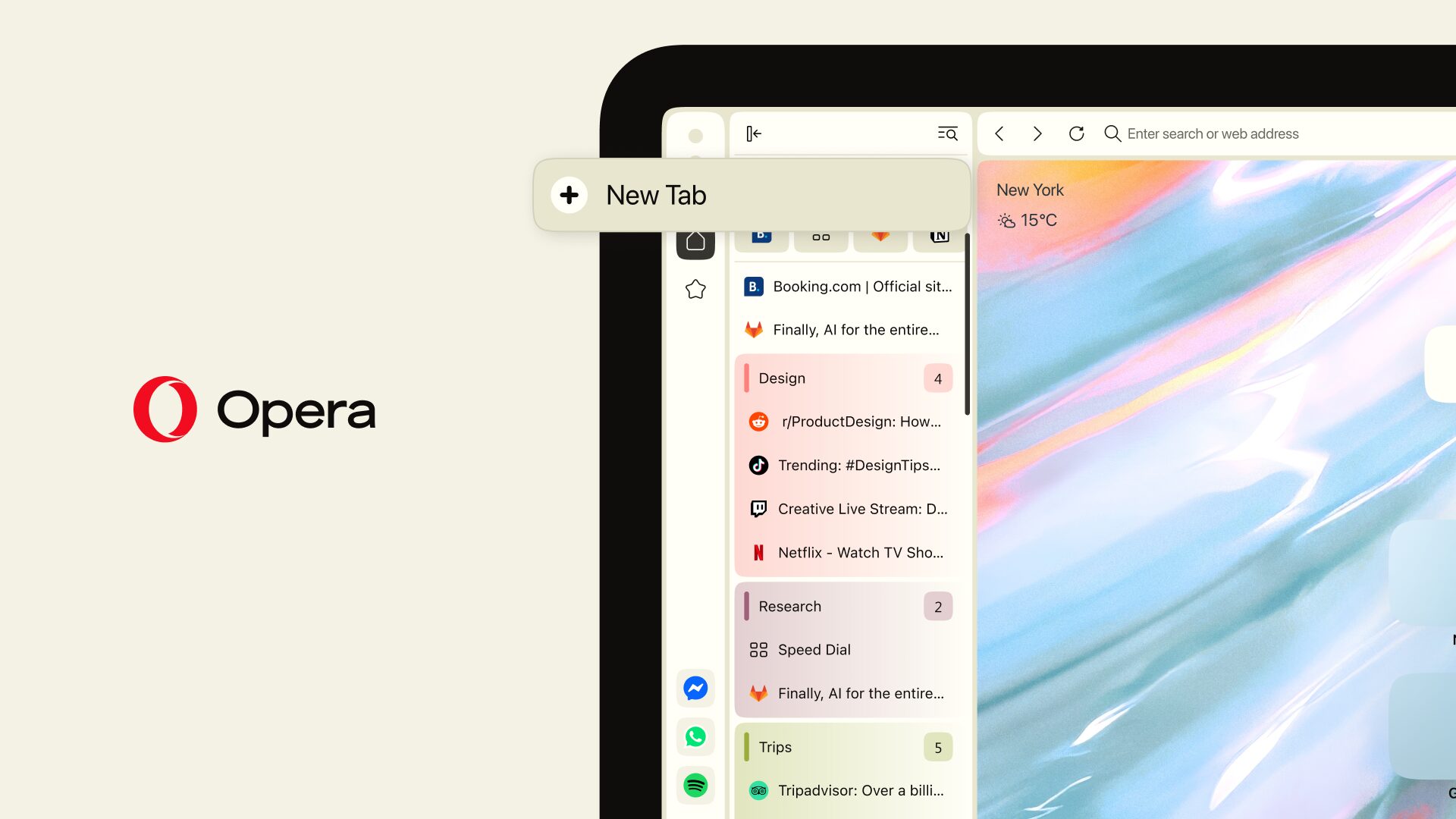
Positioning: You’ll be able to instantly see that your tabs have moved to the left-hand side of the browser window, positioned between the sidebar and the content area.
Resizing: You can resize the width of the vertical tab strip by positioning your mouse on the right border of the tab strip, and then dragging it to readjust its size. Readjusting the size of the vertical tab strip will not change the height of the tabs, as that is fixed.
Collapsing and Expanding: You can switch between a full-sized view of the tab strip and a collapsed one, depending on your needs. The former allows you to see the full title of each and every tab, making them easier to find. But if you have found what you’re looking for you can easily collapse the tab strip and enjoy maximal screen space.
Opening a new tab: A “New Tab” button appears under your last open tab, and keeps moving down the vertical tab strip as you open new tabs. If you have so many tabs open that they go all the way to the bottom of the window, the “New Tab” button docks itself to the bottom of the vertical tabs strip, and you can scroll up and down through your tabs.
Tab Islands: They generally behave the same way as you would expect – they will still be created contextually (or manually, if you want), and you can expand and collapse them by clicking on them. There are, however, a couple differences. First, each Tab Island now displays the number of tabs it contains. Second, each Tab Island automatically receives a name (e.g., Tab Island One, Tab Island Two), which you can change – along with the color theme of the Tab Island – by right-clicking on the Tab Island’s title and selecting what you’d like to alter from the drop-down menu. Third, the colors themselves have been redesigned so that they are a light color gradient that can be easily identified when navigating through the content of different Tab Islands.
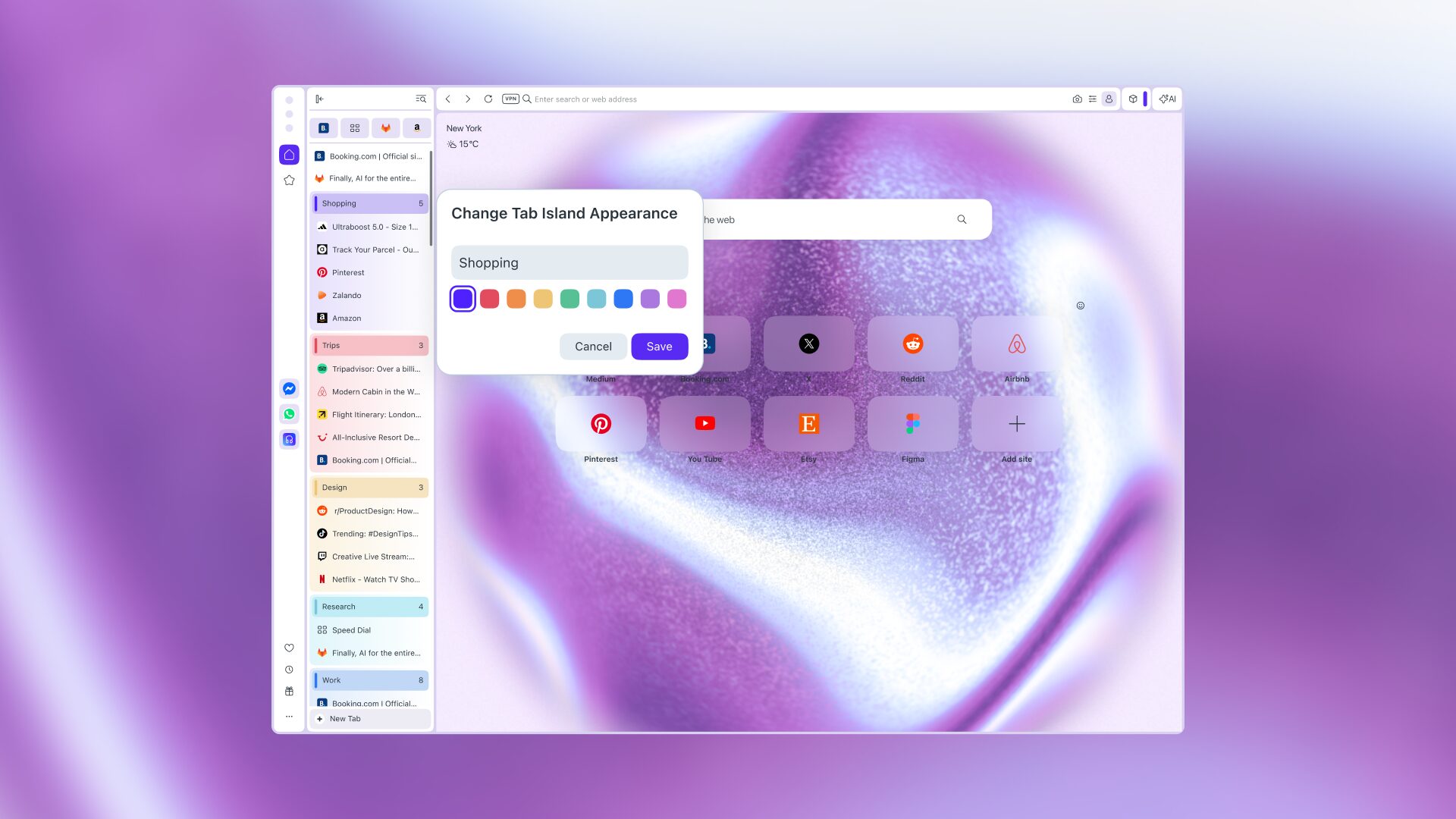
Pinned Tabs: These now appear at top of the strip as a grid of apps, with each pinned page represented by an icon. You can rearrange them as you like, with the grid also changing dynamically according to the width of the tab strip.
Search in tabs: You can search any specific tab you like by keyword. You just have to click the magnifying glass icon at the top right of the vertical tab strip.
Google Meets: Speaking of finding the right tab, in Vertical Tabs we’ve made it simple to identify in which tab you have an ongoing Google Meet – now, you’ll see a new circle recording icon to indicate an active call.
Tab operations: This refers to the actions you can perform when right-clicking on one or more tabs, such as Close, Move, Create tab island, Create Split screen, drag and drop, etc. These actions remain the same in Vertical Tabs. Now, you also have the option to close all the tabs above or below the tab on which you’ve right-clicked.
Tab tooltip: This refers to the pop-up menu that appears when you hover over a tab when using the horizontal tab layout. This tooltip is not available in the vertical tab strip, and therefore you won’t be able to use Tab Emojis or the Volume Booster in the vertical layout.
Themes: Our Themes look more beautiful than ever with Vertical Tabs, as the vertical tab strip uses translucent blurred glass that allows you to see the theme underneath for themes that support transparency.
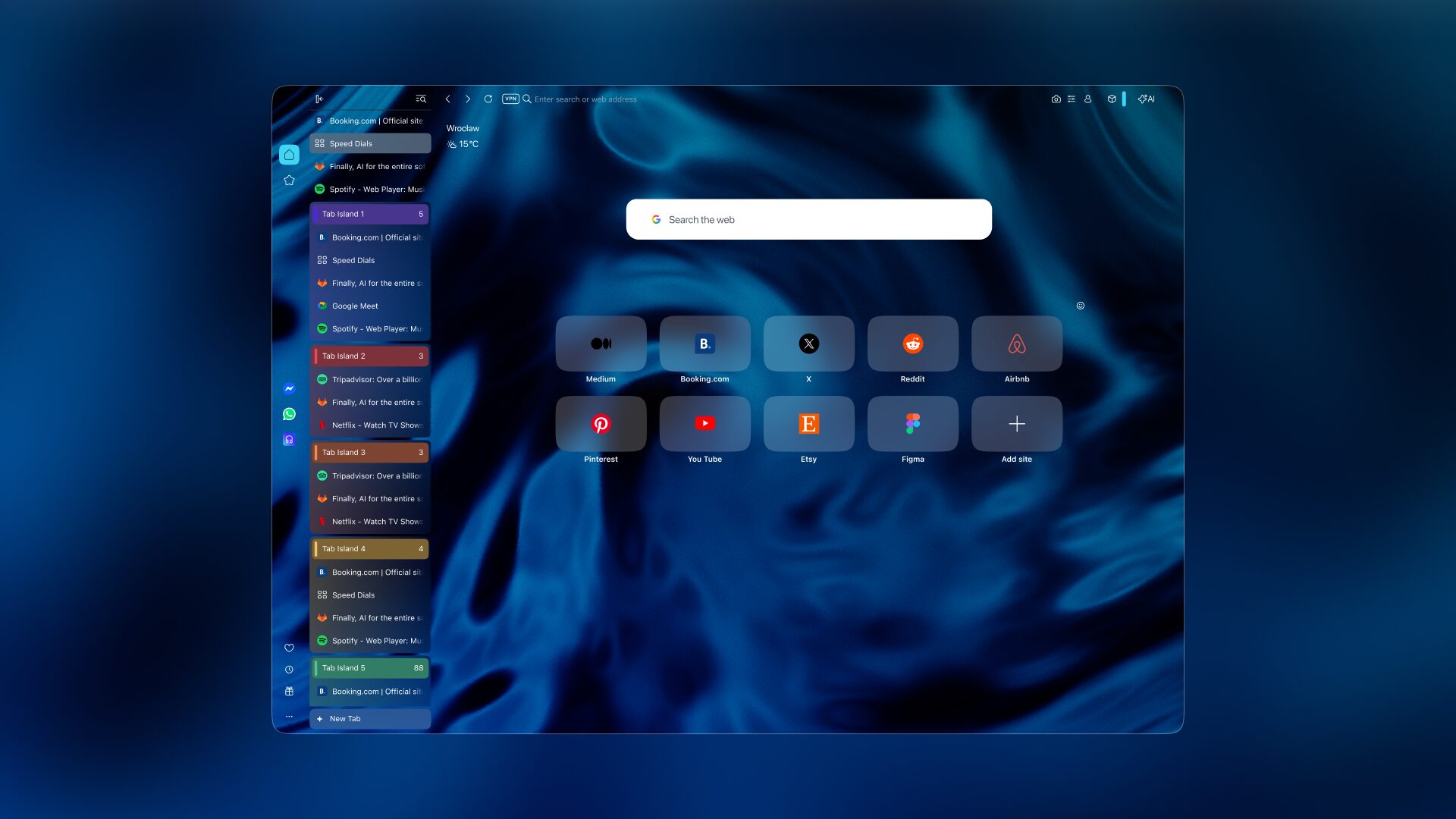
Workspaces: Simply put, Opera’s Workspaces work the same with either layout. So regardless of which one you prefer, Opera One maintains your Workspaces (and Tab Islands therein) so you can use whatever works best for you without losing the way you organize your tabs.
When you switch back to horizontal tabs
Let’s say you like to switch back and forth between horizontal and vertical tabs, depending on what you’re doing. Some elements are not supported in Vertical Tabs though, so what then? Simply put, Opera One will restore things to how you had them.
For instance, you have some Tab Emojis that you’re using as markers on various tabs when using the horizontal layout, and then you switch to the vertical tab strip. What happens to those Tab Emojis? Well, they won’t appear in the vertical layout, but they will be restored when you switch back to the horizontal one.
So there you have it! Plenty that’s new, but plenty that will be familiar to you as well. We hope you’ll give it a try, and we hope you’ll leave us some feedback as well! We’re always looking at ways to improve our products, and your input is invaluable to us.

User comments
You deserve abetter browser
Faster, safer and smarter than default browsers. Fully-featured for privacy, security, and so much more.





You deserve a better browser
Opera's free VPN, Ad blocker, and Flow file sharing. Just a few of the must-have features built into Opera for faster, smoother and distraction-free browsing designed to improve your online experience.