
New Browser Booster Turns Opera GX Into Your Entertainment Hub
Share


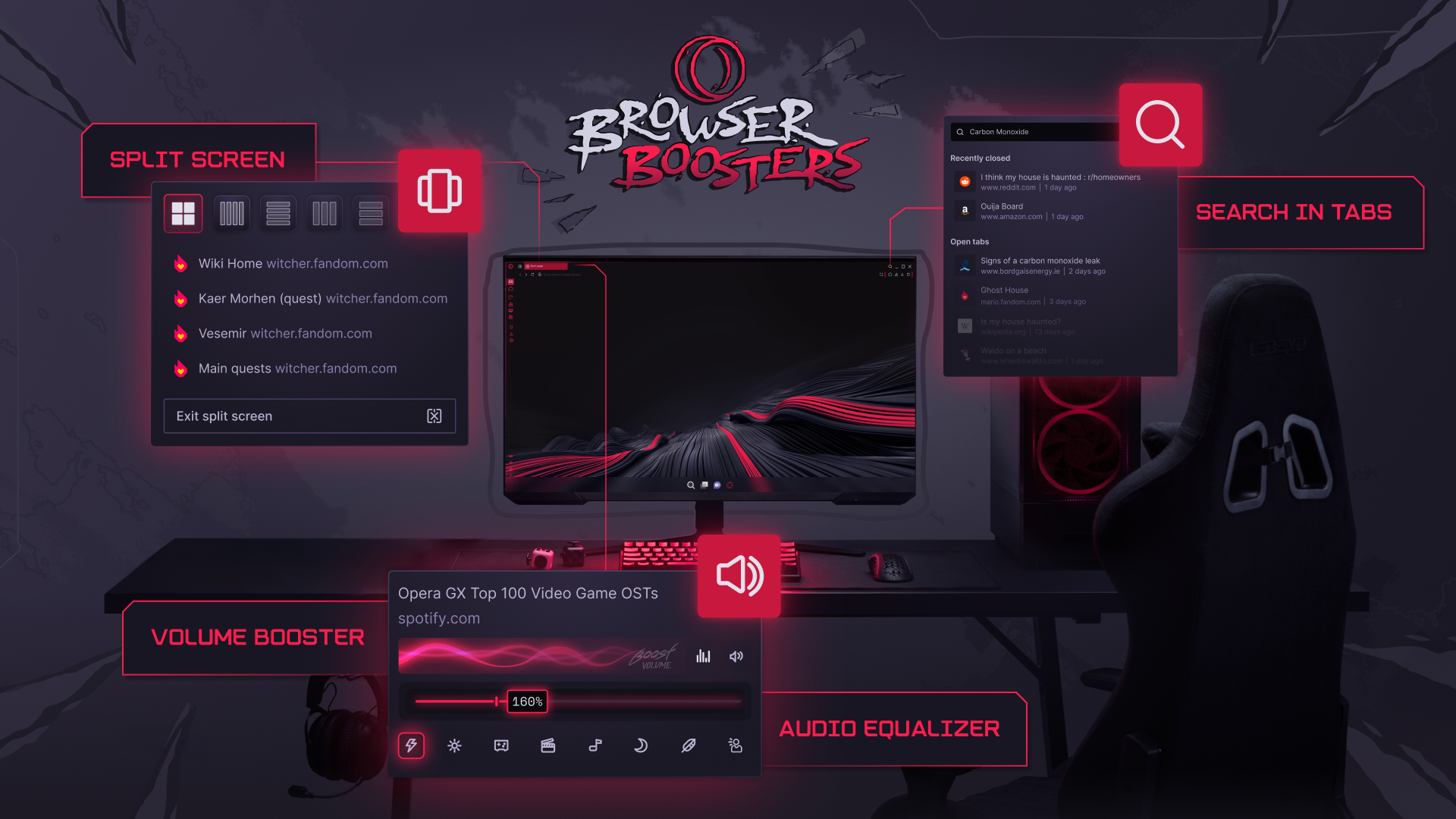
We’ve always been about giving you the tools to rule the web, but our latest Browser Booster puts GX in a category of its own. The first to natively incorporate both a Volume Booster and an Audio Equalizer, Opera GX is also introducing retooled Split Screen functionality that turns your browser into a one-stop entertainment hub. Search in Tabs rounds out an update package that makes your browsing louder, clearer, and easier to manage.
So now you can stream an episode of your favorite podcast while you shop RAM prices while you restore the tab with that walkthrough you forgot the name of, all within a click or two – and without needing to install any extensions. There’s plenty here, so we’ll walk you through what each feature does, and how and when to best use it.
Volume Booster: When 100% Isn’t Loud Enough
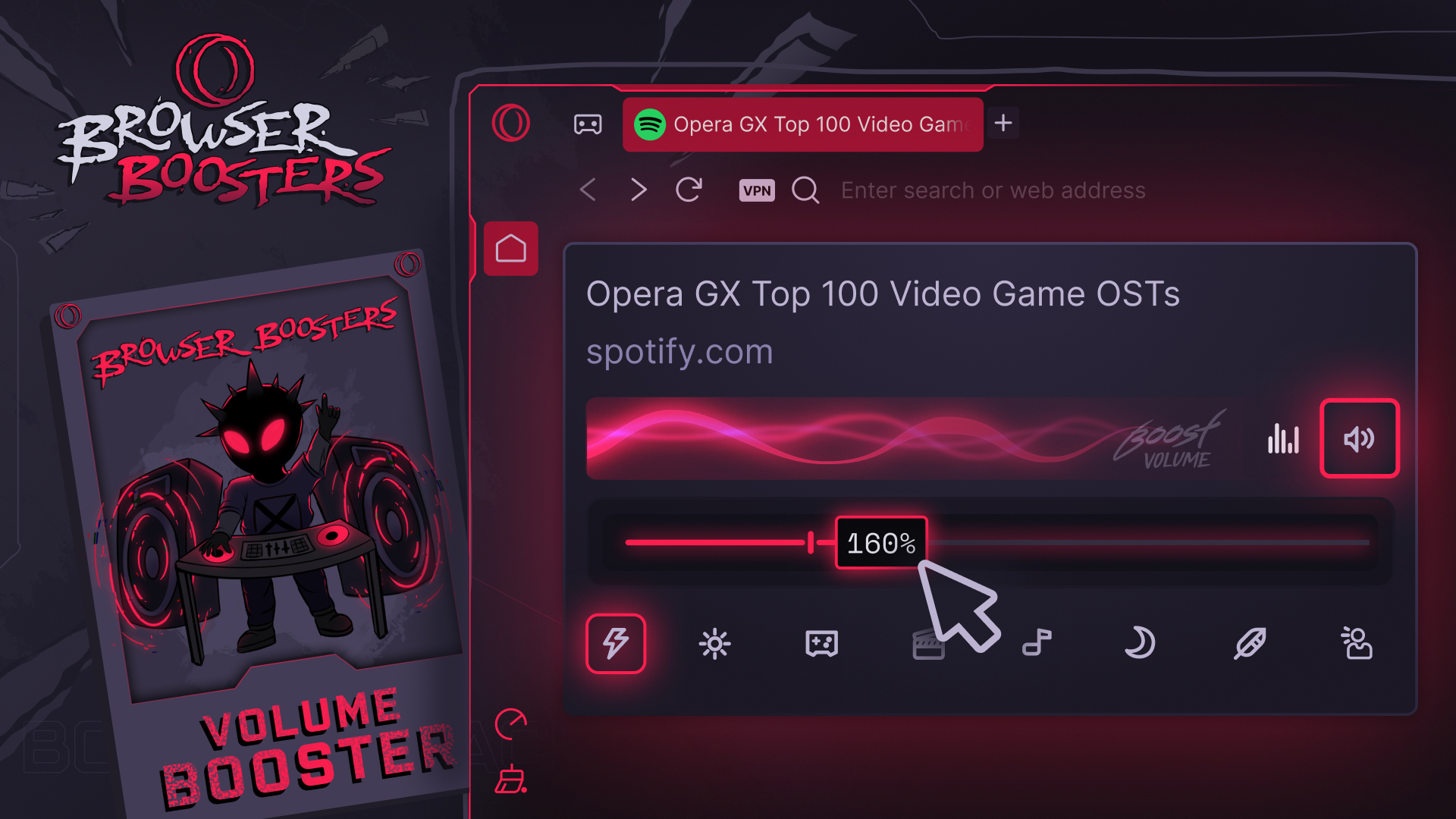
We’ve all been there. You’re watching an old, poorly optimized video clip and you can hardly hear a thing. Or you’re in a noisy place, and the headphones on full blast are somehow not quite cutting it. You wish you could crank it up to 11, but are technologically limited.
No more: with Opera GX’s new Volume Booster, you can amplify the audio of any tab up to 500%. There’s nothing complicated to open, it doesn’t affect your system volume – you just have to hover over the tab you want to boost and toggle the volume bar that will appear in the tooltip.
You’ll find the same boost option in the sidebar player, so your music – Spotify, YouTube Music, or whatever it is that you have – can get some extra punch too.
Remember, every tab has its own volume setting, so boosting the volume on one does not affect another (or the system volume). You can switch away to another tab and the volume at which you left things will remain. Also remember to boost the volume carefully! Especially if you’re listening to music, it’s good to raise the slider slowly, so as not to hurt your ears.
Audio Equalizer: Always Set the Right Vibe
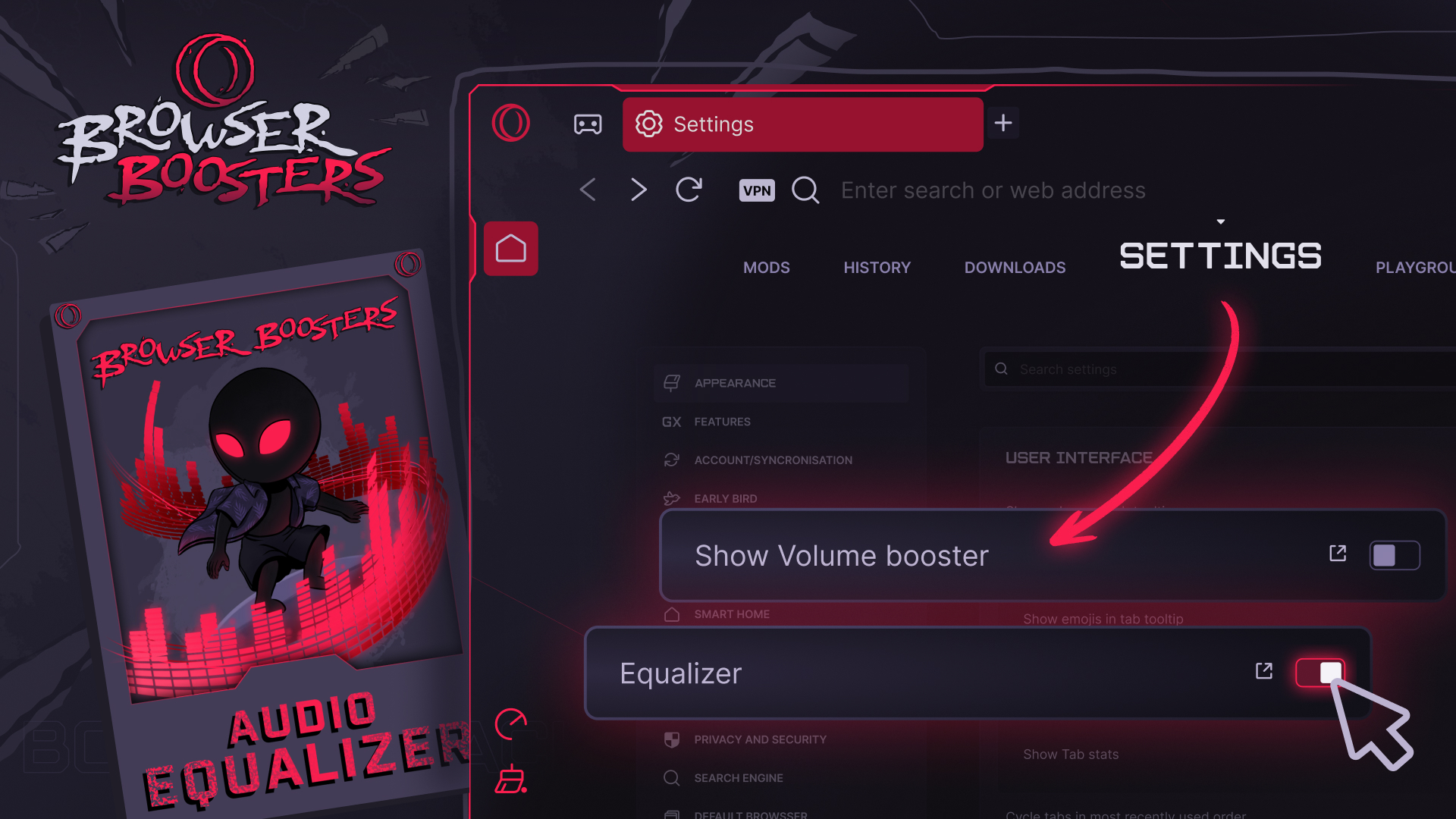
So now your audio can be louder than you’ve ever experienced, but we’ve also added an Equalizer so it can be optimized to whatever it is that you’re listening to. The Equalizer comes with eight ready-made sound profiles for any tab, so whether you’re gaming, watching a movie, or listening to some bass-heavy tunes, the audio will sound the way they should in each tab. Like the Volume Booster it appears in the tooltip when you hover over a tab, with its functionality integrated into the sidebar player as well.
The Equalizer comes with eight presets to help you optimize a wide range of audio experiences. Below you’ll find what they are, and in which situation they shine:
Voice is best for speech. It trims the lowest frequencies – which add little to understanding and can make voices sound muddy – and gives the midrange a big lift so dialogue comes forward. Try Voice with podcasts, audiobooks, YouTube, dialogue-heavy TV, video calls, and lectures.
Night cuts low-frequency energy sharply, as bass can travel through walls and floors and bother other people. It also lifts the midrange so speech and key details stay understandable at low volume. Think of it as the don’t-annoy-the-neighbours preset: best for late-night movies, listening to music quietly in your apartment, or any time you want minimal bass.
Music is the everyday all-rounder. It adds a moderate bass lift for warmth and impact, eases the lower mids to avoid muddiness, and gradually brightens the top end for detail. The result is a restrained take on the popular V-shaped sound, suited to pop, rock, electronic, hip-hop and more.
Movie is a bit of a blend of Bass and Voice. Soundtracks and explosions get extra weight from the low end, while a raised midrange keeps dialogue from being buried. The highest frequencies stay fairly neutral so bright sound effects don’t turn harsh. Use it for films or more action-packed series.
Soft gradually reduces the upper frequencies for a warmer, smoother, less aggressive sound, with a slight bass emphasis to keep warmth. It’s a good match for harsh headphones, poor or compressed recordings, background music, and long listening sessions where you want to avoid fatigue.
Bass is all about the low end, with the boost fading out gradually as frequencies rise. It’s made for EDM, hip-hop, and any bass-heavy track. Be warned: this is the strongest boost of the eight, so on speakers or headphones already near their maximum output it’s the preset most likely to cause distortion.
Bright lifts the upper mids and treble and slightly reduces bass, bringing out details, percussion and higher-pitched instruments. It can make dull or muffled speakers and headphones sound much more open, and it suits acoustic music and recordings that lack detail.
Gaming trims the deepest bass and emphasizes the midrange and presence region. Booming explosions and engines can mask quieter sounds, so reducing them makes footsteps, weapon handling, and voices easier to place. It’s ideal for competitive and FPS games, where hearing quiet cues matters more than cinematic bass.
Note that the Equalizer and the Volume Booster both work together in each tab, so if you’re listening to a walkthrough you can throw on Voice and give your guide a little extra volume so you don’t miss anything. Or if you’re feeling more metal you can put it on Bass, crank up the volume, and melt your face. The choice is yours!
And by the way, so too is the choice to turn both the Volume Booster and the Equalizer off if you don’t wish to see them in your tooltip. Both are fully configurable in the User Interface section of the Settings.
One more thing: Can’t find the tab that’s playing or recording audio? Simply look for the tab that’s underlined by the color of your chosen Theme. So if you stick with GX Classic, for example, the tab will stand out with a big red underline. It’s easier to spot than a little microphone logo, and can help you quickly jump to the right tab. Don’t want that either? You can turn it off too in the Settings under User Interface.
Improved Split Screen: Up to Four Pages at Once
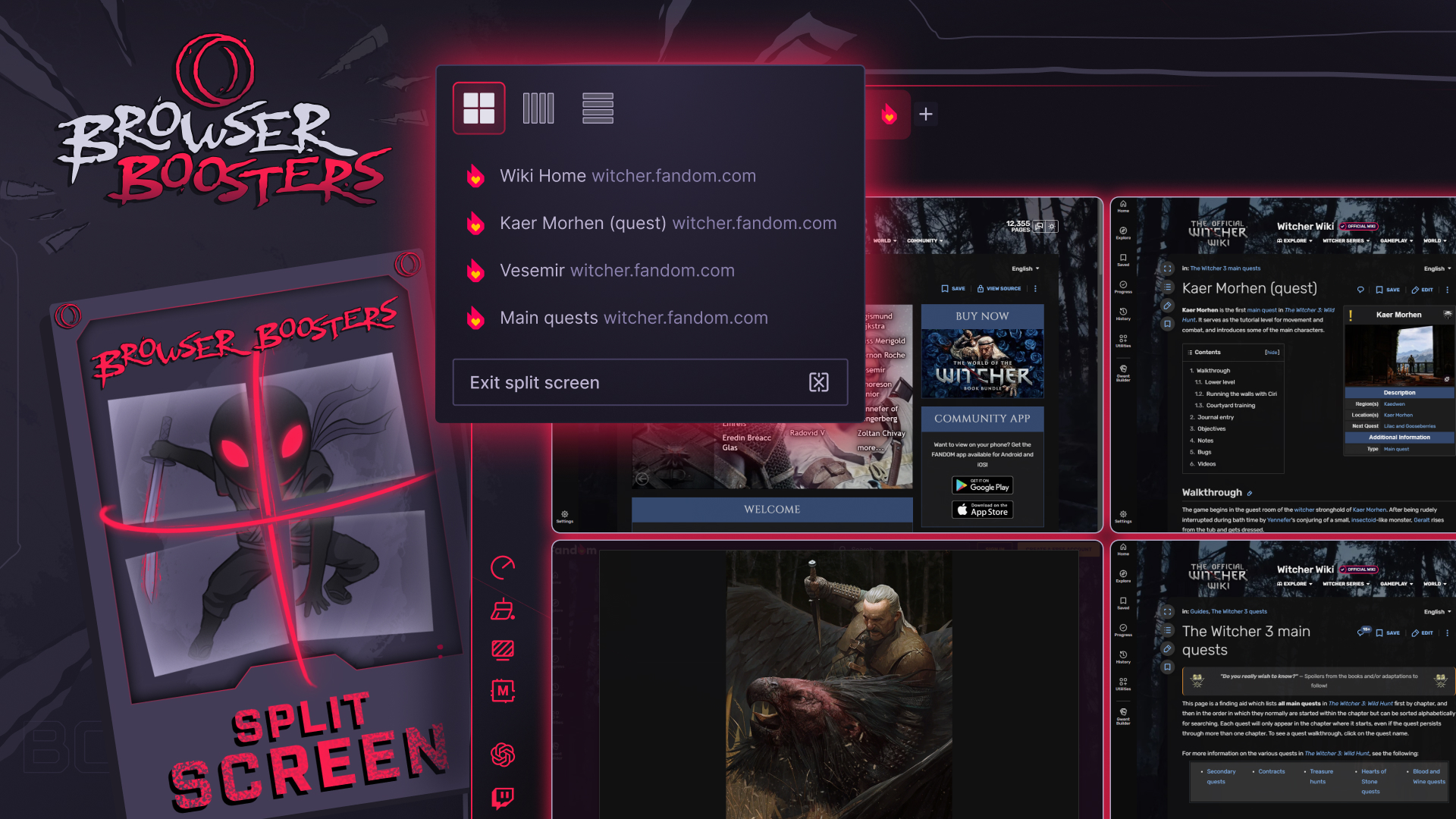
We’ve taken Opera GX’s Split Screen capability to the next level: Now you can see up to four pages on your screen at once, plus arrange them in different layouts to match the task at hand.
To create a split screen, you simply need to drag a tab inside the browser window. A game-changer here is the clear animated drop areas that show you where to drop your tab to build a split screen. No guessing, no needless text – just a clear visualization of where and how to create your desired view.
If you prefer, you could also right-click a tab to create a split screen. Either way, once you’ve created one you can click the split button in the toolbar to change the layout, close your split screen, or leave us some feedback.
Apart from the animated drop areas, we’ve also introduced a few quality of life improvements to further boost Split Screen’s utility. For one, there’s a tab tooltip that lists which tabs are inside a split screen and also an option to exit split screen. If you have Early Bird enabled you can also add an emoji to make it easier to locate specific tabs among the many that are open. Finally, when you hover your mouse over a page in the split screen an additional button appears enabling you to close the page or take it out of the split screen – a small yet handy utility to conveniently manage your multiple screens. We are still working on all this, so try it out in Early Bird (Settings → Early Bird) and feel free to give us feedback.
Put all of the above together and there’s so much you can do. You can, for example, watch a music video (with the volume boosted and set to your preferred equalizer preset) while you shop products or prices side by side – and then even ask Opera AI, which works within the context of the opened pages, to analyze the results. Or maybe you’re listening to a podcast as you get some work done, and you conveniently have multiple spreadsheets open side by side so you don’t have to keep hopping back and forth between tabs. Opera GX becomes an entertainment hub, a command center that lets you multitask with the best of them, with everything neatly laid out and a perfectly optimized audio accompaniment.
Find Anything, Restore Anything: Improved Search in Tabs
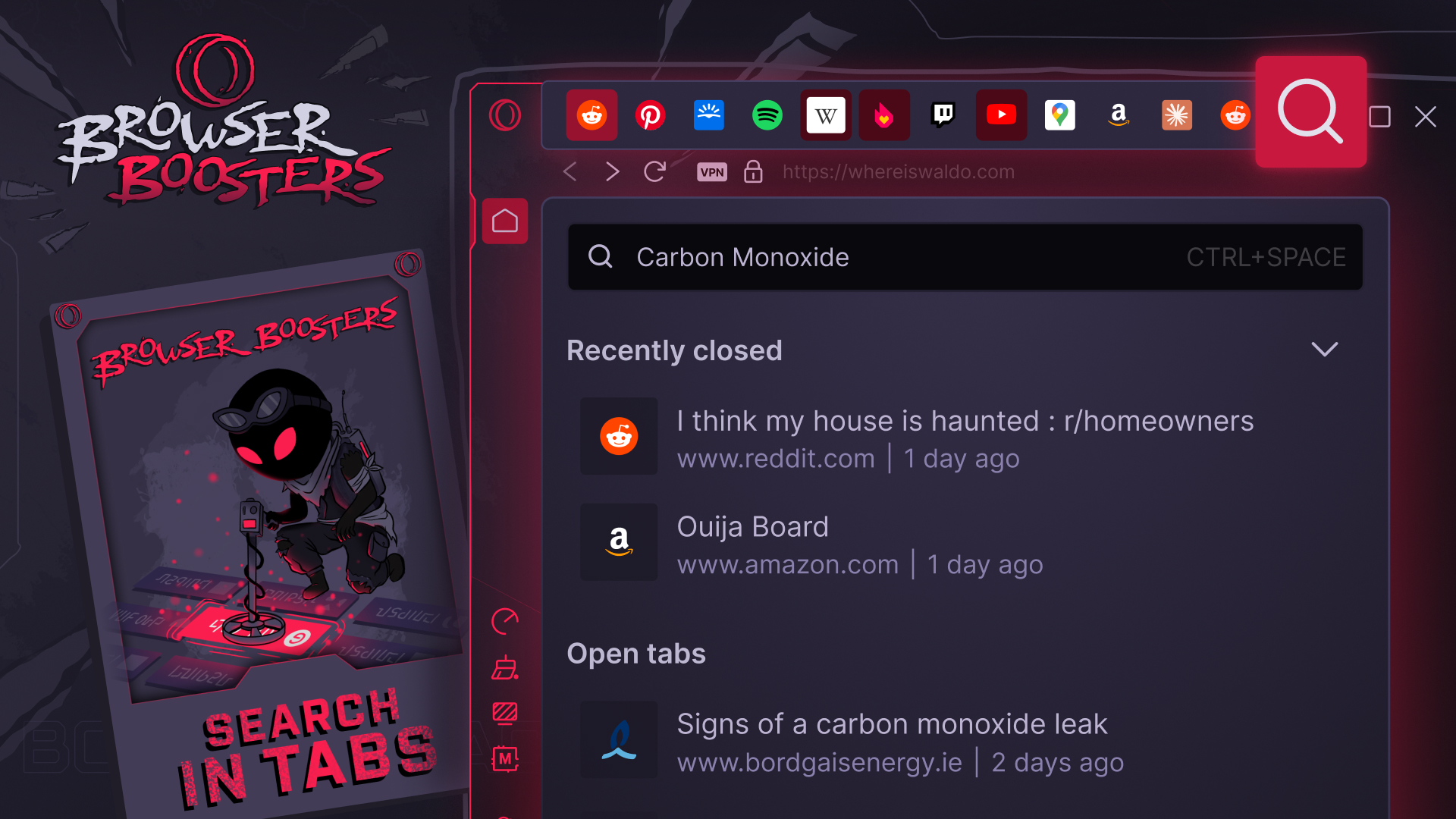
That all means that there might be a lot to keep track of, which is where the final aspect of this Browser Booster update comes in: Search in Tabs.
We’ll never judge you for the number of tabs you have open – that’s your business. We will, however, try to make it easier for you to find that one in 100 when you really just can’t be asked to go through them all manually.
Search in Tabs lets you find any tab across all your windows, Workspaces, and Tab Islands by typing its title, its URL, or just something that’s on the page. And not only that – you can also restore recently closed tabs, with their full browsing history inside.
How do I wield such power, you ask? Just click the magnifying glass in the top right corner of the browser. Or, if you’d rather a keyboard shortcut, hit Ctrl + Space on macOS, Alt + Space on Windows.
Once you’ve opened Search in Tabs, you can do a number of things:
- To find a tab, start typing. The search field is focused automatically – type a tab’s name, part of its URL, or text from the page, and the list narrows instantly.
- Maybe you opened a bunch for tabs from the same website and aren’t sure which is which. In that case, search by content when titles look alike. When several tabs share a similar title or URL, you can still find the one you want by what you remember reading on it.
- Reopen a closed tab. Below the search field, an expandable list shows recently closed tabs. Click one to bring it back.
- Switch to an open tab. Further down you’ll see every open tab. Click the one you want.
- Close tabs right from the dialog. You can see all your open tabs in one place, and then quickly conduct a purge once the list is already filtered down.
Reopening tabs this way has a number of benefits over doing so from your History. First, a tab reopened from this dialog comes back with its full browsing history, so you can press the back button and visit the pages you’d been on in that tab. It’s a lifesaver for tabs closed by mistake. Second, the tab returns to its original context, so you don’t have to think about which Workspace or Tab Island it belongs to.
Search in Tabs can be turned on or off at any time. Simply go to Settings → Appearance → User Interface → Enable Search in Tabs. Turning Search in Tabs off also removes the magnifying glass icon from the interface.
Boost your Browsing with Opera GX
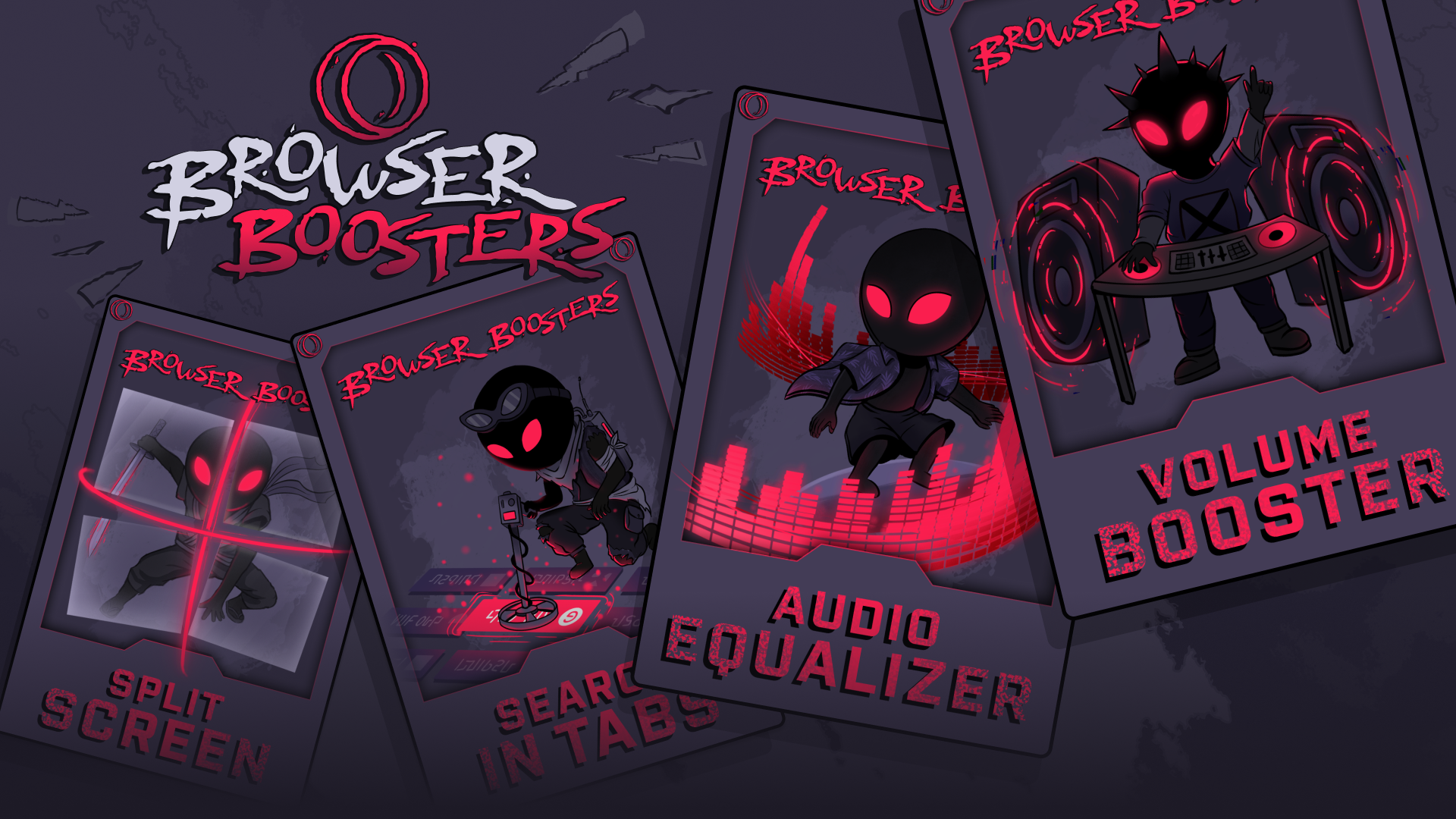
So there you have it: Four powerful tools to transform your browsing experience. Become a sound engineer with just the right volume and feel for any situation. Create your own command center with two to four screens at your fingertips. Find the needle in the tab haystack, whether it’s an open tab or something you’d accidentally closed. And where else can you do all this? Nowhere – only in Opera GX.
Give it a try if you haven’t already: download Opera GX.

User comments
Make the web your playground
No lag, no clutter, just play. Squad up on Discord, stream on Twitch, and sprinkle GX with mods to make it your own.




You deserve a better browser
Opera's free VPN, Ad blocker, and Flow file sharing. Just a few of the must-have features built into Opera for faster, smoother and distraction-free browsing designed to improve your online experience.