
Introducing a new way to customize your Themes in Opera One
Share


Hey all,
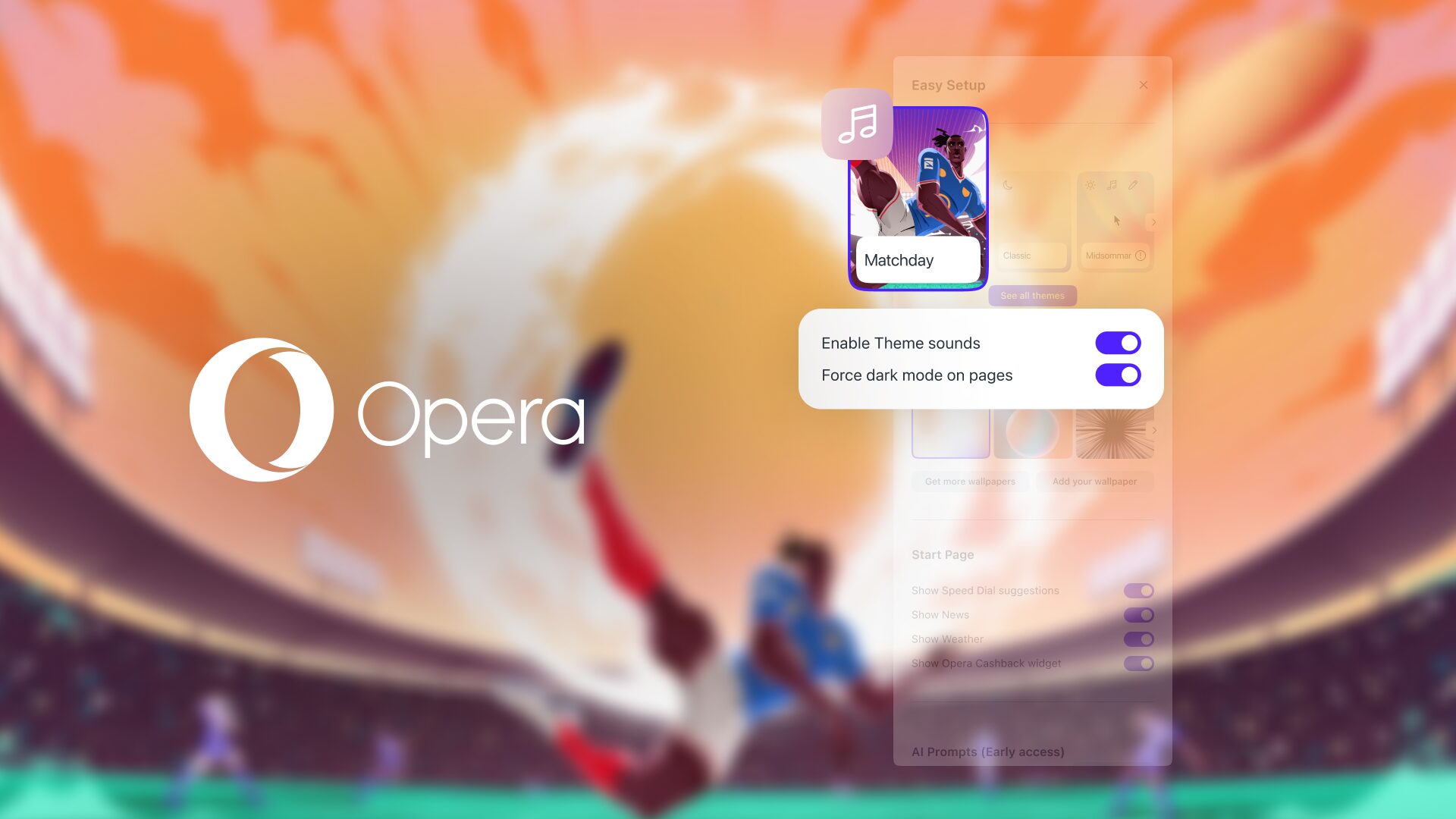
Today we’re introducing a new customization interface for the Themes in Opera One. With this update we’re making the Theme editor more straightforward and intuitive, which in turn makes it easier for you to configure your Themes.
We’ve been listening to what you have to say about the Theme editor and we’re making the following changes with your feedback in mind:
- Improved discoverability: you can see all the Themes directly in the Easy Setup menu instead of having to go to the Theme Gallery.
- More predictable customization: when you edit a Theme you’ll find a browser preview which allows you to see the changes that would be applied to the browser.
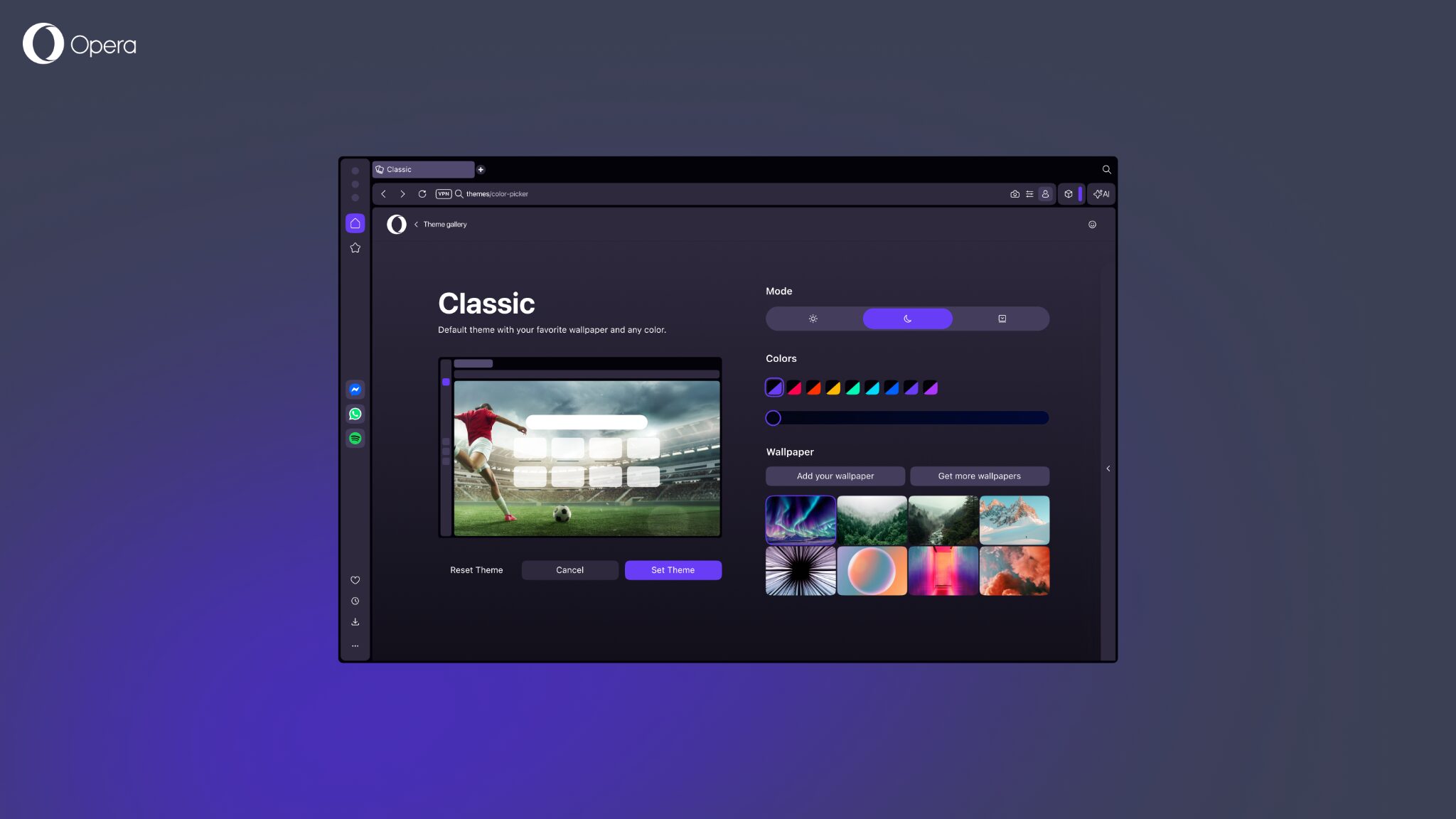
- Easier customization: now it’s easier to see the preset colors for each Theme, and we’ve added an option to adjust the saturation of the color – or the speed of the shader in case you’re using a shader-based Theme.
- Add your own wallpapers: you can add your own wallpapers to the browser by using the Classic Theme, and still customize the colors of the browser and their saturation.
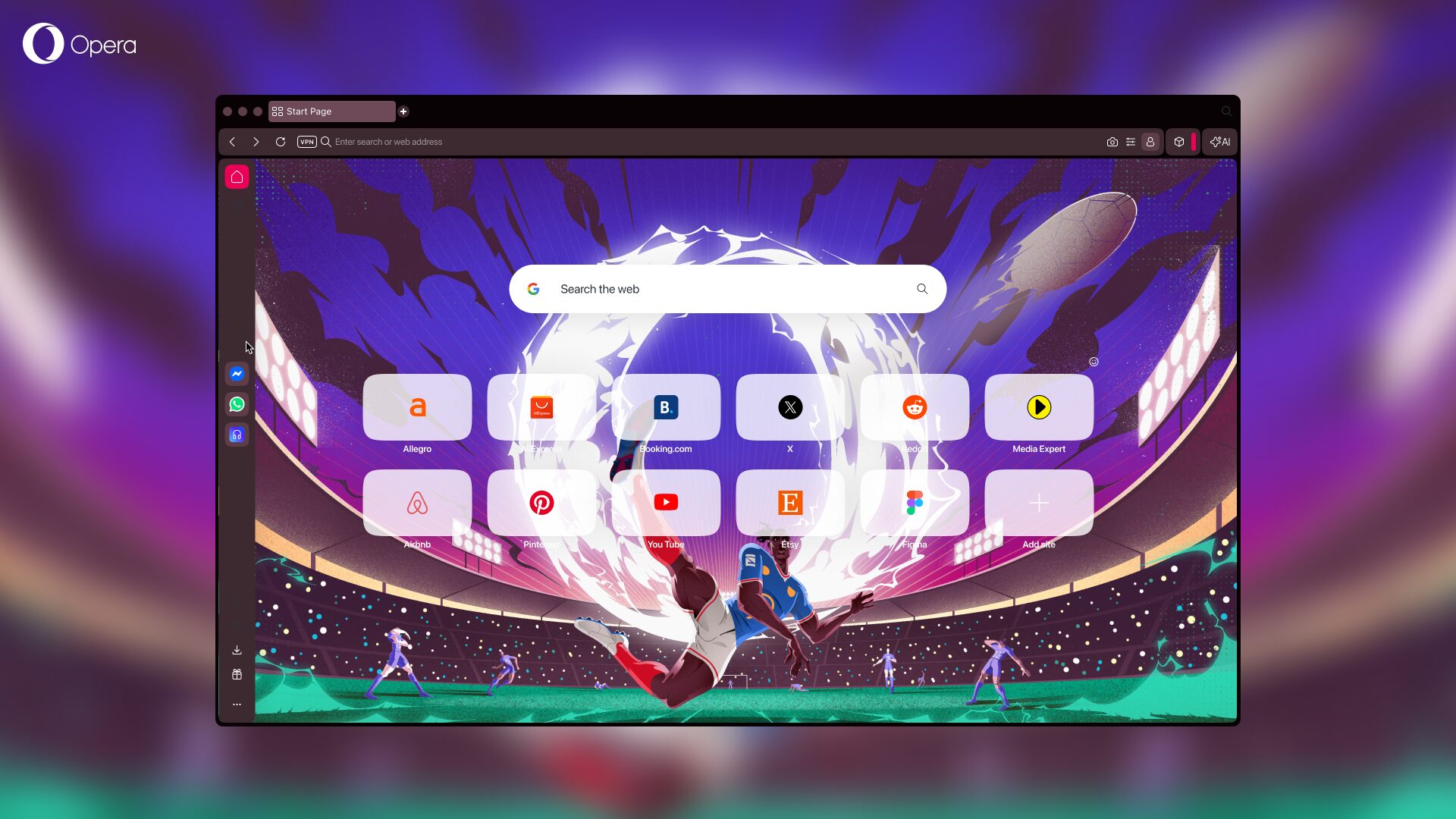
- A new theme is available: we’ve created a new football Theme, with browser and keyboard sounds, right in time for the most important football tournament out there.
With that in mind, let’s dive a bit deeper into the changes we’ve made to the customization options in Opera One.
New Theme editor interface
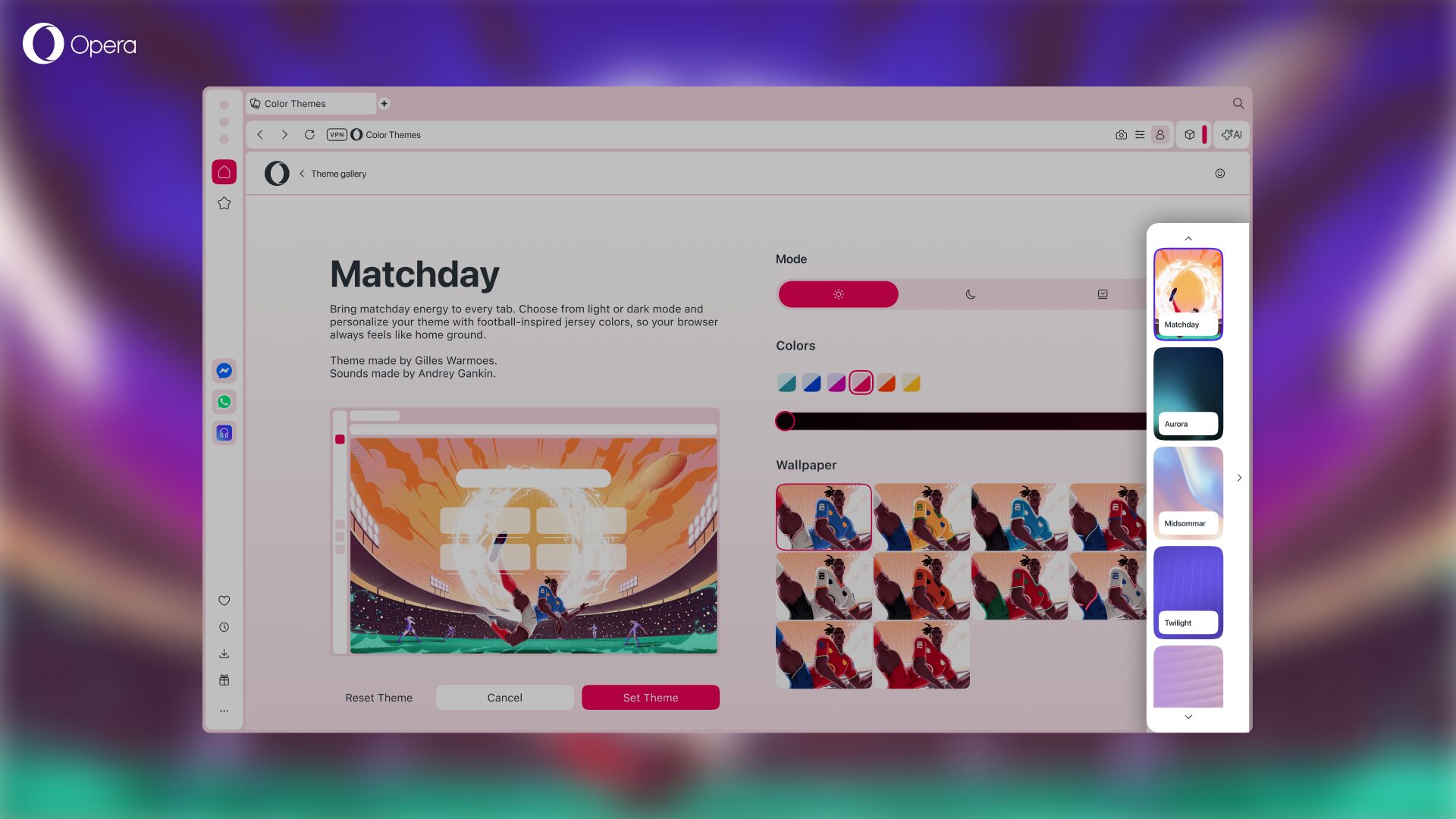
Let’s start with the biggest and most noticeable change here: the new Theme editor interface. While it might differ a little from Theme to Theme, this is how it looks like when you want to edit a Theme:
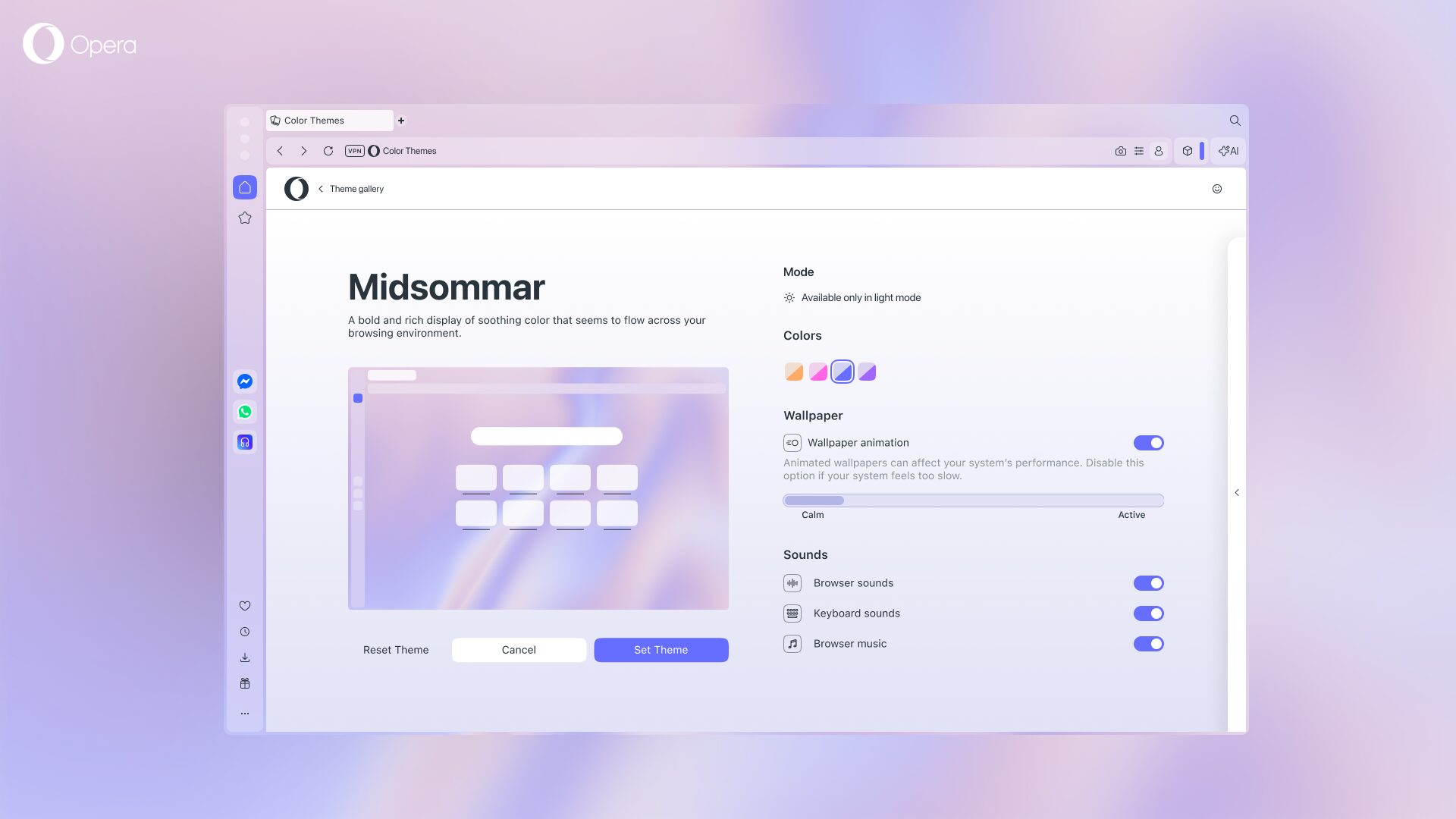
If you’ve been using Themes before, you’ll be able to see how it is different from before and how this interface is more intuitive than the previous one, and therefore easier to use – especially for newcomers.
With this new Theme editor you simply choose the color you want and then slide the bar to change the saturation of the color or the speed of the animation (in case you’re using a Theme with shaders).
The browser preview shown in the interface will instantly reflect the changes that you want to make to the browser and help you see more clearly how it would look like. That way you don’t have to set a Theme up and then go back into the editor to adjust it.
Finally, we’re also adding a collapsible Theme Gallery shortcut that will appear to the right hand side of the screen when you’re inside the Theme Editor. This collapsible gallery lets you choose new Themes to try out without having to leave the Theme Editor at all, which means that you don’t have to go back to choose a new Theme and then into the Theme Editor again. This improves the overall interaction with the editor and the general Themes experience.
Edit Themes from the Easy Setup menu
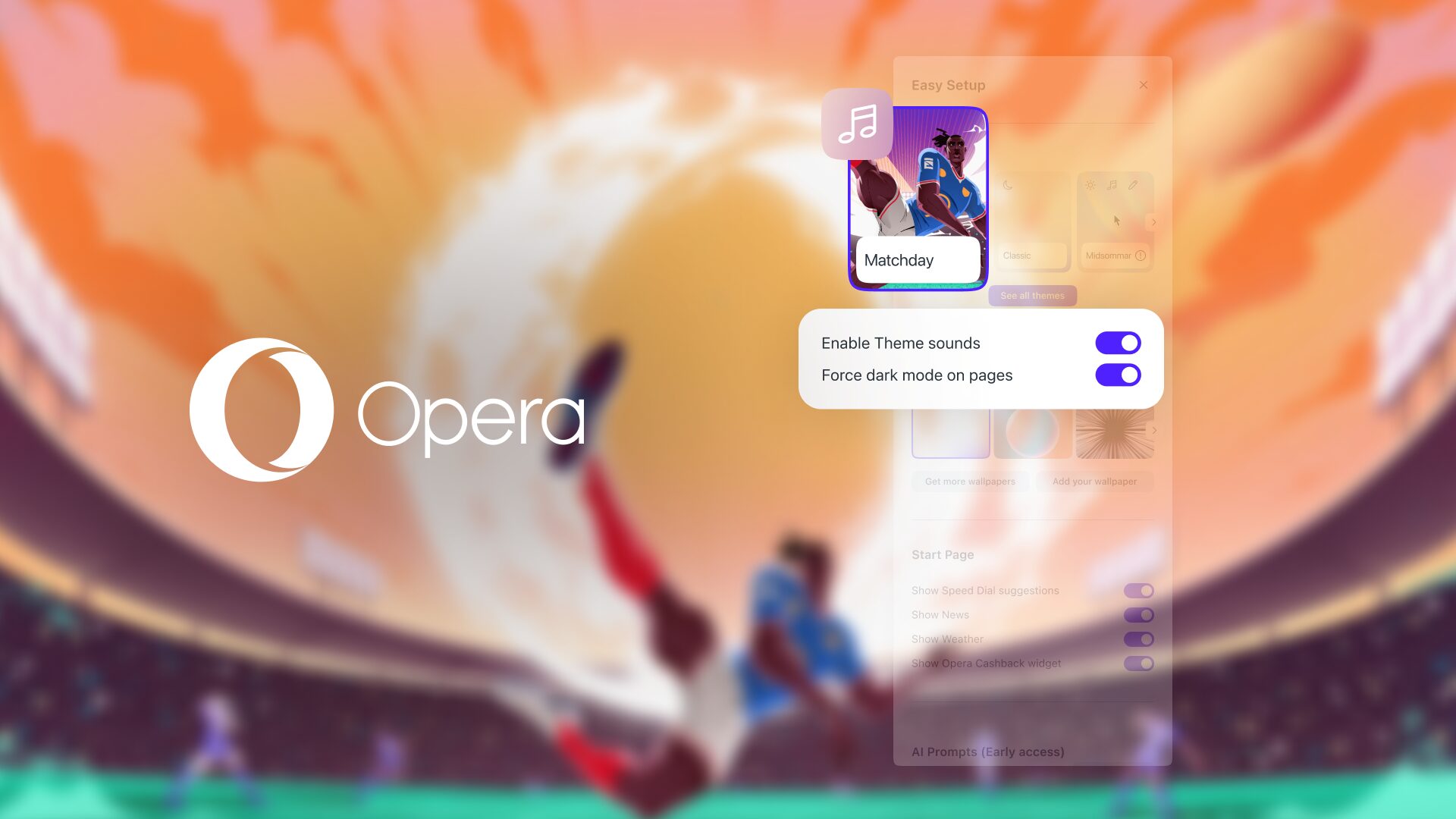
An additional change in this update is the access to Themes from the Easy Setup menu. Now you can scroll through all the available Themes from the Easy setup menu, making it easier to discover and choose which one you want to use.
Additionally, we’ve identified that some of you got confused when a Theme has background music or browser sounds, because it was not clear where to turn those sounds off after setting up a Theme. Now, when you open the Easy Setup menu, you’ll see that there’s a sound indicator icon featured on the card of the Themes that play sounds.
A new Theme to support your team
Finally, we’re also adding a new football Theme with browser and keyboard sounds so you can get the full vibes of summer football when streaming matches in your Opera browser. This Theme was created by artist Gilles Warmoes, so check his work out on his instagram.
Use your own wallpaper
If you want to add your own wallpaper to your Opera One browser, then you can do so by selecting the Classic Theme like this:
- Go to the Easy Setup menu at the top right of your browser.
- Then click on “See all themes.”
- Select the Classic Theme.
- Click on “Add your wallpaper.”
Once you do so you’ll be able to select an image from your system’s file manager. When you choose the Classic Theme you can also choose the color of the browser’s UI, as well as adjust its saturation.
Download Opera One and get the best Themes
Try the new football Theme in Opera One by downloading the browser here, and don’t forget to customize them with the new Theme Editor.

User comments
You deserve abetter browser
Faster, safer and smarter than default browsers. Fully-featured for privacy, security, and so much more.


You deserve a better browser
Opera's free VPN, Ad blocker, and Flow file sharing. Just a few of the must-have features built into Opera for faster, smoother and distraction-free browsing designed to improve your online experience.