
Opera AI comes to Opera One, Opera GX, and Opera Air
Share


Opera AI comes to Opera One, Opera GX, and Opera Air
Last month we started a gradual rollout of Opera AI to our flagship desktop browser, Opera One. Taking the place of Aria, our completely rebuilt browser AI – which is accountless and free – is now available to all users of Opera One, Opera GX, and Opera Air. Read on for more information about what’s new, and how you can personalize your AI experience within Opera.
What’s new in Opera AI
We rebuilt our browser AI from the ground up to include new features, capabilities, and upgrades. They include:
Improved UI: There’s a new access point to Opera AI that you’ll find in the top-right corner of the browser, whether you’re using Opera One, Opera GX, or Opera Air. When you click it, you get access to the new dedicated space for the AI interface in the browser that’s no longer appearing on top of your content, but as a side panel you can interact with whenever you want.
A faster AI: The agentic-based engine – adopted from Opera Neon – has been rebuilt for speed. Thanks to the new architecture, it is capable of delivering 20% faster responses.
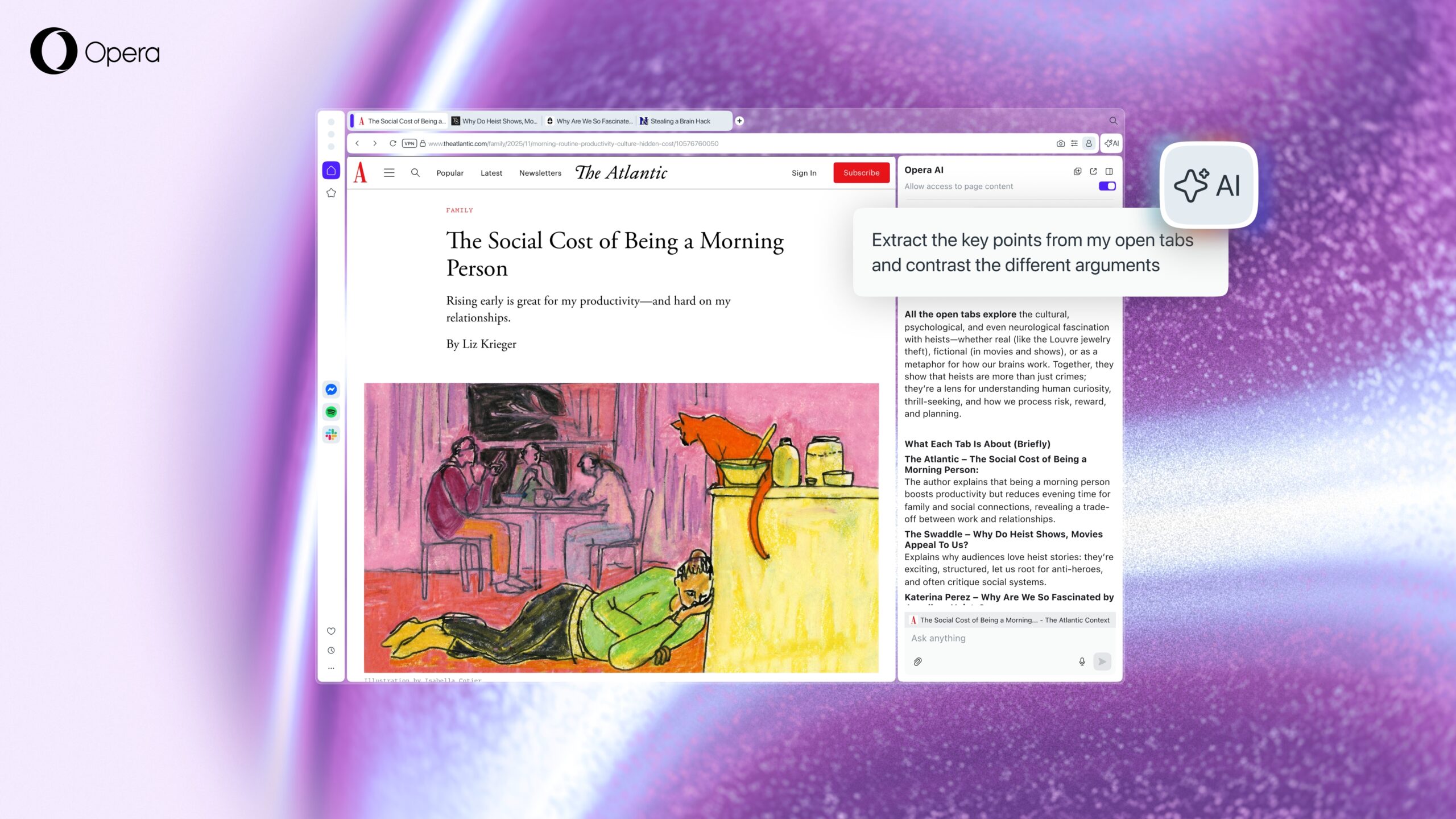
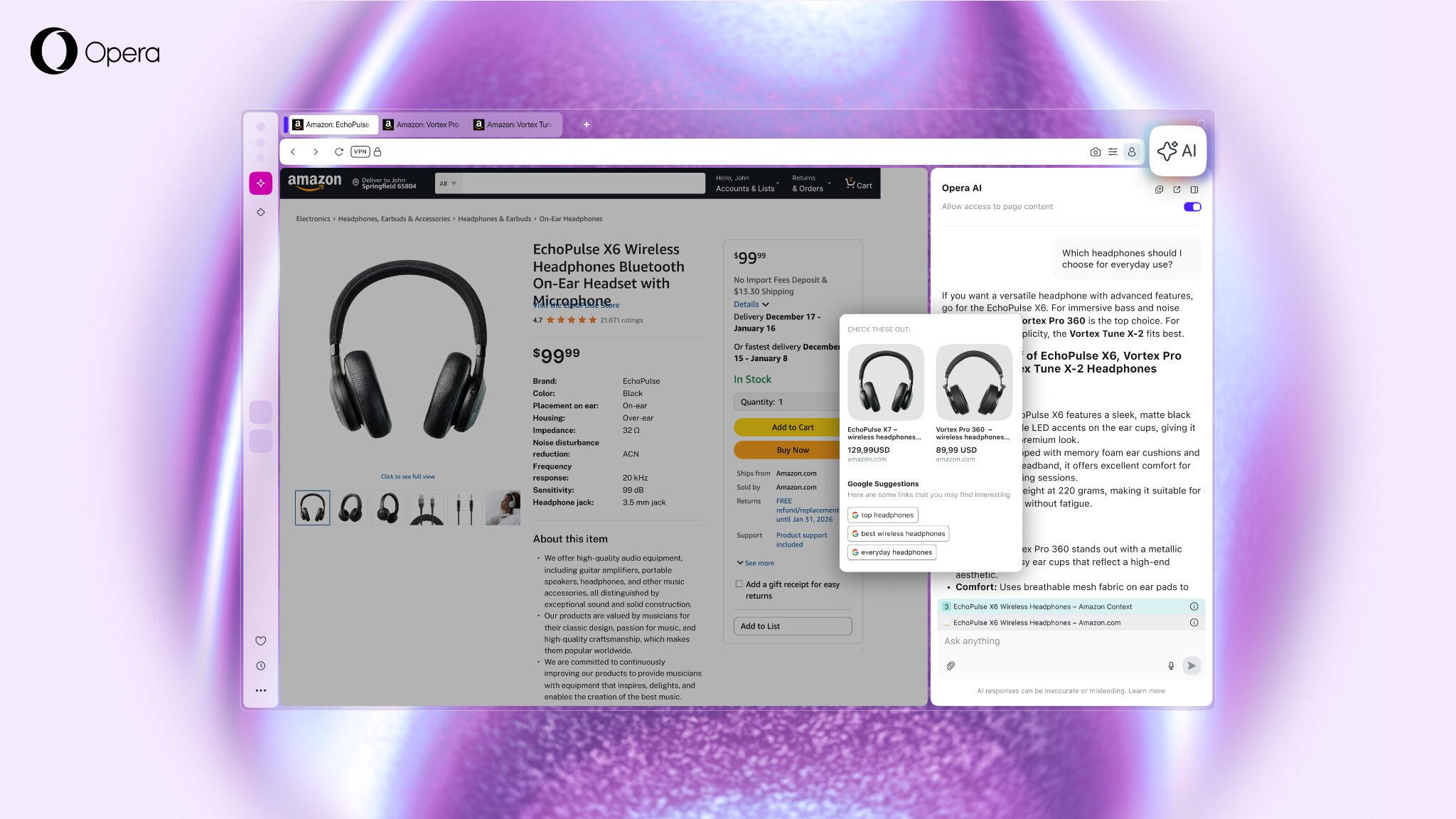
Contextual responses: Opera AI understands the webpage or the entire Tab Island (group of tabs) you’re using. This allows it to give you answers based on the context you’re currently browsing in – and lets you use it for easy research, page summaries, and even comparisons between the content of different tabs. When you start a new chat with Opera AI, you can disallow access to page context by toggling a button that appears at the top of the interface, just underneath the close button “x”.
Video analysis on YouTube: Opera AI can understand the context of YouTube videos and tell you all about them. This can help summarize long videos, or even find specific moments within a video.
Privacy and control: To use Opera AI, you need to enable the feature and specifically allow it to access the content of the page. To protect your privacy further, Opera AI only understands the context within the specific web page you’re currently on, or the Tab Island group it belongs to. In other words, we limit the information to what is necessary to perform the task you requested. Opera AI does not send your general browsing activity or history to our AI Engine. Furthermore, Opera AI does not have automatic access to any Google services that you have open.
Access to the page content is enabled automatically when you start a new chat with AI while visiting a website, but Opera AI will receive information about the website content only if you write anything to the AI with page content enabled. You can easily turn off access to page content by disabling the option at the top of your Opera AI chat, before you start writing to the AI.
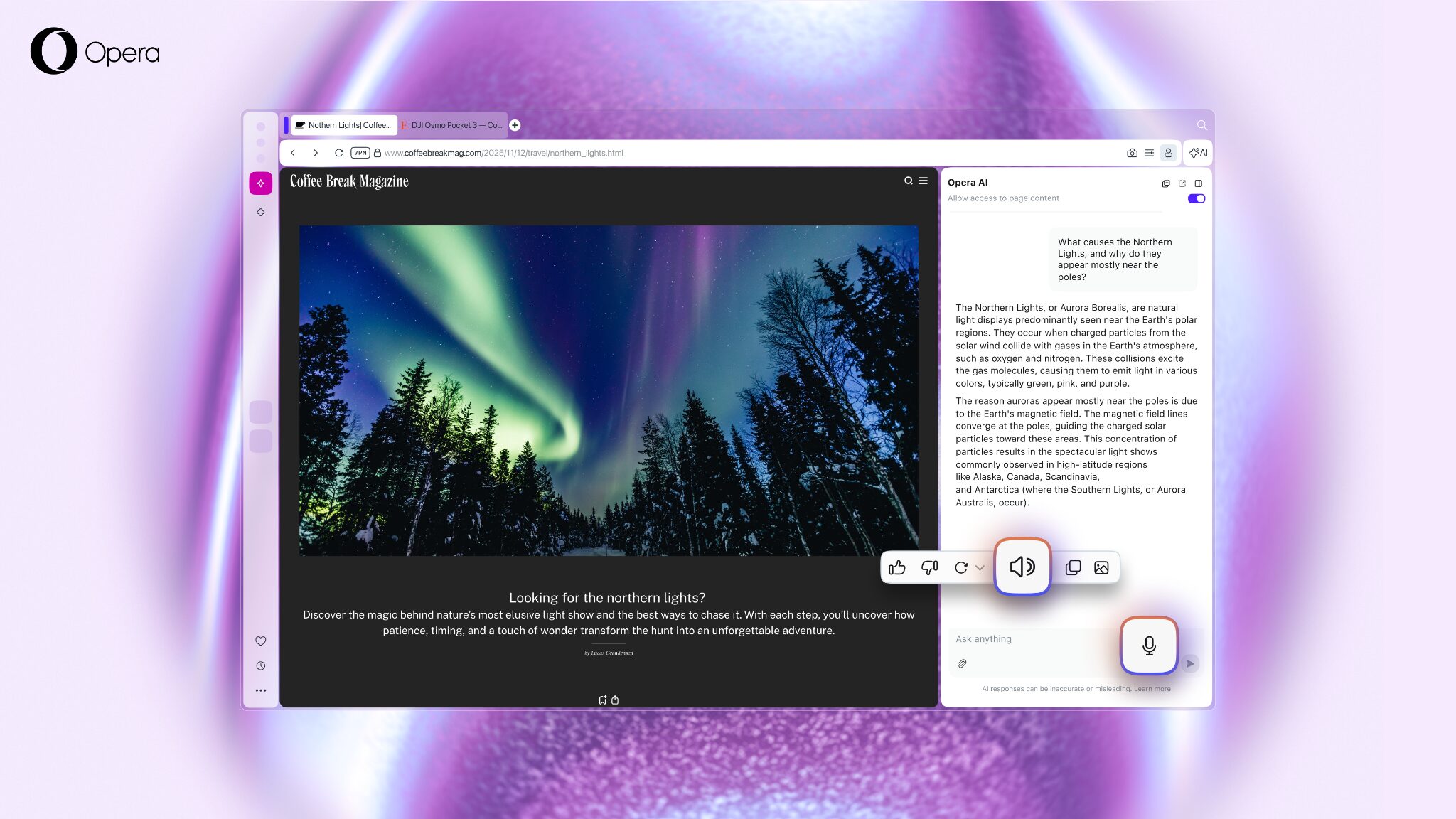
Voice input and output: This means speech-to-text and text-to-speech capabilities that are great for accessibility and multitasking:
- Speech-to-text: To use this, click on the microphone icon that’s located at the right-hand side of the text input box, next to your prompt.
- Text-to-speech: When you get an answer from Opera AI you’ll see a “loudspeaker” icon at the end; press it and your answer will be read aloud for you.
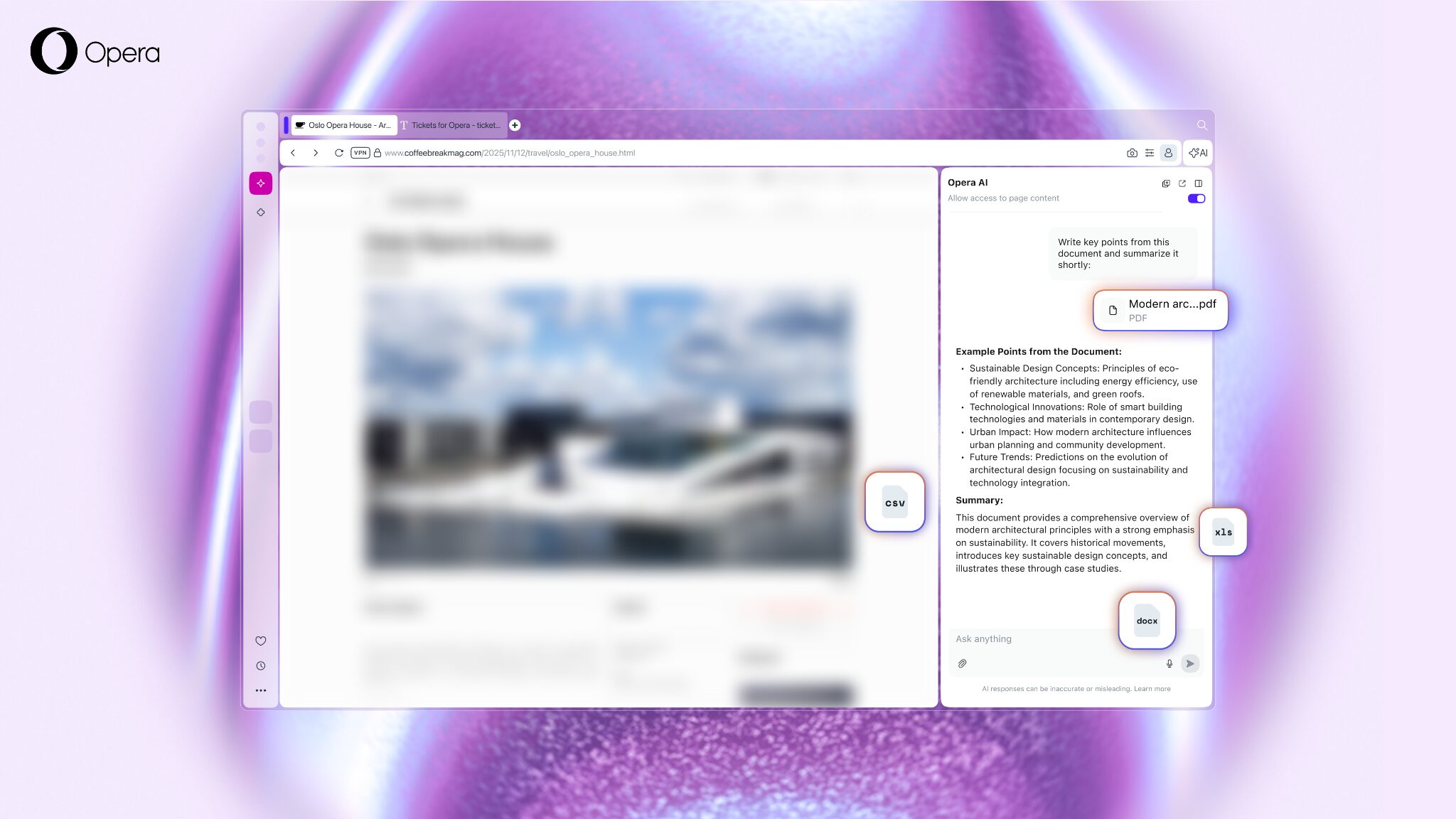
File analysis: Upload images or supported file types like spreadsheets (.xls, .xlsx, .ods), video (.mp4, .mpeg), audio (.mp3), and other types of files like .pdf, .csv, .txt, .json, .odt, .doc, and .docx. Opera AI can help you analyze those files and ask specific questions about them.
- To attach files into the new Opera AI chat you simply need to click on the clipboard icon located just underneath the text input field.
Snapshot tool: You can quickly take a snapshot of your prompt and the answer you received without the need for any external software. You’ll see several icons at the bottom of the answers provided by Opera AI, and the icon furthest to the right is the snapshot tool. Simply click it and a snapshot of the prompt and the answer will be copied to your clipboard. This is great for quickly sharing the results of your AI query with friends or colleagues – no need to copy and paste or open another application.
Wallpaper generation: You can use the image generation capabilities of Opera AI to generate wallpapers for both desktop (horizontal) and mobile (vertical) devices. In order to create these wallpapers, you simply need to describe in your prompt what you want to create and specify if you want it to be horizontal or vertical.
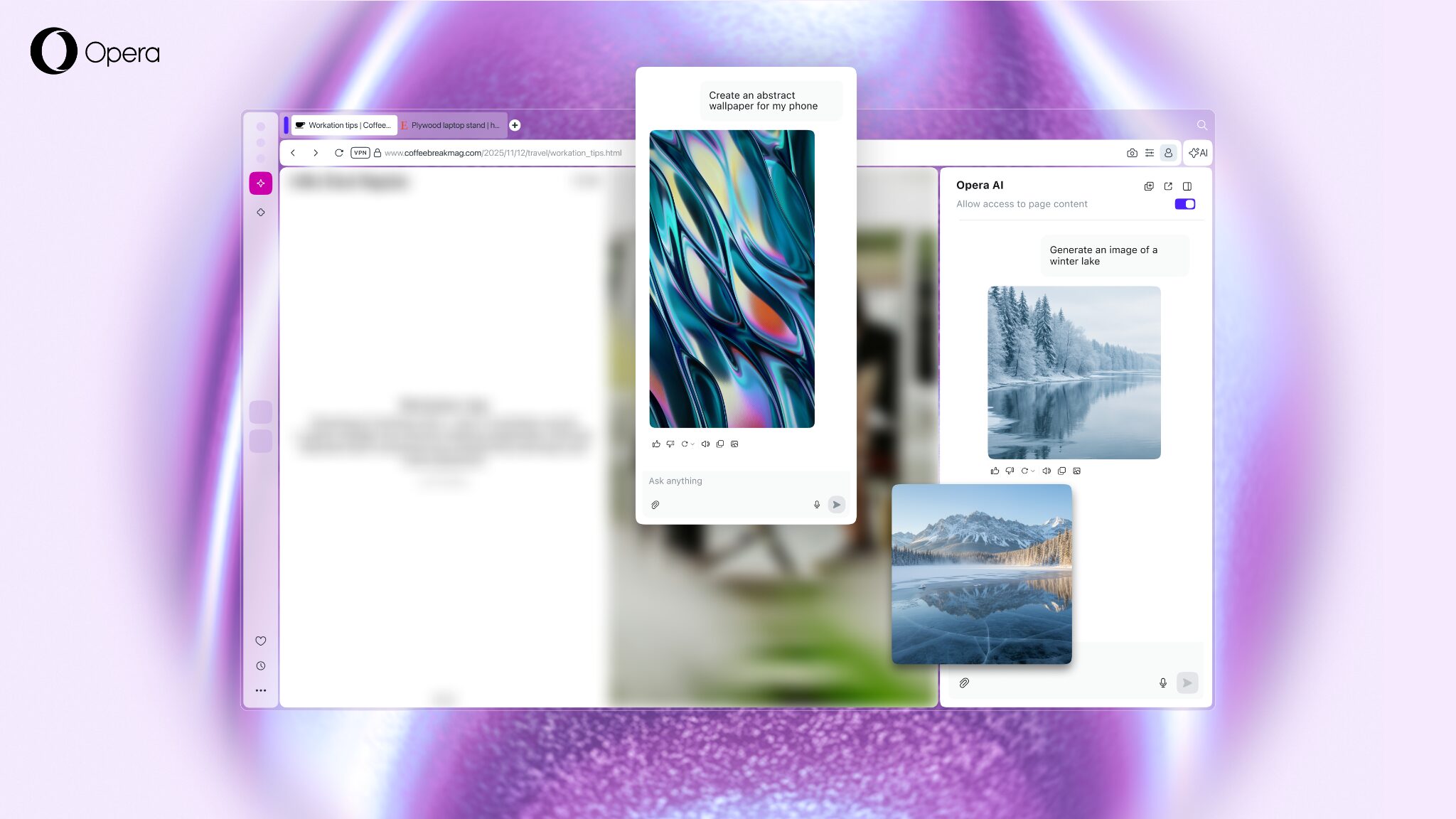
If you want to check out other examples of how Opera AI works and where we’re coming from with these upgrades, you can check our blog post from the Developer release.
How to personalize your AI experience
You can enable or disable Opera AI either partially or fully at any time in either the Settings or Easy Setup. In both places, you will see three switches. The first – entitled “Opera AI” – is the main switch – if that is deactivated, then all Opera AI features within the browser are turned off.
The second button enables access to AI chat right the toolbar. When turned on, you’ll see a button that says “AI” in the top-right corner of your browser that lets you open up a chat with Opera AI and ask whatever’s on your mind. The final switch is for AI Prompts which, when active, will offer prompts when you highlight text on a webpage. You can activate or deactivate some or all of Opera AI’s features according to your preference.
So start browsing with a smarter, faster browser AI, now live across Opera One, Opera GX, and Opera Air – download any of our desktop browsers here.

User comments
Turn ideas into action
Chat, create, and get things done with Opera Neon, the AI-powered browser that researches, builds, and acts for you.



You deserve a better browser
Opera's free VPN, Ad blocker, and Flow file sharing. Just a few of the must-have features built into Opera for faster, smoother and distraction-free browsing designed to improve your online experience.