
Five ways to get more out of Opera for Android
Share


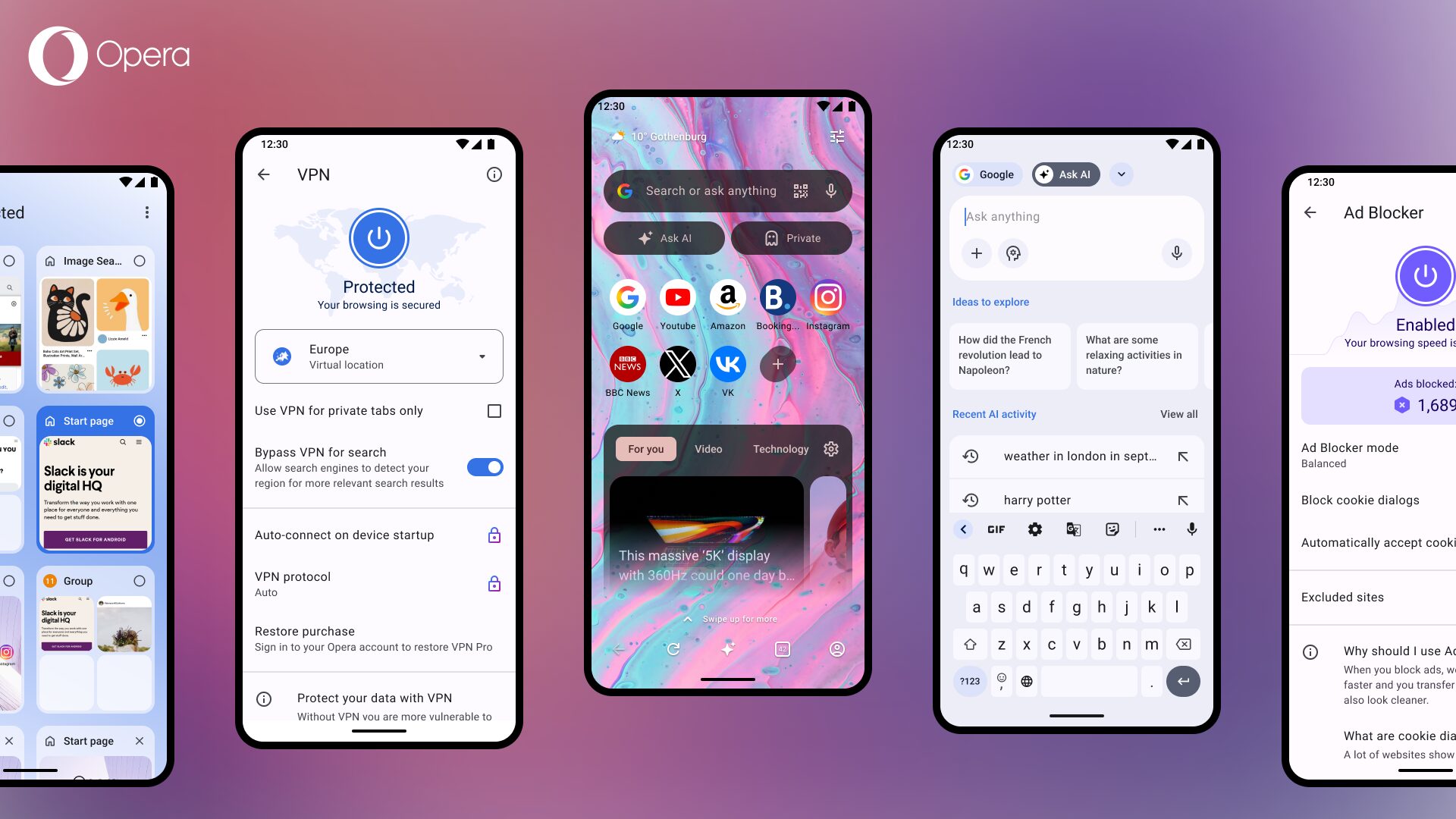
Most people download an app once and never touch a setting again. That’s fine. But Opera for Android has a handful of features that take thirty seconds to set up and change how you use your browser every day after. Here are five worth finding.
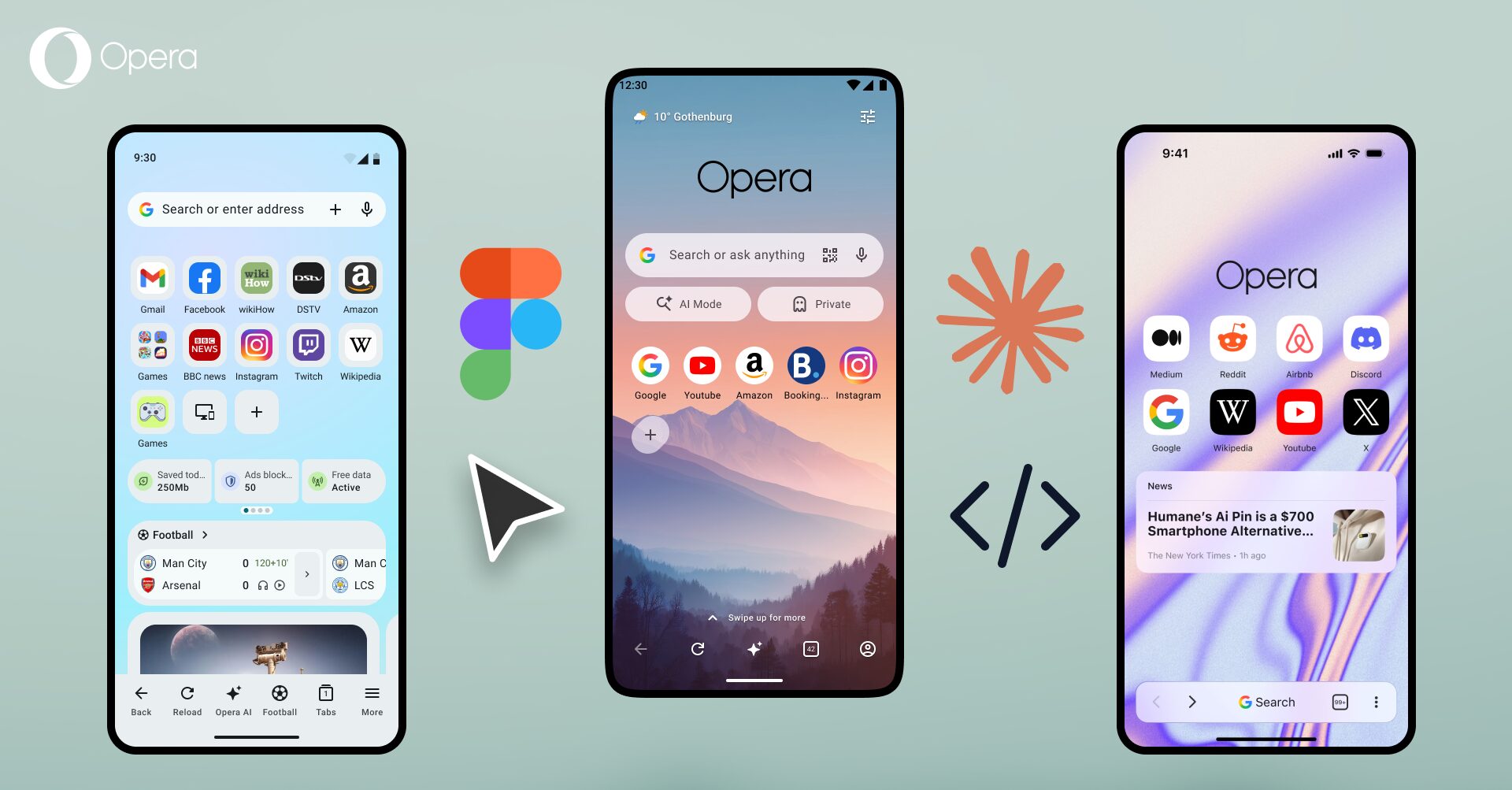
1. Make the Start Page yours
The Start Page is the screen you see more than any other in Opera for Android, so it’s worth spending a few minutes on.
Speed Dials. The site shortcuts on your Start Page. Long-press any Speed Dial to move it, rename it, or delete it. To add a new one, either tap the + and type in a URL, or, while on a page you want to save, tap the address bar menu and choose Add to > Speed Dials. To group sites together, long-press one and drag it on top of another to create a folder – news in one, shopping or holiday planning in another
Side note: when you tap the +, you’ll also see a catalog of popular sites, a handy shortcut if you don’t fancy typing out a URL.
Wallpaper. Tap the customisation icon in the top-right corner to change it, pick from Opera’s presets or upload your own photo.
Theme. Head to Settings > Appearance, where you’ll find eight built-in colour schemes to choose from, plus Light, Dark, or Follow system, and the option to set what the quick-access button next to the address bar actually does.
Address bar. In the same Settings > Appearance menu, you can move the address bar itself to the top or bottom of the screen. If you’re on a larger phone and find yourself stretching your thumb every time you search, the bottom placement is worth trying.
Four small changes, and the Start Page feels like yours.
2. Turn on the free VPN
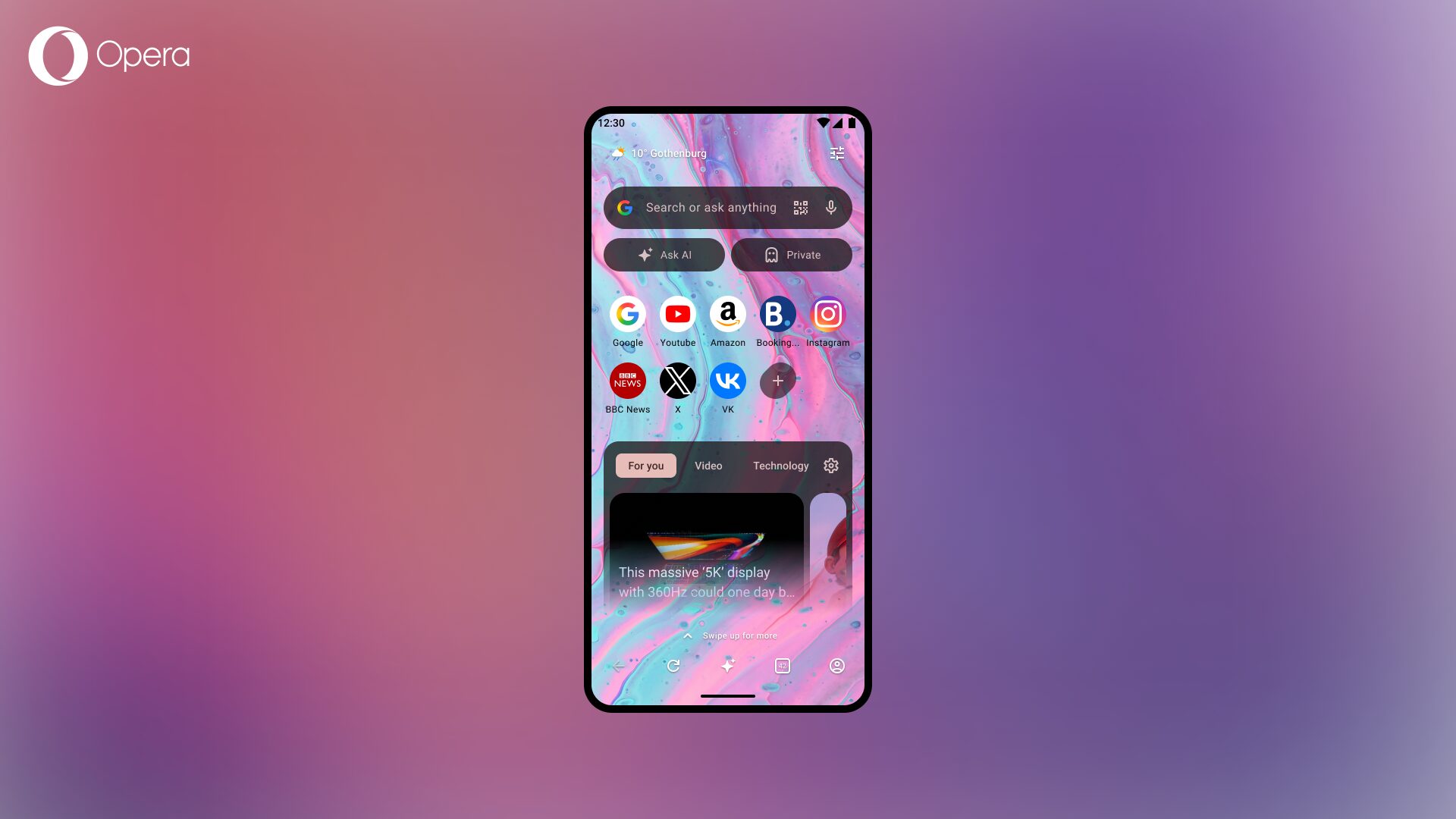
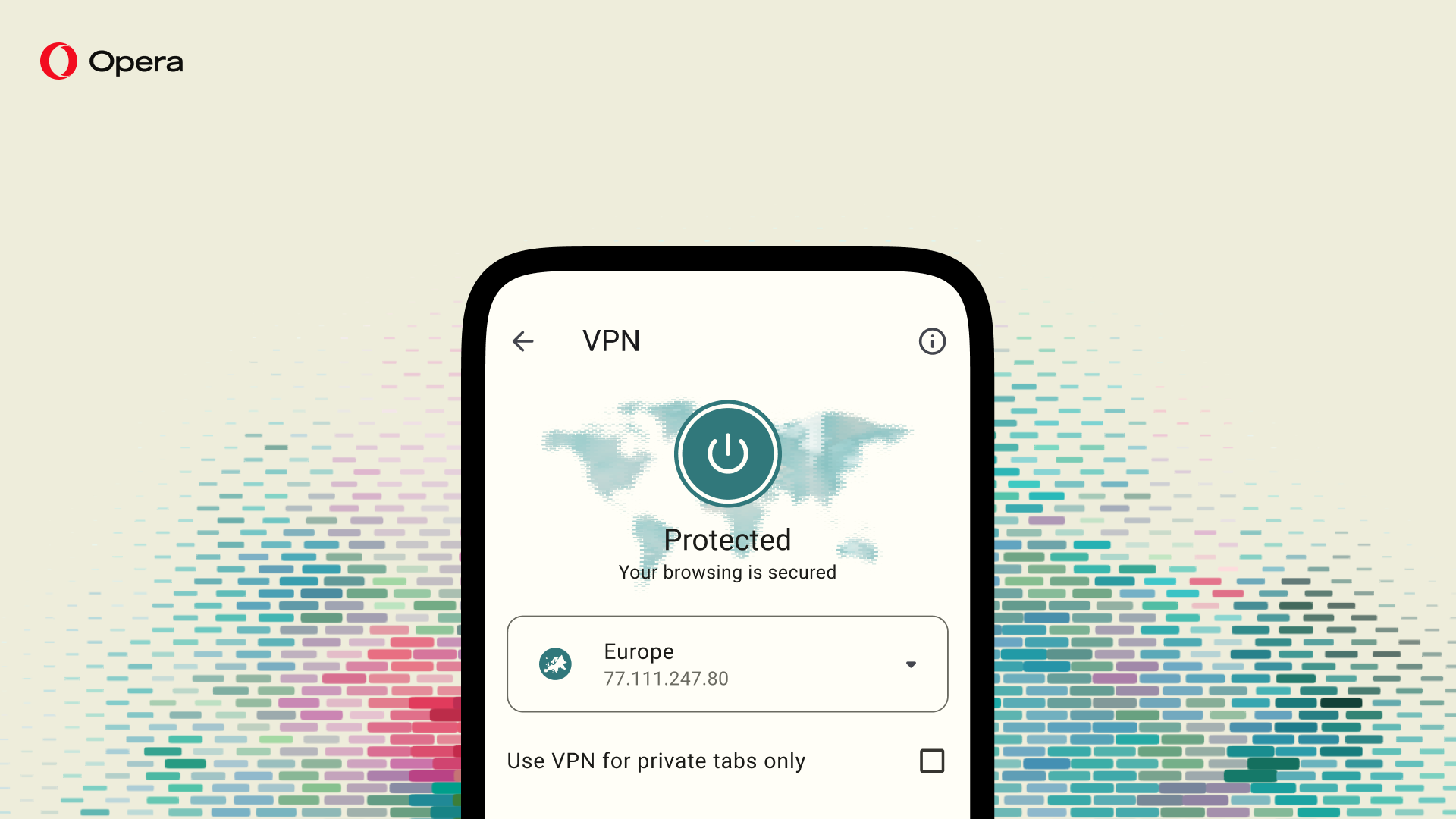
Opera is the first major browser to have a built-in, no-log, unlimited browser VPN that is completely free. No subscription, no separate app, no account needed. Open the menu, tap VPN, switch it on. It’s live immediately, no restart needed.
The VPN does two jobs. It encrypts your traffic, which matters on open and public wifi networks such as cafés, airports, cities and towns. And it masks your IP address, so the sites you visit see the VPN server’s location instead of yours.
While the VPN protects your browsing, if you need device-wide protection, VPN Pro is a paid upgrade that covers up to six devices simultaneously, with private servers across 48 countries to choose from.
3. Let the Ad Blocker do the heavy lifting
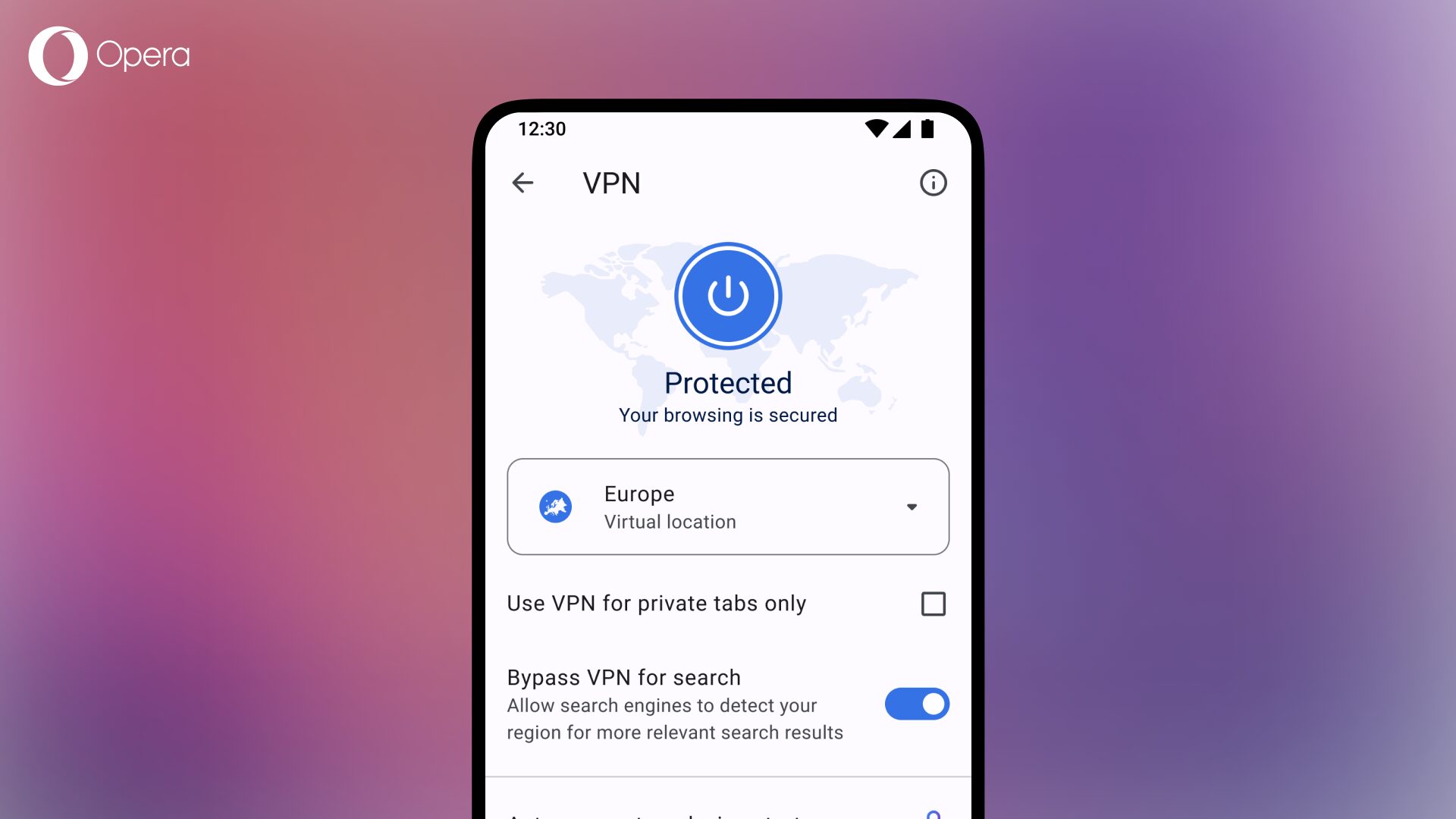
Turn this on and pages load faster, with fewer scripts, fewer trackers, and none of the pop-ups that make browsing on a smaller screen feel cluttered. Go to Settings > Ad Blocker and switch it on.
Worth pairing it with the Tracker Blocker, a separate toggle under Settings > Privacy & Security. Where the Ad Blocker deals with what you see, the Tracker Blocker deals with what sites collect behind the scenes, analytics scripts, tracking pixels, that kind of thing. Turning both on cuts down on clutter and quietly limits how much of your browsing gets logged elsewhere.
Fewer ads means less data pulled down, which matters if you’re watching your data plan. Pair it with Data Saver mode in the same settings menu and Opera will compress pages further before they reach your phone.
4. Let Opera AI make sense of the page you’re on
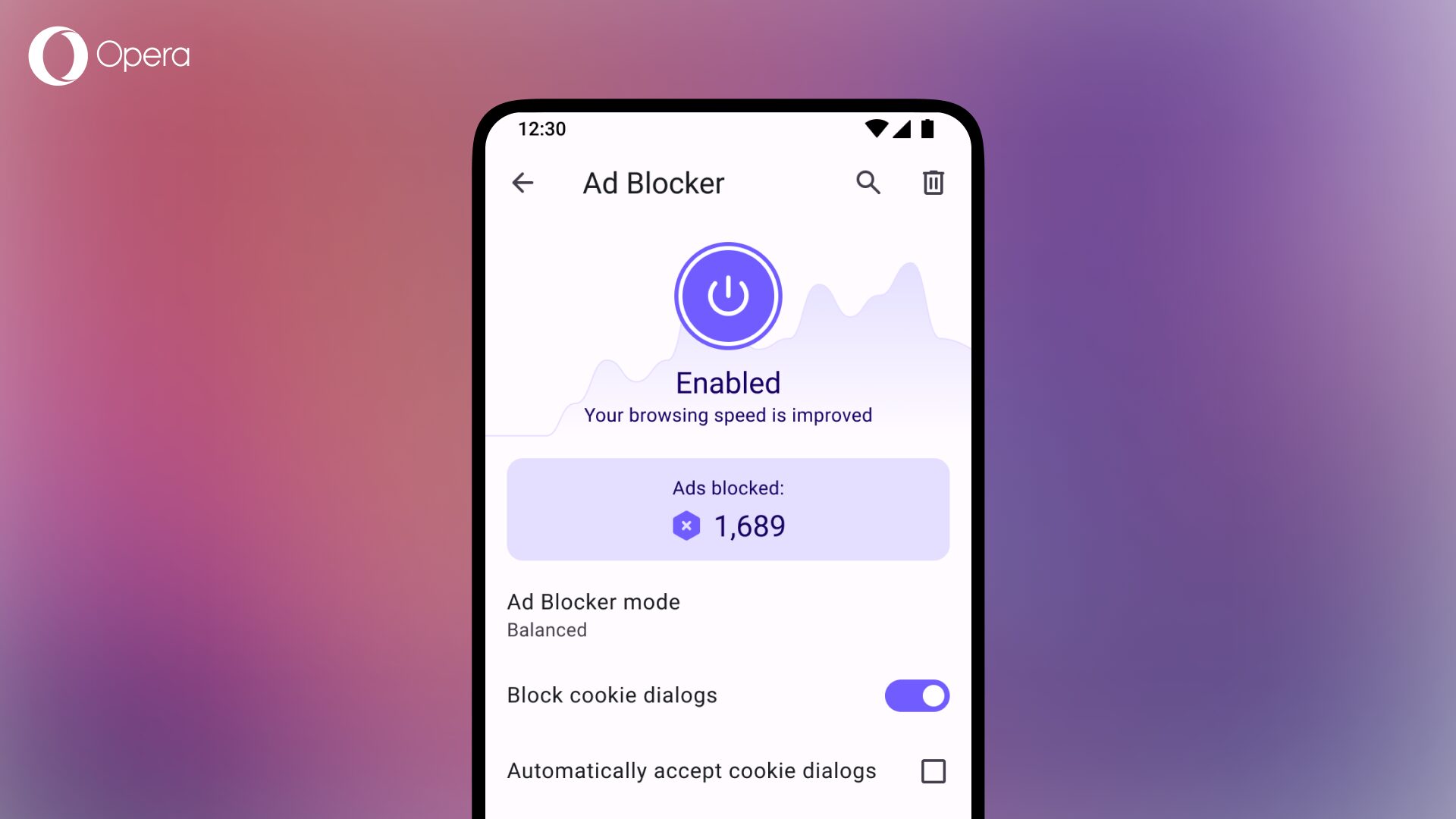
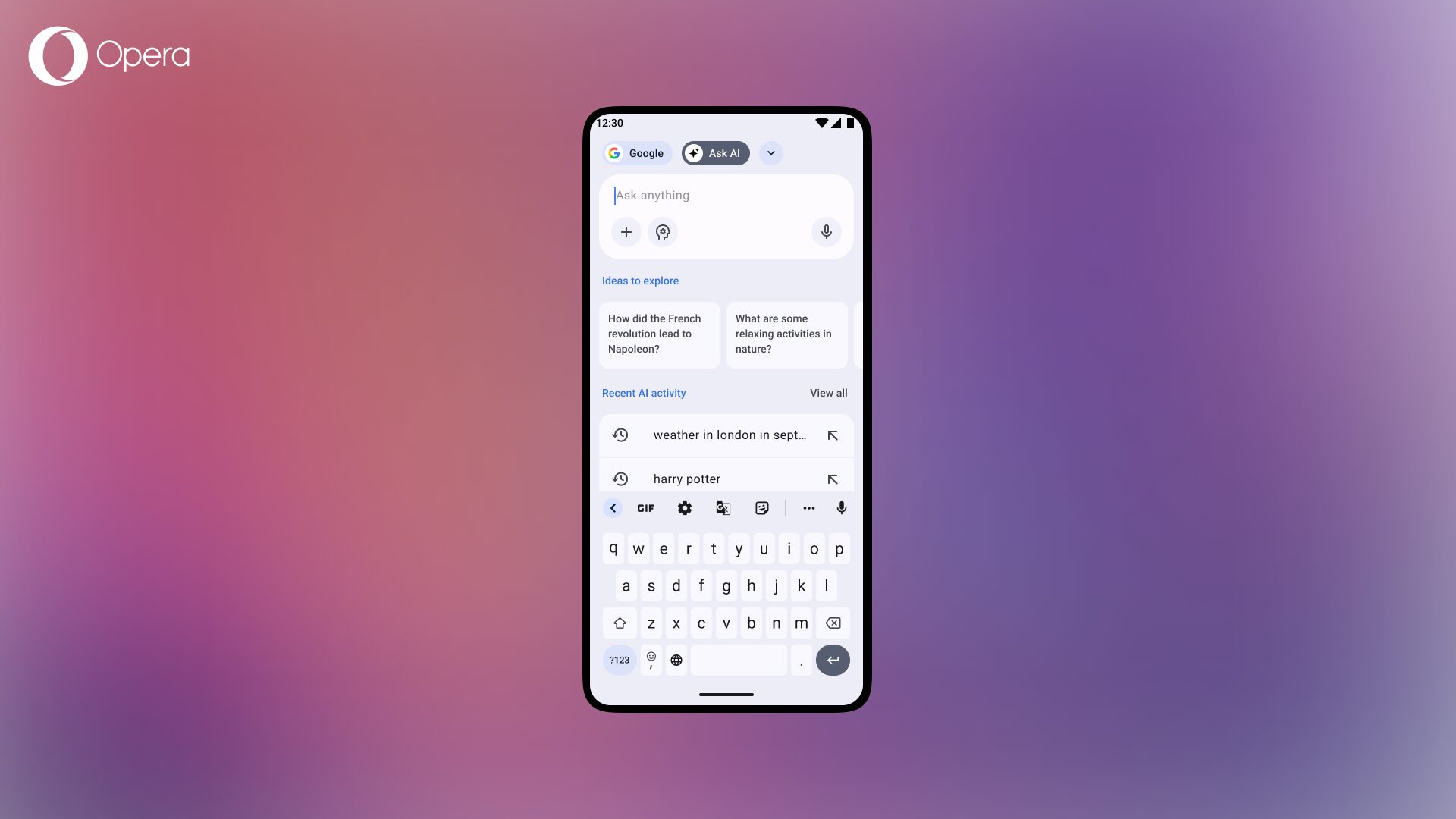
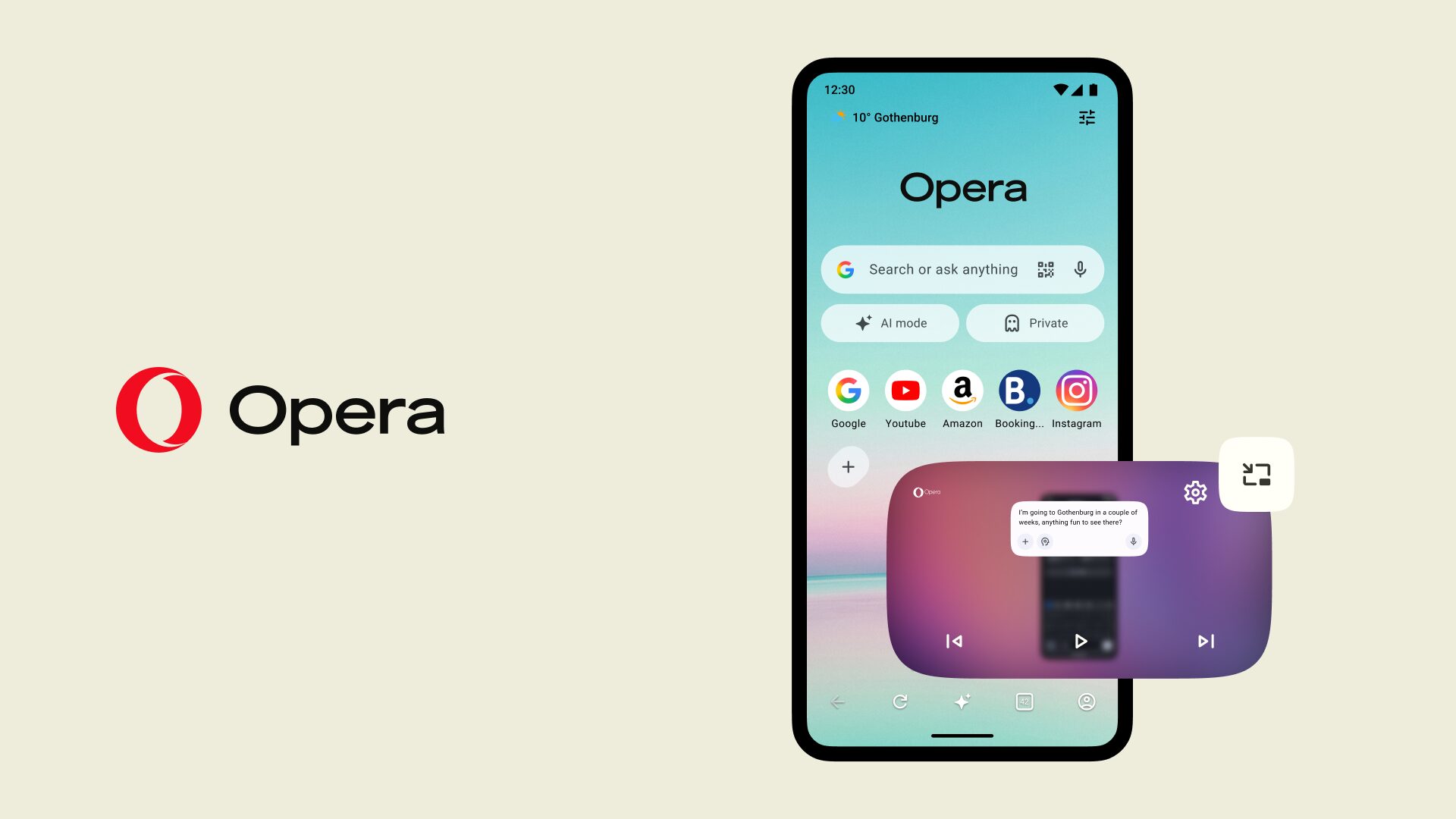
Open a text-heavy page, an article, a long blog post, a research paper, tap the three dots by the address bar, and select Summarize. Opera AI reads the page and hands you back the key points in a chat window, so you can sip your coffee without scrolling.
Or, from that same menu, toggle to Ask AI instead, bring the current page in as context, then start chatting: ask it something directly, upload files, generate ideas, or think deeper about something more involved. It’s a live conversation about the page rather than a one-off summary.
5. Tame your tabs with the Tab Gallery
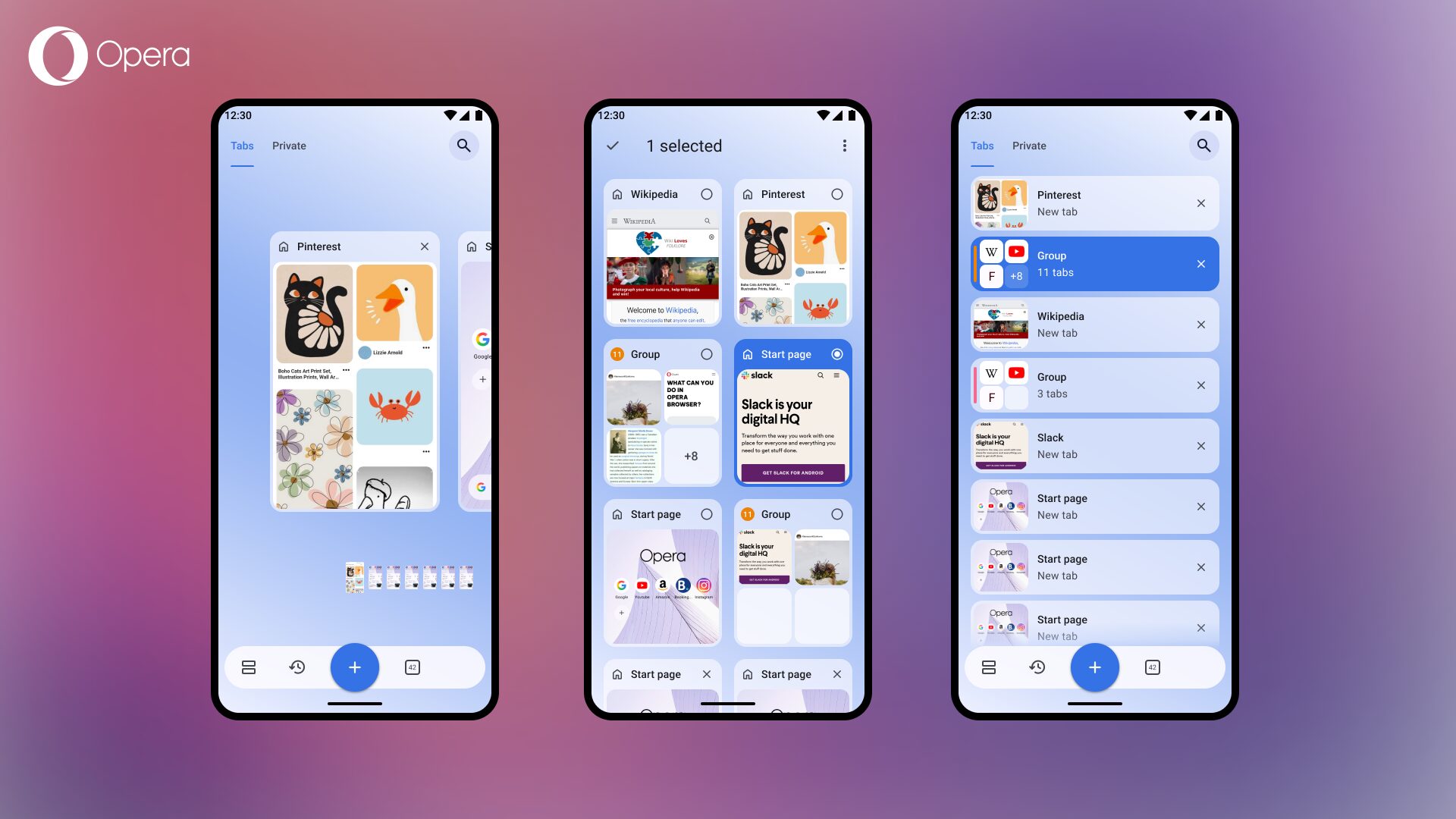
Tap the tab counter icon in the bottom toolbar to open the Tab Gallery, where you can see the dozen-plus tabs you’ve probably got open. Tap the layout icon in the bottom-left to switch through three views: Carousel, the familiar swipeable cards; Grid, which shows more tabs at once with a visual preview of each; and List, for when you’d rather scan titles than pictures.
From there, long-press a tab and drag it onto another to create a group also known as a Tab Island in Opera for Android. Handy for keeping a project or a trip grouped together.
Accidentally closed something? Tap the recently closed tabs icon, directly left of the + in the Tab Gallery bar, then swipe right on the one you want back. And if you’ve genuinely lost a tab in the pile, the search icon in the top right corner finds it by title or keyword in seconds.
So there you have it. Five simple ways to get more out of Opera for Android. None of these need a settings deep-dive or a tutorial video. They’re switches and taps, quick and simple. Try a couple this week, see which ones stick
Happy browsing.
Download Opera for Android

Gary Fogarty
User comments
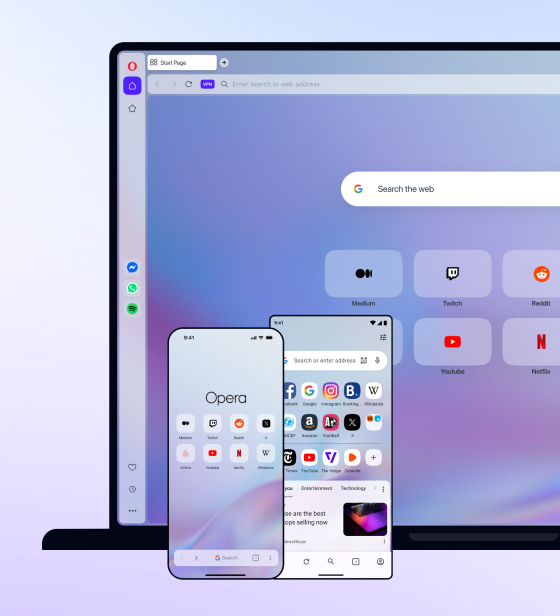
You deserve abetter browser
Faster, safer and smarter than default browsers. Fully-featured for privacy, security, and so much more.
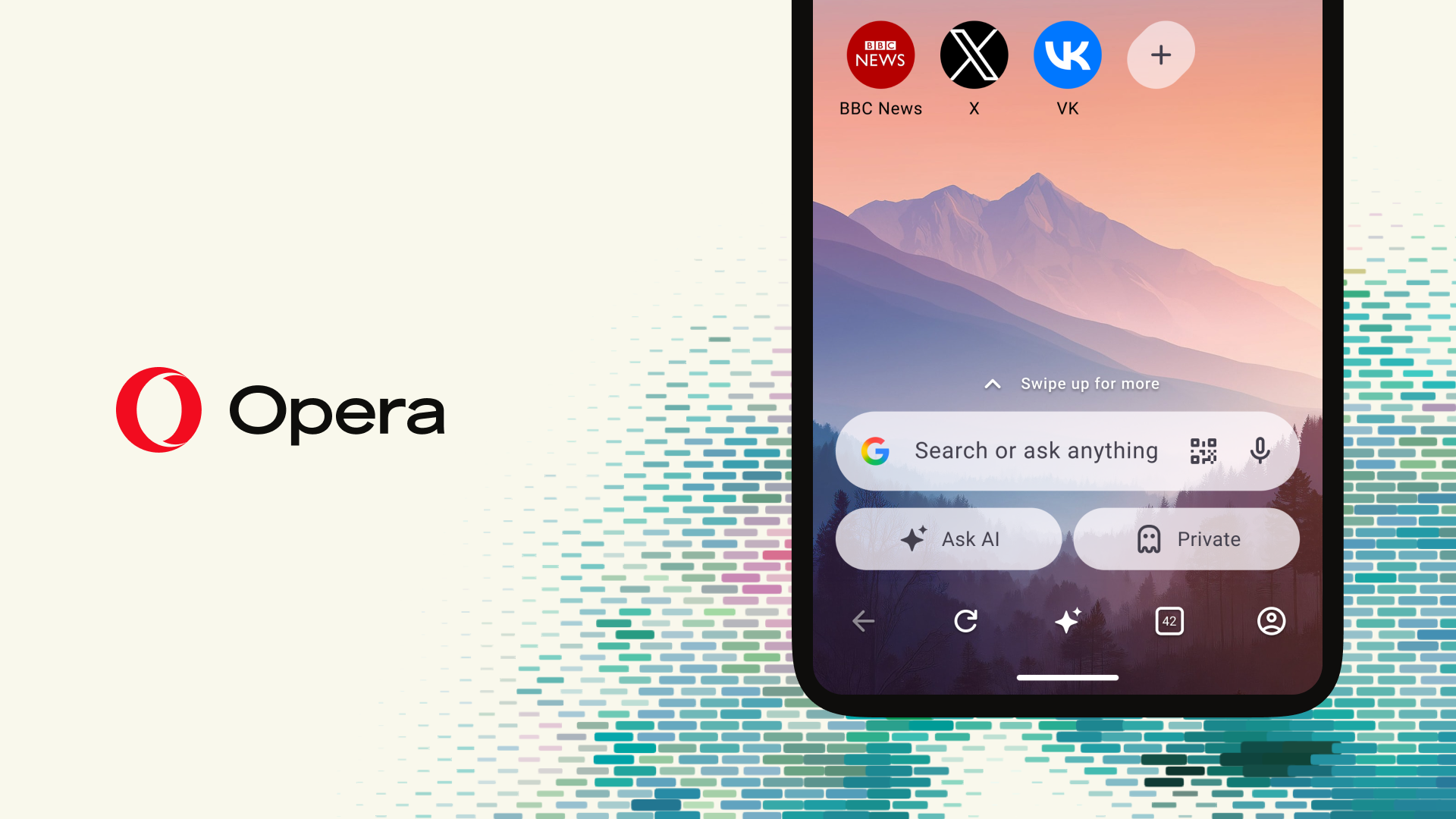


You deserve a better browser
Opera's free VPN, Ad blocker, and Flow file sharing. Just a few of the must-have features built into Opera for faster, smoother and distraction-free browsing designed to improve your online experience.