
Opera One for iOS brings new tab media controls and full synchronization
Share


Hey all,
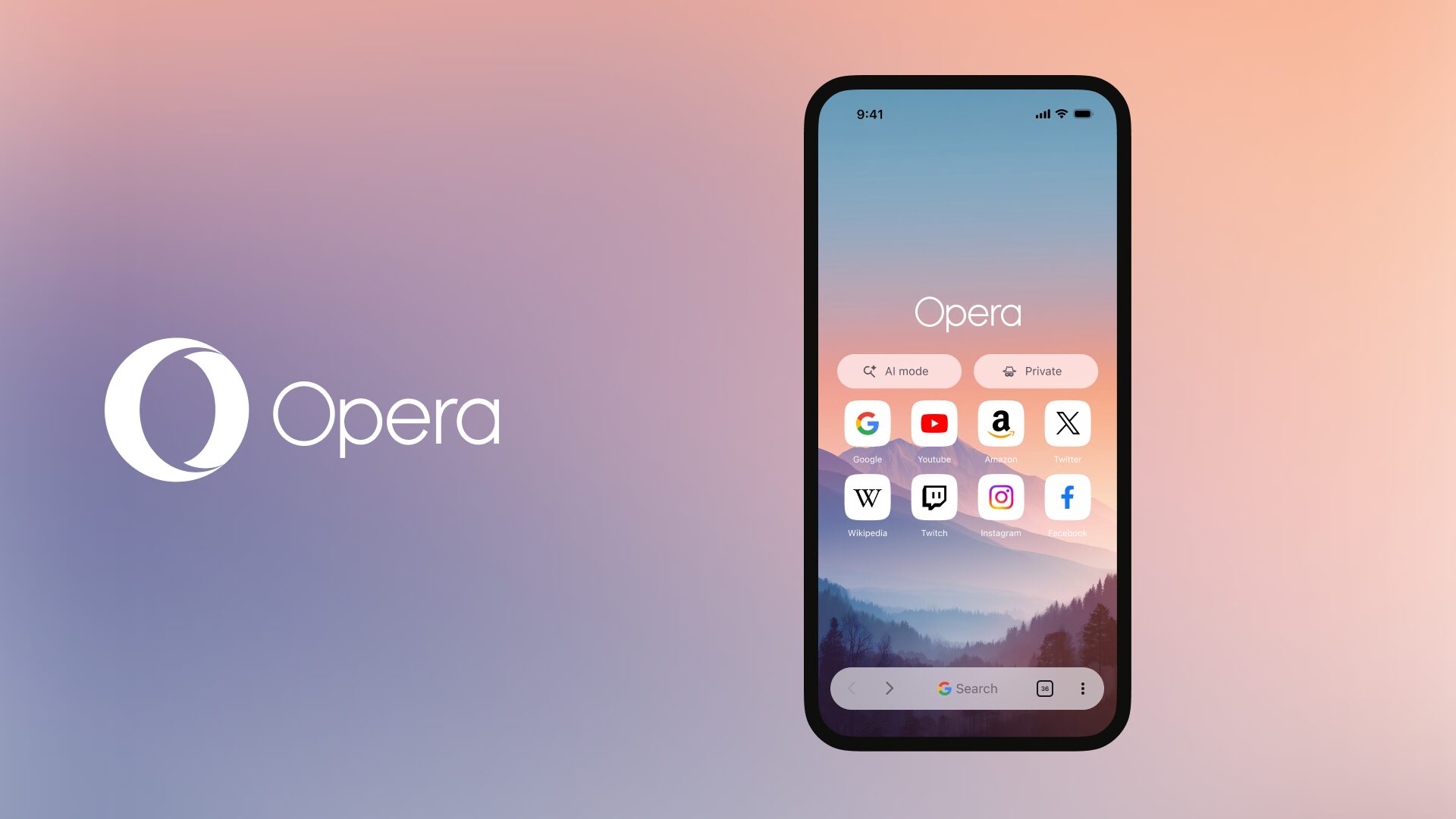
We’re releasing an update to Opera One for iOS in which we’re bringing new media controls that let you recognize which tabs are playing sound, and mute or unmute them. Additionally, we have also significantly improved our synchronization and backup support. Tabs, Bookmarks and Password changes update faster and make it easier than ever to carry on with your session from your PC or Mac to your iPhone and the other way around.
Additionally, we’re adding improvements to the integrated browser AI by letting you attach files and pictures to your prompt.
Finally, we have also made Opera One more accessible for users by adding 15 more languages, including support for bi-directional UI ensuring that languages, such as Arabic, are displayed properly in the app.
New media controls in tabs
Have you noticed that sometimes when you play something in your browser, for example, a song, a radio show, or your favorite podcast, the media will pause when you put that tab or your browser in the background or just lock your screen. Annoying, right?
In the last couple of versions we have made that less annoying, allowing you to continue playback even if it’s in the background. However, that brings another problem. Where did that tab go?
It’s just as uncomfortable when opening your browser to find that something is playing “unwanted” sound in the background. The worst part? When you can’t even tell which tab it is. For those situations, and to give you further control of what your tabs are up to, we’re introducing new media controls for the tabs in Opera One for iOS.
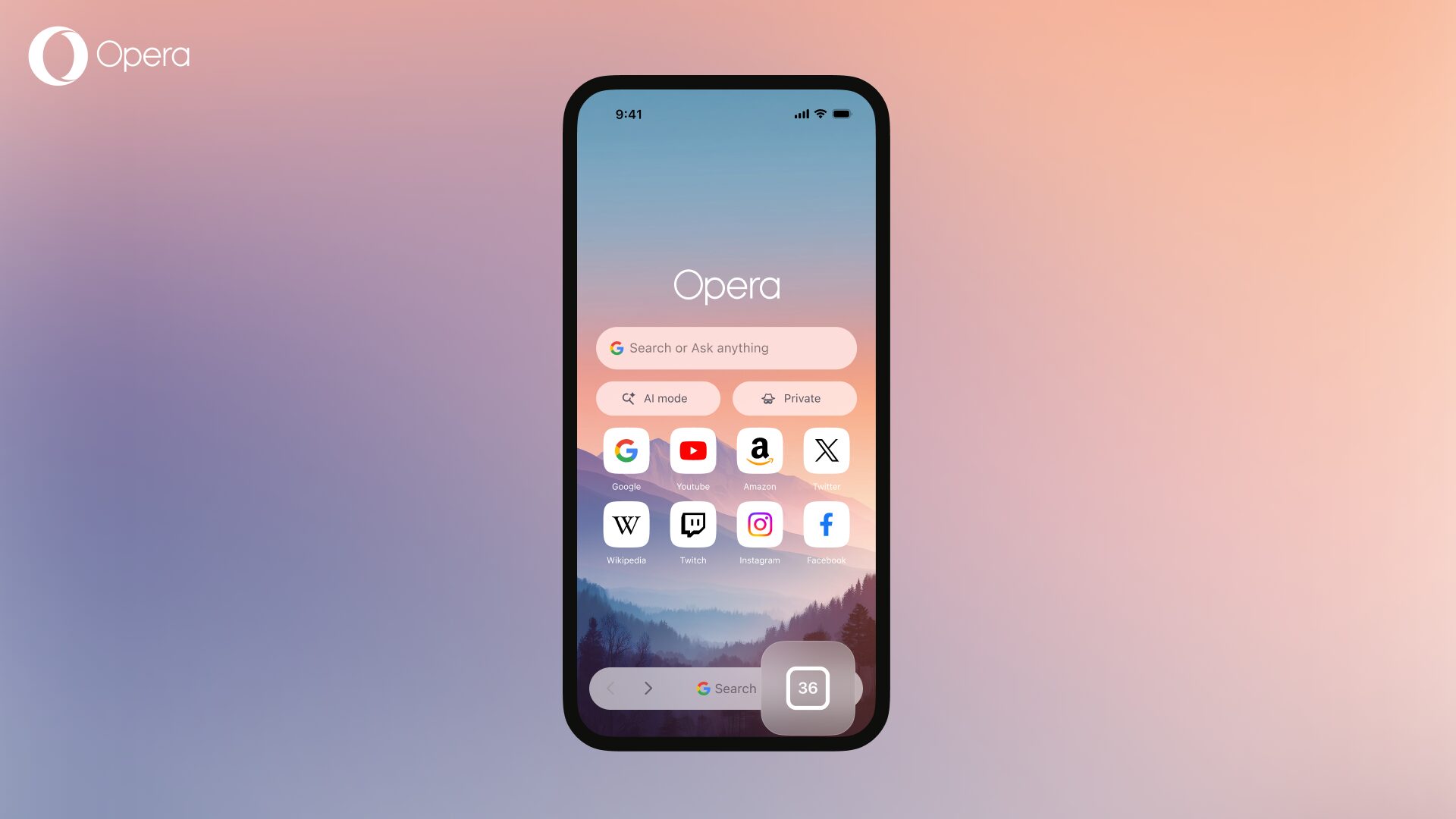
Now, when a tab is playing sound in Opera One for iOS you’ll be able to see a pulsing animation on the Tab icon – showing you that something is happening in the background.
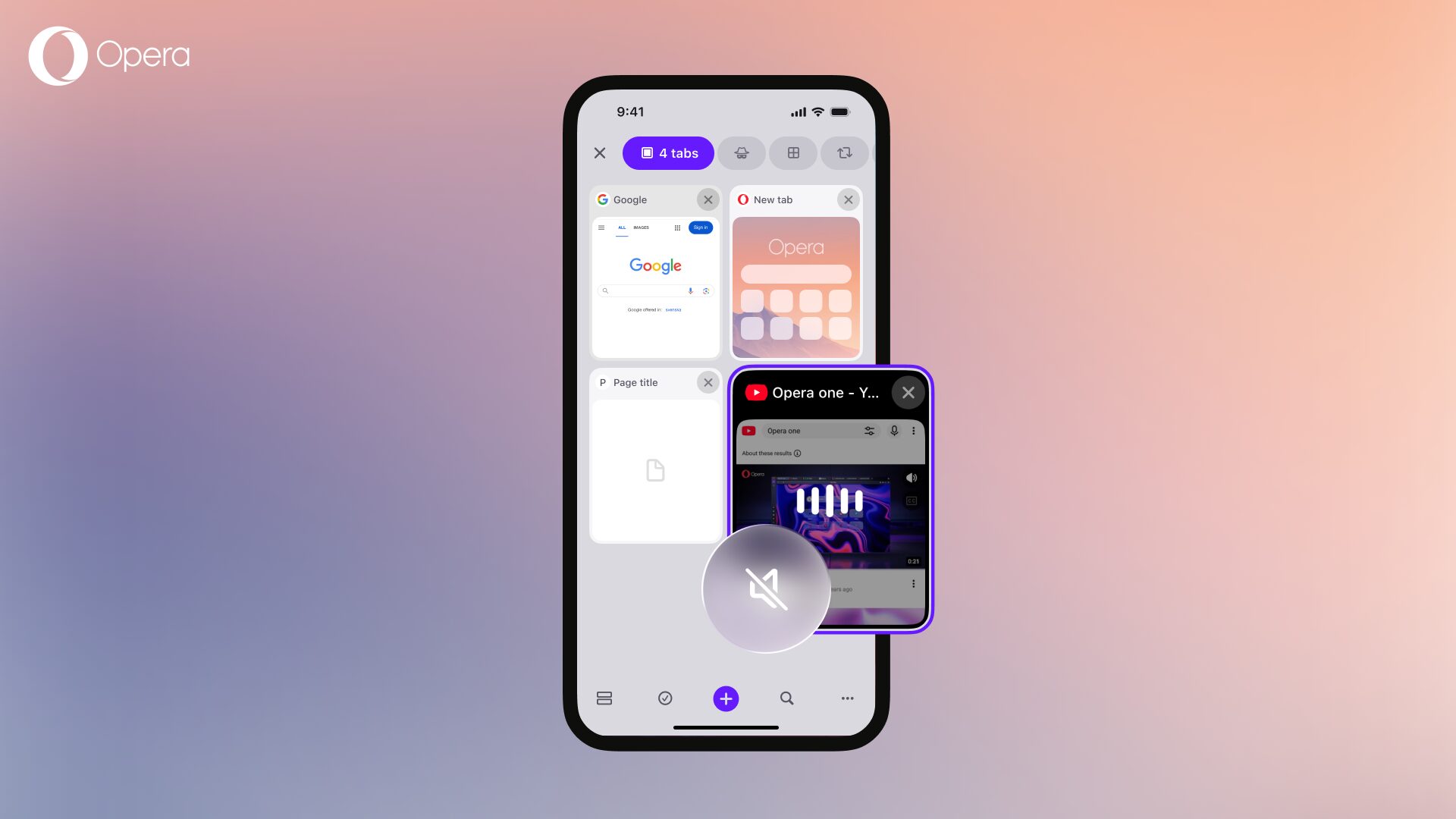
When you tap on the Tab icon and open the Tab gallery you will easily recognize which tab is playing sound. We’ve added an equalizer animation overlay that plays on top of the tab where the sound is coming from to make it easy to find.
Additionally, we’re adding a mute/unmute button on every tab that’s playing something. That way you can quickly and easily mute a tab that’s playing unwanted sounds, or unmute one that’s playing something you’re interested in. This includes tabs in the tab bar on iPads. The mute/unmute icon is a speaker icon, and you’ll find it both on the tab itself when in the Tab Gallery, as well as to the right of the address bar, so you can control the sound of your browser basically from everywhere.
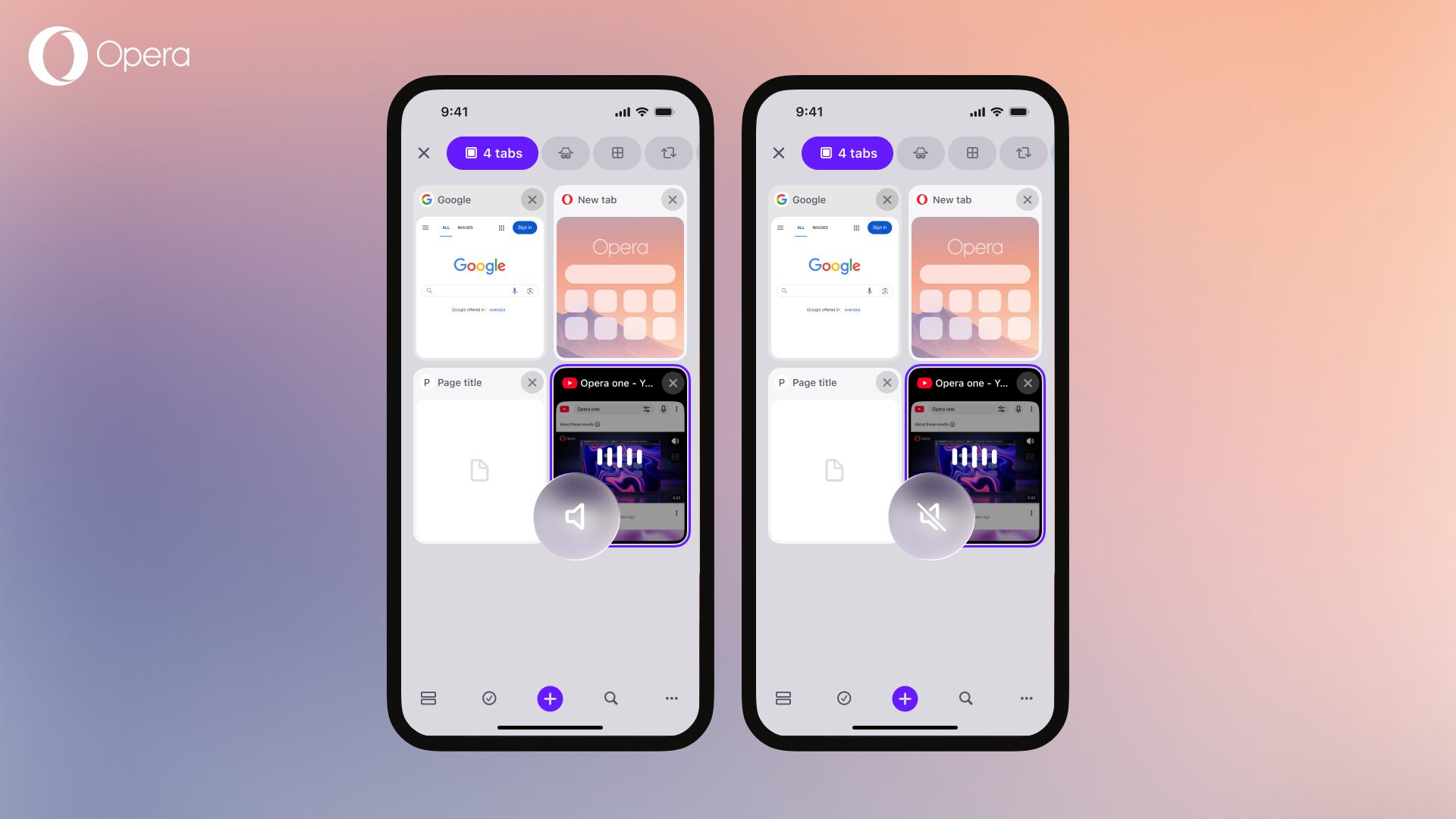
There are other things to consider about this feature. For example, you can long press the Tab icon and open a context menu where you’ll be able to mute or unmute all tabs. If you press and hold a tab group, a context menu will appear where you can also mute or unmute tabs within that tab group.
Additionally, you can easily unmute tabs by using the volume up/down buttons of your device. So, if you muted a tab and you leave the browser, the iPhone omnibox at the top will show that there is something playing (although you can’t hear it), and pressing any of the volume buttons of your device will bring the sound back.
Synchronize your tabs and continue browsing on-the-go
This update also brings a major improvement to Sync and Backup, and we’d like to remind you of its benefits:
Synchronization makes it very practical to carry over with your tasks on-the-go. If you’re reading an important article on your laptop and have to get going, synchronize your tabs and resume where you left off on your iPhone. You will never miss a page you bookmarked or a password you saved regardless where you are and what device you use. If you ever have to reinstall or get a new device, you’ll be able to retrieve all your stuff.
For this to work, you’ll need to log in to your Opera account.
You’ll be able to sync the following data to Opera One for iOS:
- Bookmarks and Speed Dials
- Tabs
- Passwords
You can choose to synchronize all of them, some of them, or just one of them.
This synchronization works both ways, so you can also bring that same data from your iPhone to your Opera browser on your Mac, PC, or to Opera for Android for that matter.
The updated synchronization feature on Opera One for iOS transitions from the previous one-way import of synced data at scheduled intervals.
Now, you’ll get instant updates whenever something is added or changed and it will continuously back up your data. The sync relies on secure token authentication and end-to-end encryption to keep your credentials safe in transit, ensuring instant access to your desktop workspace when you are on the go.
If you want to synchronize and backup your data to your iPhone you simply need to update Opera One for iOS to the latest version and afterwards, upon opening the app, you’ll see an onboarding screen. If you are not signed in to your Opera account you’ll be prompted to do so, and if you’re already signed in you’ll be prompted to sync directly.
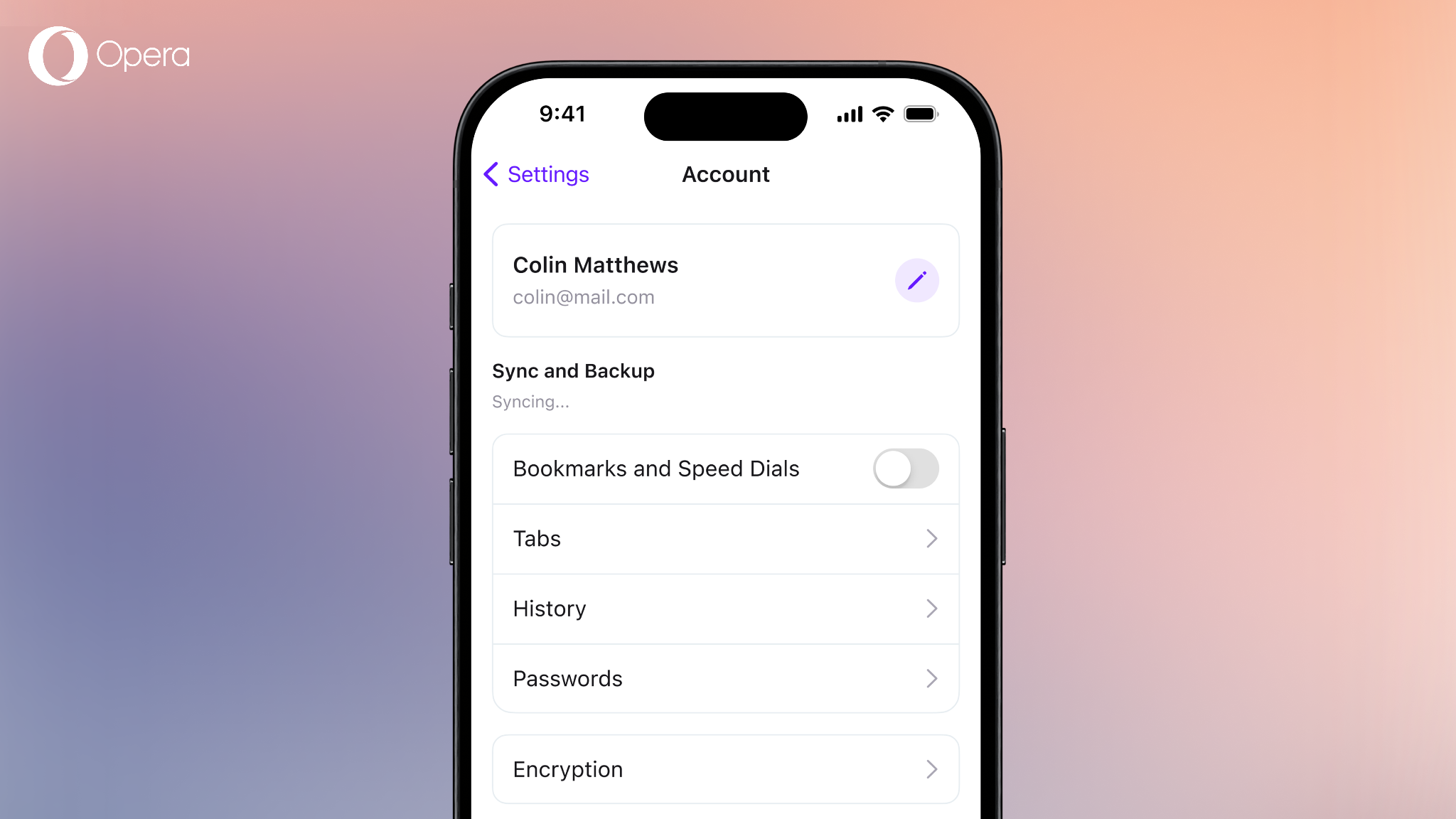
If you want to sync but you’ve missed the onboarding screen, no worries. You can head to the browser Settings > Account > Sync and Backup. There you’ll be able to manage what to synchronize, as well as the encryption, delete your account or sign out.
Attach files to Opera AI
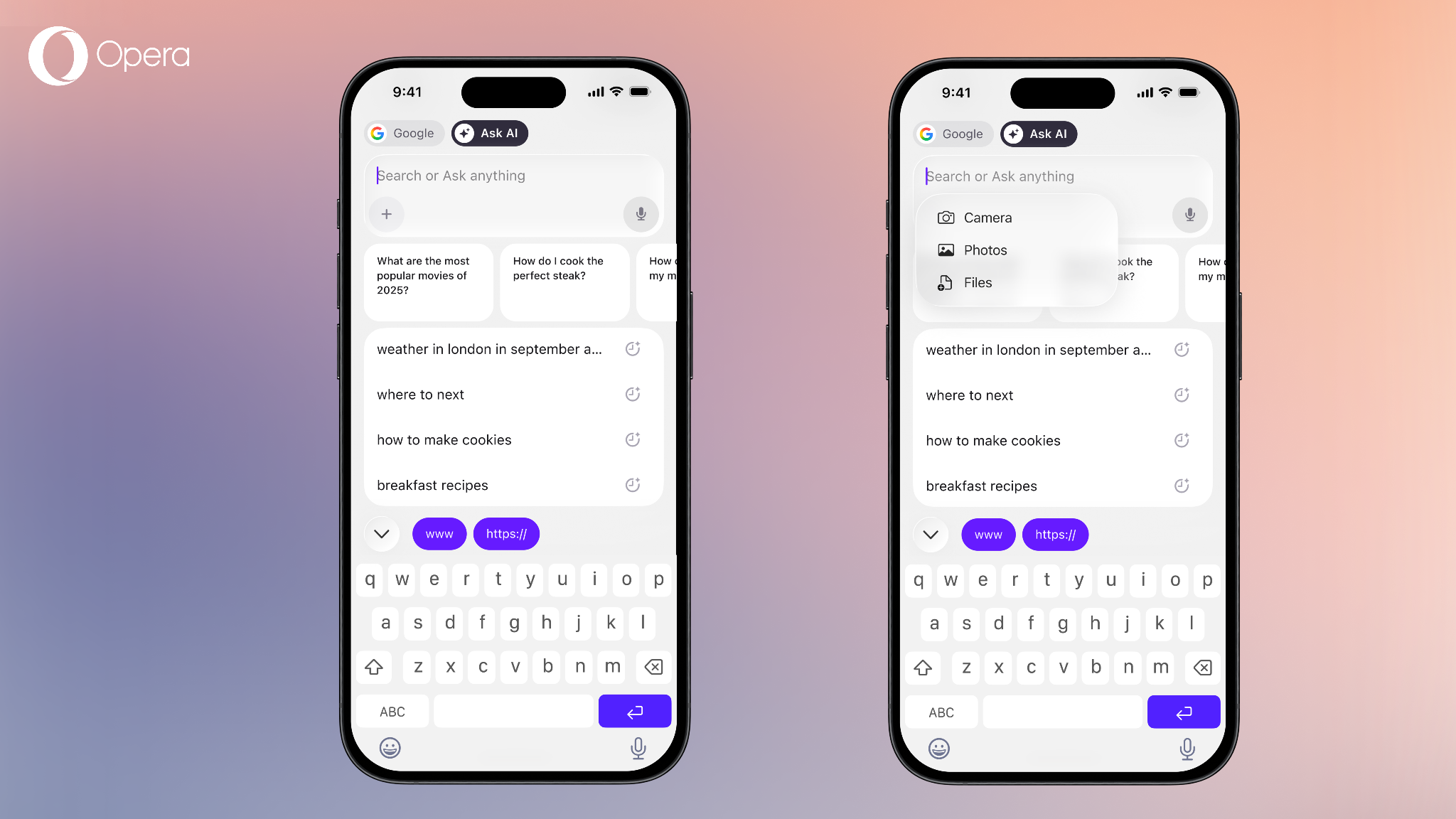
Finally we’re adding the capability to attach files and pictures from your iPhone to Opera AI. So, whenever you’re in need to ask AI something regarding a file, or an image, you can just head over to the search bar, switch to “Ask AI” and attach the files by pressing the ‘+’ icon on the text input field.
Follow football in Opera One for iOS
Especially this summer a lot of people want to follow global football tournaments and also in Opera One for iOS you can enable live scores in your menu. Simply activate them in settings and see results of future matches in your home screen carousel.
Download Opera One for iOS
Choose a better browser instead of a default and download Opera one for iOS here.

User comments
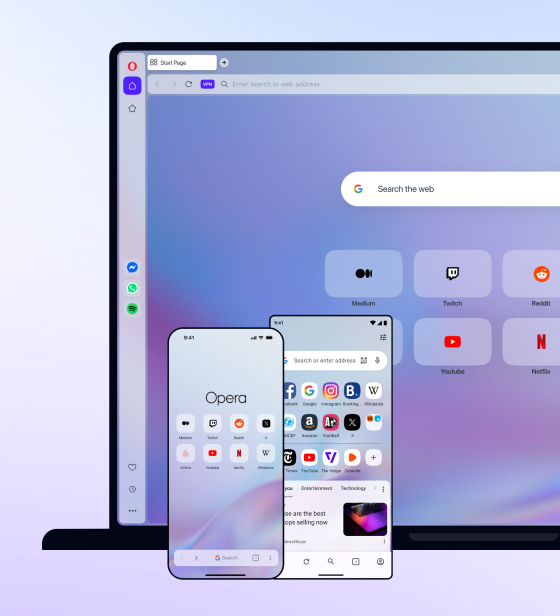
You deserve abetter browser
Faster, safer and smarter than default browsers. Fully-featured for privacy, security, and so much more.
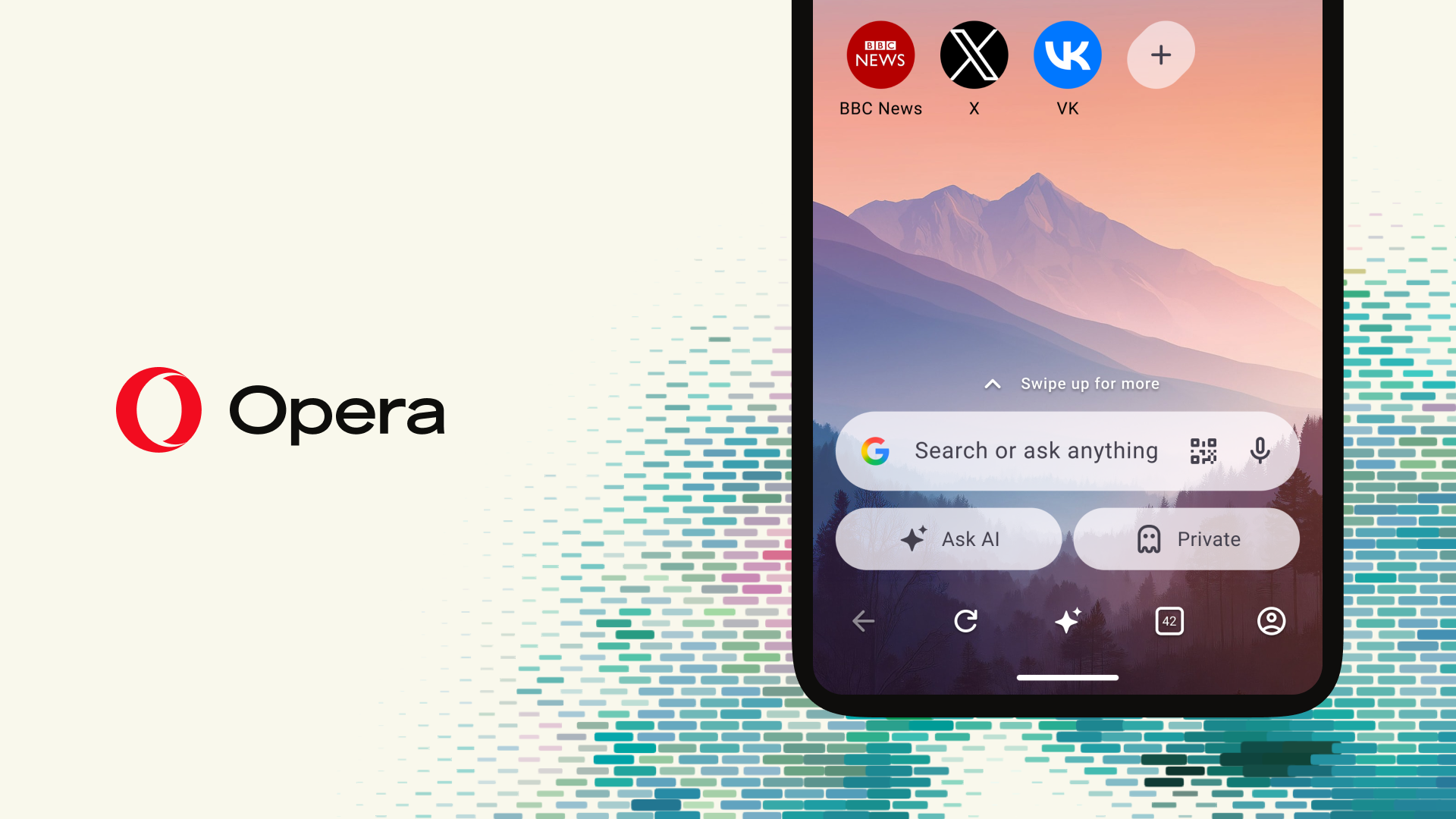


You deserve a better browser
Opera's free VPN, Ad blocker, and Flow file sharing. Just a few of the must-have features built into Opera for faster, smoother and distraction-free browsing designed to improve your online experience.