
Opera One R3 arrives with new AI, Google integrations, and more
Share


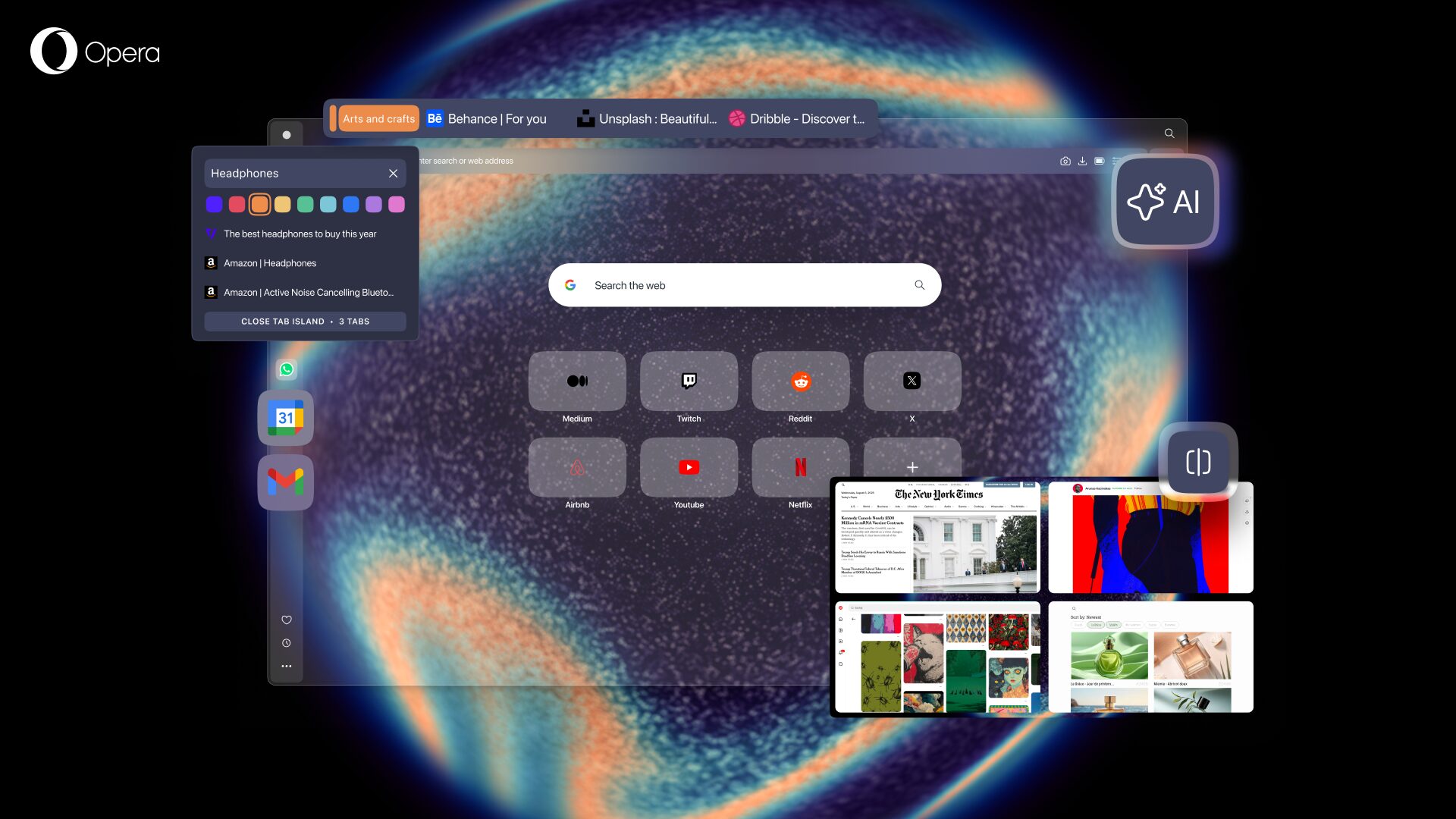
Today we’re finally rolling out the major R3 update to Opera One, and with it come improvements in three key areas that make your browsing experience much better: better tabs, advanced AI, and modular design improvements. Last fall we let you test some of these new features in the Developer stream of the browser, and now we’re finally bringing them to all of you so you can become more productive with Opera One.
With this update we’re bringing the following new things:
- New Tab Island customization;
- The new, upgraded, Opera browser AI;
- Google Services, incl. Gmail and Calendar in the sidebar;
- The introduction of Early Bird for beta testing new features;
- An expanded Split Screen that now lets you split your screen into 4;
- Improved Easy Files, Music Player and webpage translator; and
- New R3 Themes.
Let’s get into what Opera One R3 is bringing to the browser!
New Tab islands Customization
Tabs are the cornerstone of modern browsing, and this update brings new innovations to the way you interact with them – bridging the gap between a legacy feature and the future of browser technology.
Opera has been improving the tab experience ever since we invented and introduced tabs to the web browser back in the year 2000. In 2023, we introduced Tab Islands to Opera One and they quickly became one of your favorite features. Tab Islands are automatically created based on your browsing context, which lets you keep related tabs together in groups. They can also be expanded, collapsed, or even moved around within the tab bar.
Today we’re bringing an update that introduces even more ways of customizing and organizing your Tab Islands. With Opera One R3 you can choose the color of the Tab Island as well as name it – which adds an extra layer of visual organization so you can find what you’re looking for quicker.
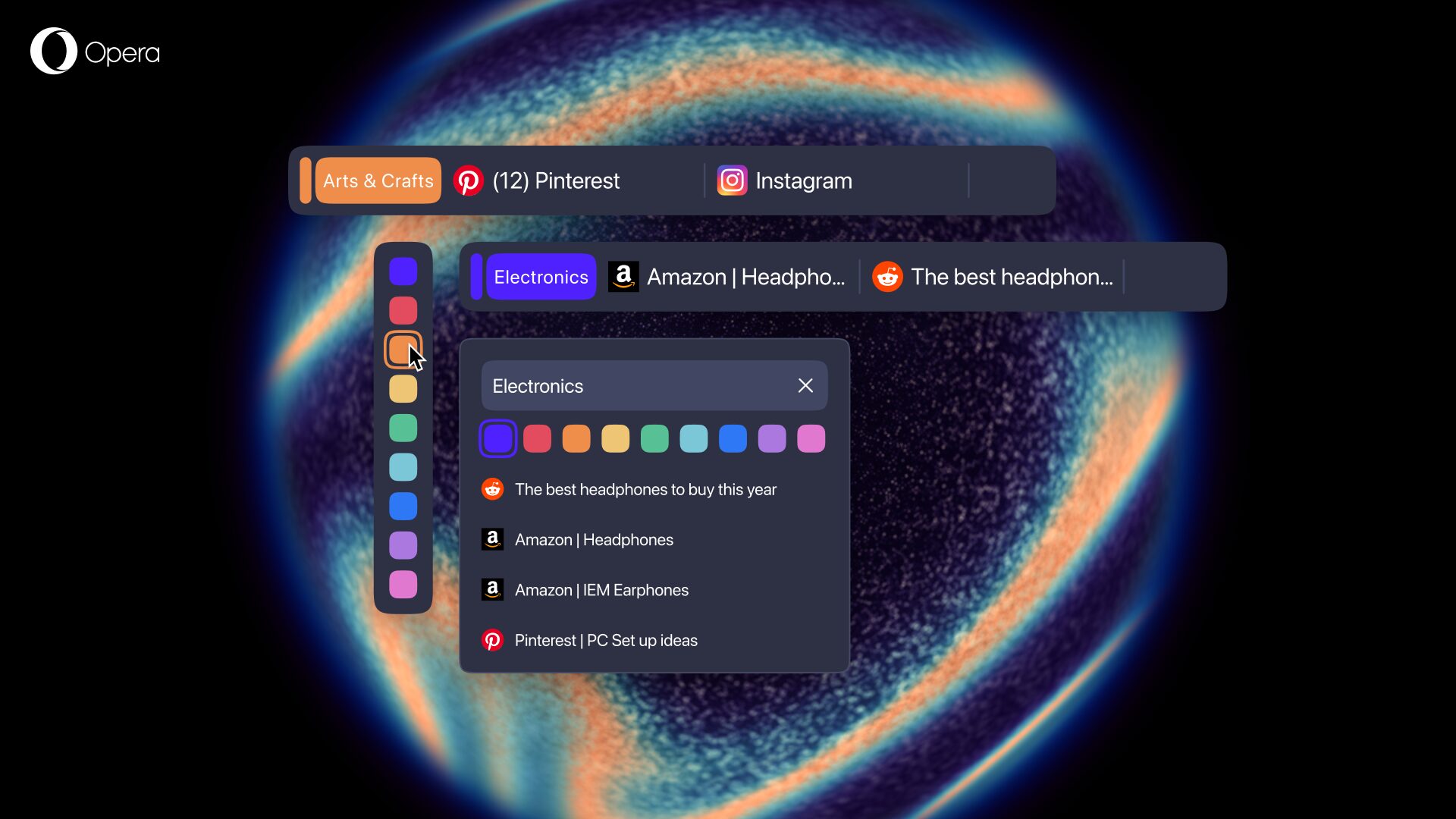
For example, if you’re the kind of person that likes to keep a tidy workspace and contracts your Tab Islands, leaving only the one you’re using open, this will make it much easier to find other tabs. By naming and color coding your Tab Islands you can create a customized order in your own browser, and by naming a Tab Island “Holidays” you’ll have an easy time getting to those important tabs that are waiting for you.
And if you’re a tab maximalist (like the author of this blog), the color coding and naming will allow you to tame the chaos and find tabs more easily.
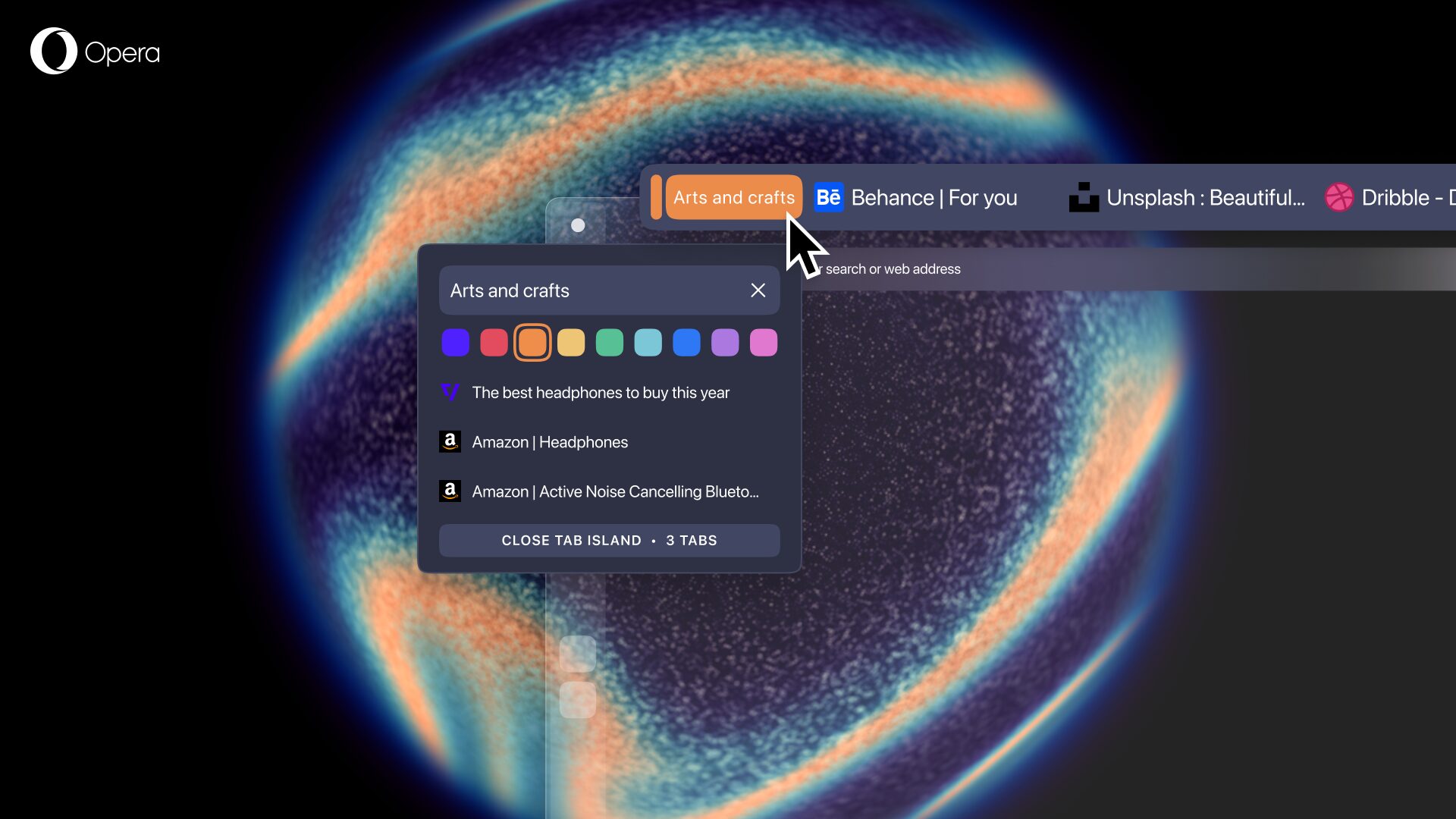
To customize the color or name of your Tab Islands you simply need to hover over the handle of the one you want to edit, and a popup menu will appear with the different color options and a text input box for you to add a name to the Tab Island – it’s that easy!
The new Opera browser AI
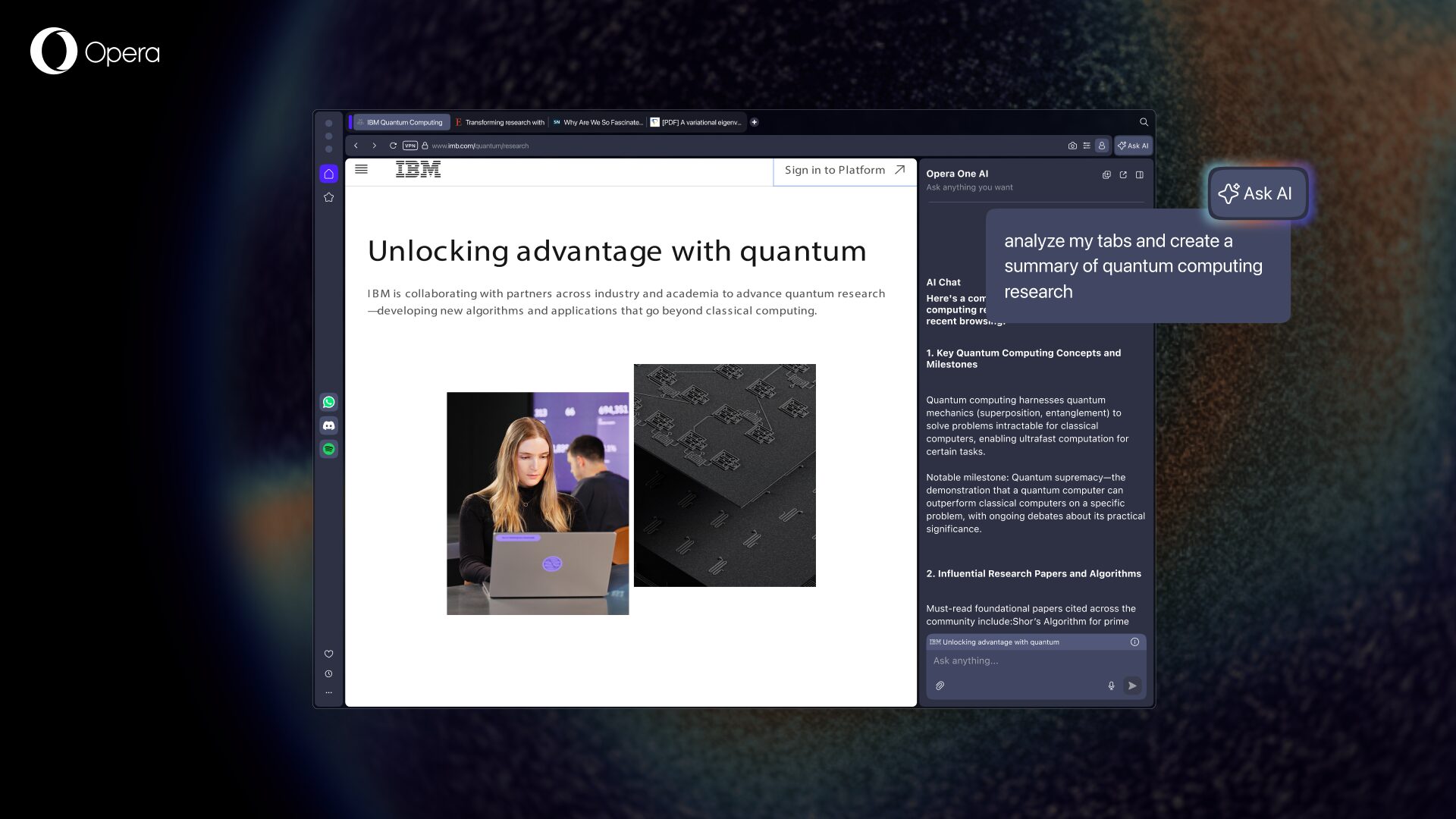
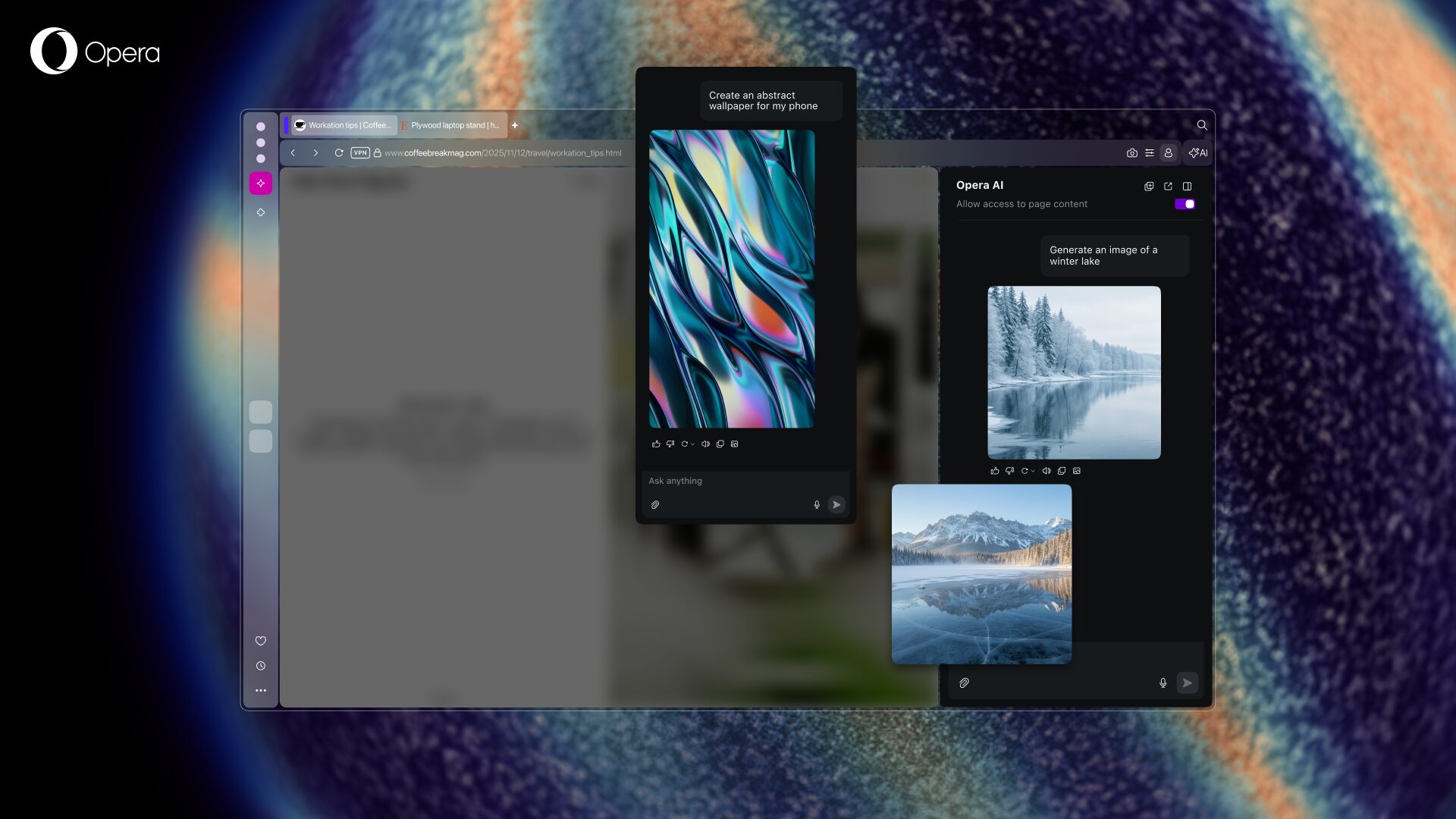
With Opera One R3 we’re bringing a rebuilt browser AI that has the ability to use your currently open tab (or Tab Island) as the context for the answer it will provide.
For this, we’ve changed the access point to the browser AI. Now you can find it in the top-right corner of the browser as a button that says “AI.” When you click it you access the new dedicated space for the Opera browser AI interface. Additionally, it no longer appears on top of your content, but as a side panel you can interact with whenever you want – working alongside your tabs.
Opera browser AI has also been re-engineered under the hood. On the technical side, the engine has been rebuilt for speed with a new architecture, adopting an agentic-based engine from Opera Neon. Because of this, it is capable of delivering 20% faster responses – and the good news is you can still use it without an account and for free.
Let’s go over some of the new features and capabilities of Opera AI:
- Contextual responses: Opera browser AI can use the context of your currently open tab (or Tab Island) to give you answers based on the context you’re browsing in. This means the AI won’t mix contexts in its answers. Together with the new tab customization features you can make the most of this feature to organize your research, work, planning, or even comparisons between content of different tabs and Tab Islands.
And if you don’t want this? When you start a new chat with Opera browser AI, you can disallow access to page context by toggling a button that appears at the top of the interface, just underneath the close button “x”.
- Video analysis on YouTube: Opera browser AI can understand the context of YouTube videos and tell you all about them. This can help summarize long videos, or even find specific moments within a video so you can jump straight to what you’re looking for.
- Privacy and control: To use Opera browser AI, you need to enable the feature and specifically allow it to access the content of the page. To protect your privacy further, Opera browser AI only understands the context within the specific web page you’re currently on, or the Tab Island group it belongs to. In other words, we limit the information to what is necessary to perform the task you requested. Opera browser AI does not send your general browsing activity or history to our AI Engine. Furthermore, Opera browser AI does not have automatic access to any Google services that you have open.
When you start a new chat, Opera browser AI waits for your first prompt to access the content of the page or Tab Island in question. You can easily turn off access to page content by disabling the option at the top of your Opera browser AI chat, before you start writing to the AI.
- Wallpaper generation: You can use the image generation capabilities of Opera browser AI to generate wallpapers for both desktop (horizontal) and mobile (vertical) devices. In order to create these wallpapers, you simply need to describe in your prompt what you want to create and specify if you want it to be horizontal or vertical.
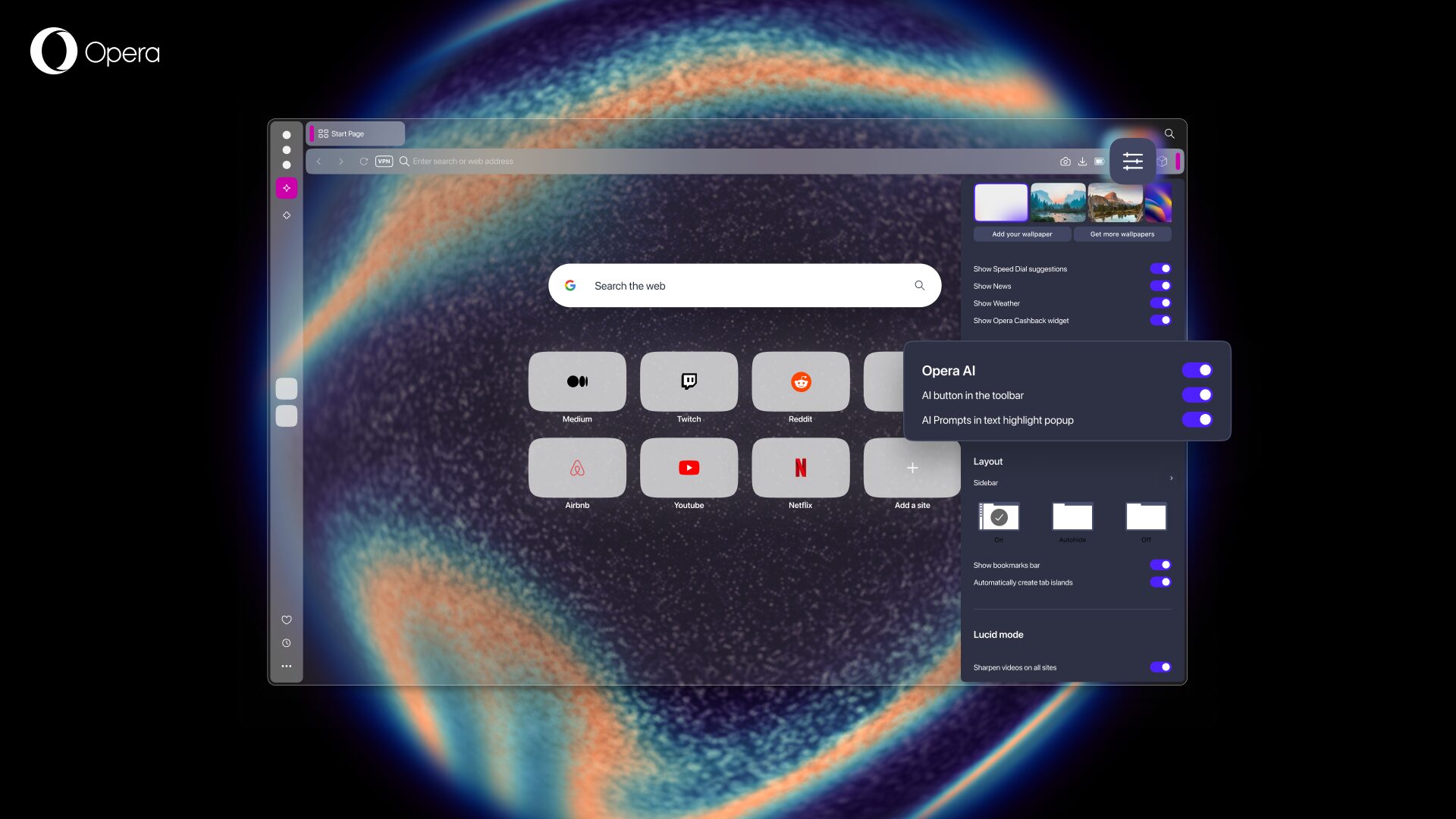
Opera browser AI is an opt-in feature within Opera One, and the easiest way to enable it (partially or fully) is in the Easy Setup menu or in the general settings. In both places, you will see three switches:
- The first – entitled “Opera AI” – is the main switch – if that is deactivated, then all Opera AI features within the browser are turned off.
- The second one enables access to the AI button (access point) in the toolbar.
- And, the final switch is for AI Prompts which, when active, will offer prompts when you highlight text on a webpage.
You can activate or deactivate some or all of Opera browser AI’s features according to your preference.
If you want to know more about the new features that come with Opera browser AI, we invite you to read the following blog post about it where we go over every single feature with more detail.
Google Services integrated in the sidebar
The sidebar in the Opera browser is one of the most popular features among you, it’s your go-to place for some of the apps and services most important to you, like Spotify, ChatGPT, Instagram, or X – you’ve voiced your appreciation for the sidebar, and we’ve been listening. That’s why last year we made some new integrations to the sidebar and brought some more options and services to it (like Slack and Discord) – and today we’re bringing even more.
After looking carefully at your feedback about which services we should add next to the sidebar, we’re introducing Google services into the sidebar since having them always at hand would naturally be a productivity boost that will save you a lot of tab switching over time.
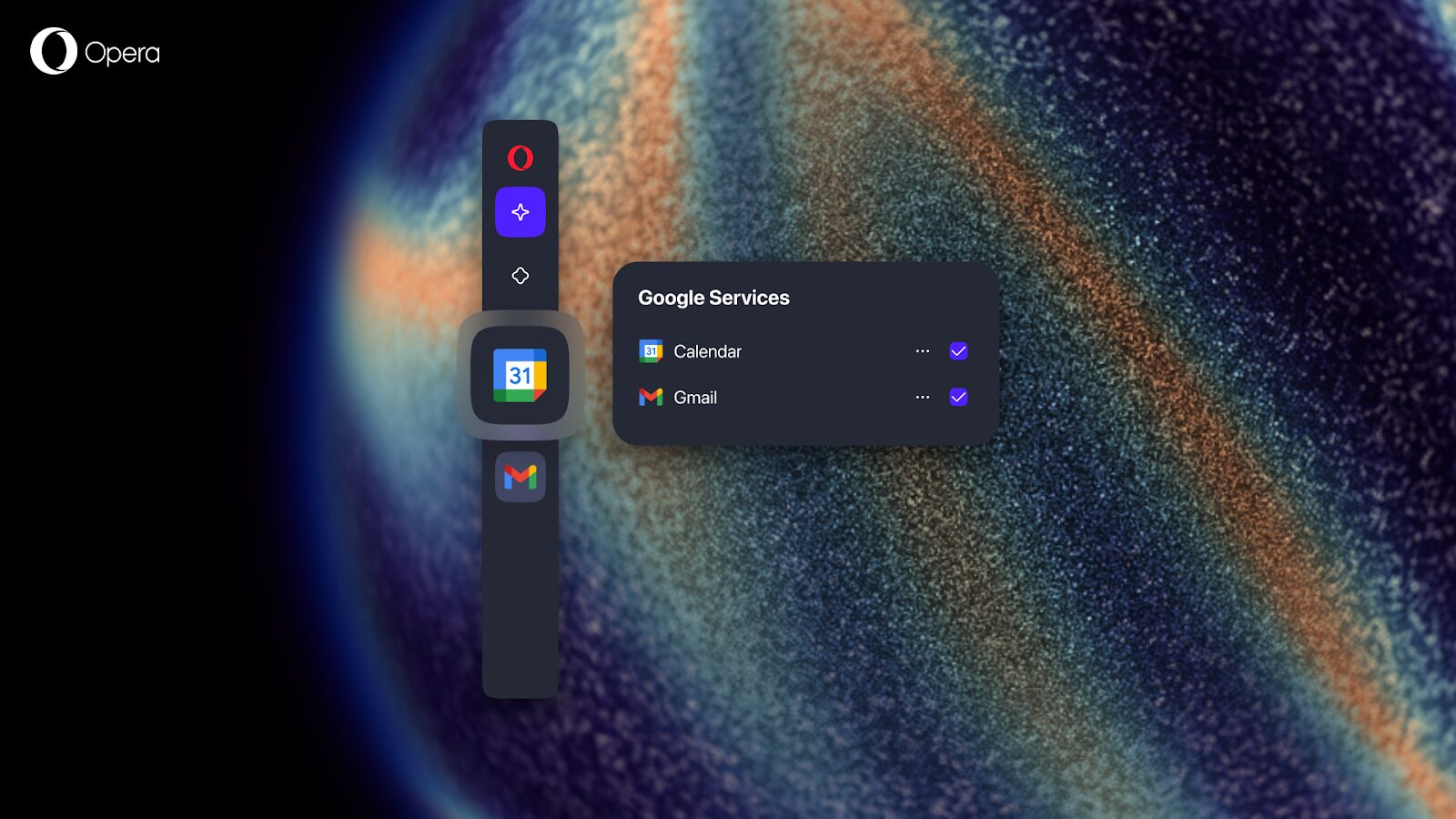
To get started with Gmail and Google Calendar in the sidebar you’ll simply need to:
- Open the Sidebar setup menu by clicking on the three dots at the bottom of it.
- Navigate to the section called “Google services.”
- Click on the circle in front of Gmail and Google Calendar and they’ll show up in your sidebar.
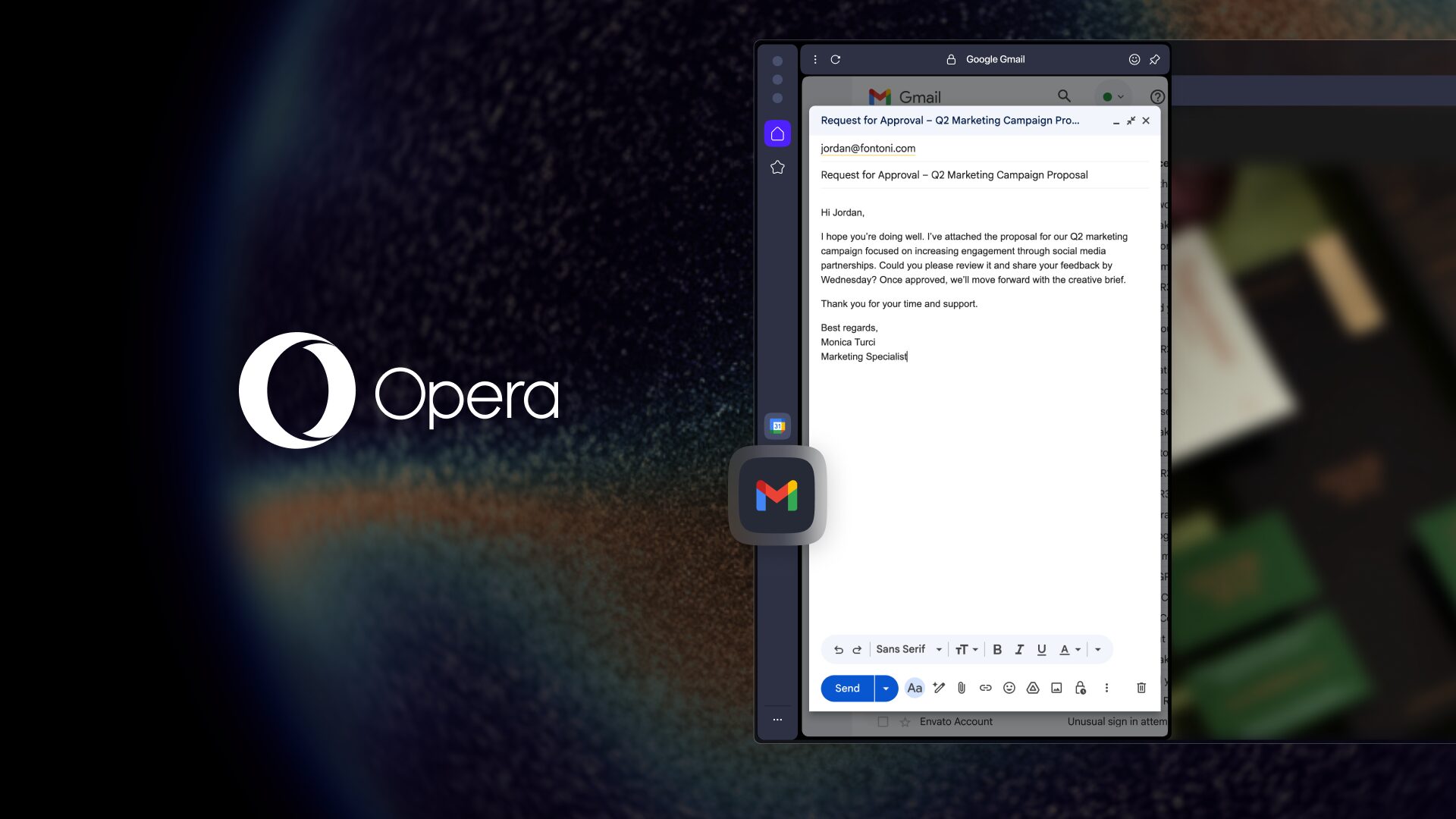
Additionally, you can also resize the panel when you open it by dragging it from left to right from its edge. And finally, you can also pin the panel to keep it open while you browse and minimize its interference with the tabs you’re browsing through – you can do so by clicking on the pin icon on the top right corner of the panel.
Introducing Early Bird mode for testing upcoming features
Opera One R3 brings a new mode called Early Bird in which you can test upcoming features ahead of their official release, all of it from the main Opera browser and without the need of using another browser to test those features. Early Bird is a mode that can be easily switched on and off by toggling a button in the settings menu.
Early Bird mode may already be familiar to those of you using Opera GX, and we’re now introducing it to Opera One. When you enable Early Bird, keep in mind that these features are still in development and may require additional refinement. That’s exactly why your participation matters – by trying them out and sharing your feedback, you help us make them better.

To turn on Early Bird mode, just follow these steps:
- Update Opera One to the latest version.
- Open the Easy Setup menu by clicking the three horizontal bars to the right of the address bar, or by opening the Settings menu.
- Navigate to the Early Bird option.
- Toggle Early Bird on and select the features you’d like to test.
- Relaunch Opera.
The introduction of the Early Bird mode means that we will discontinue Opera Beta, and support for that browser will stop on January 14, 2026. While the Beta version of Opera will be sunsetted, Opera Developer will continue to be supported just as usual. If you want to learn more about Early Bird, you can follow up this link to a Blog Post we made explaining things in much more detail.
An expanded Split Screen feature
The Split Screen feature is a go-to for productivity, and you have shown us that it’s one of your favorite features in the browser since we introduced it last year. Up until now, this feature let you open two tabs side-by-side at once saving you the endless switching between them.
So, in this update we’re also expanding the Split Screen. From now on, Split Screen supports up to four tabs at once – you’re also no longer restricted to just two tabs vertically, now you can also split the screen horizontally. This becomes an ideal feature for those among you who browse with big screens and high resolutions, but it doesn’t leave behind the convenience for those of you who like to work on your laptops in smaller screens. So, online shopping? Researching? Working? Now you can split that screen in four and show off your multitasking capabilities!
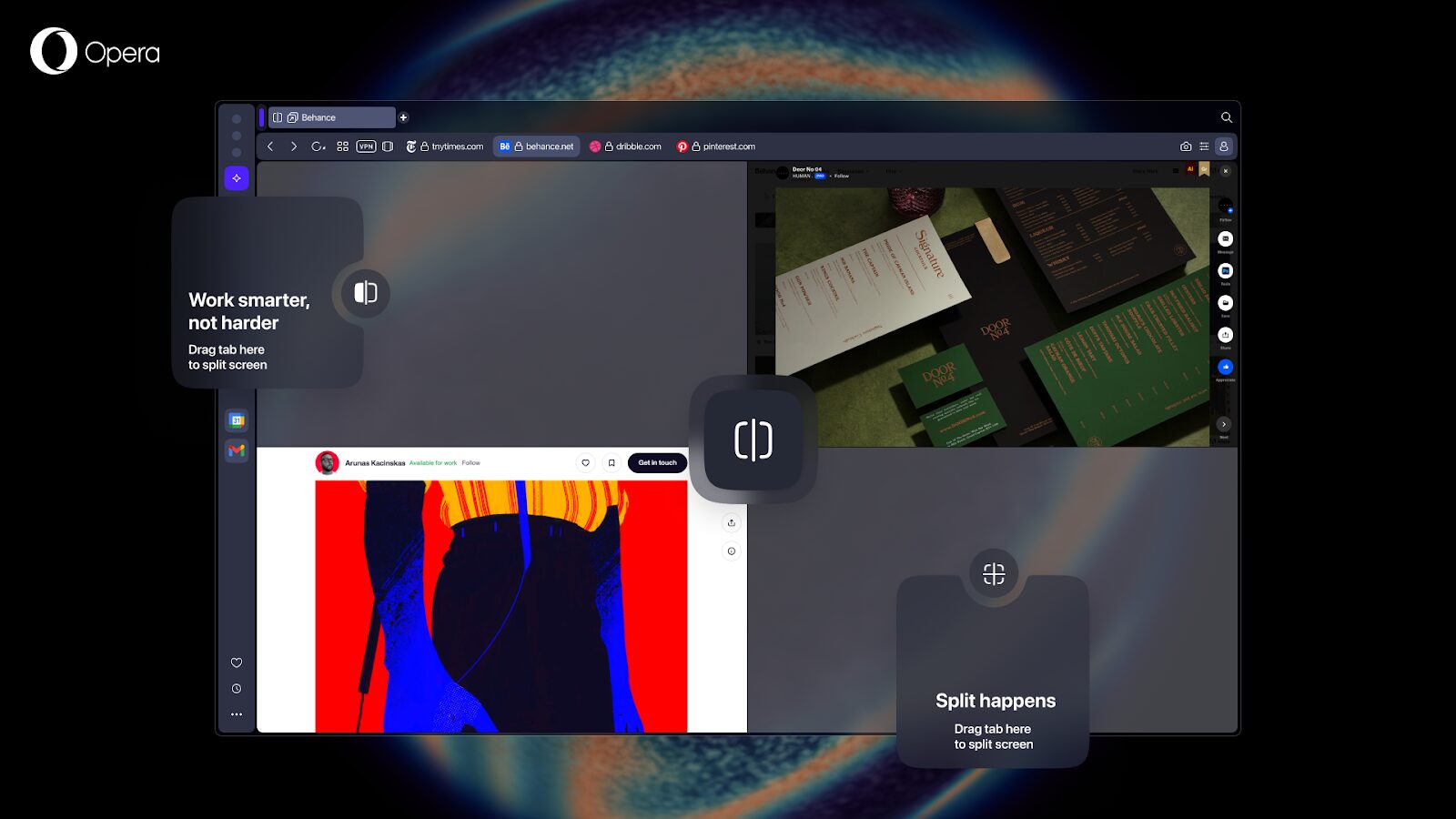
To use Split Screen, simply choose the tabs you want to view together (up to four), right-click, and select “Create Split Screen.” Alternatively, you can drag and drop the tabs one like you’re used to – there will be a prompt indicating where you can drop them.
When you drag tabs downward to activate Split Screen, on-screen prompts will appear allowing you to choose between vertical or horizontal layouts. Once you add a fourth tab, the grid option becomes available as well.
For now you’ll only be able to try the new Split Screen out on Early Bird, and very soon it will be available for everyone without the need to activate Early Bird mode in Opera One. If you want to read more details about Split Screen, please check this blog post out.
Better Easy Files, improved Music Player, and built-in webpage Translator
Opera One R3 also presents some improvements to features that have been highly requested by our community: the Easy Files system has been revamped, the Music Player can now be attached to the toolbar, and there’s now a built-in webpage translator.
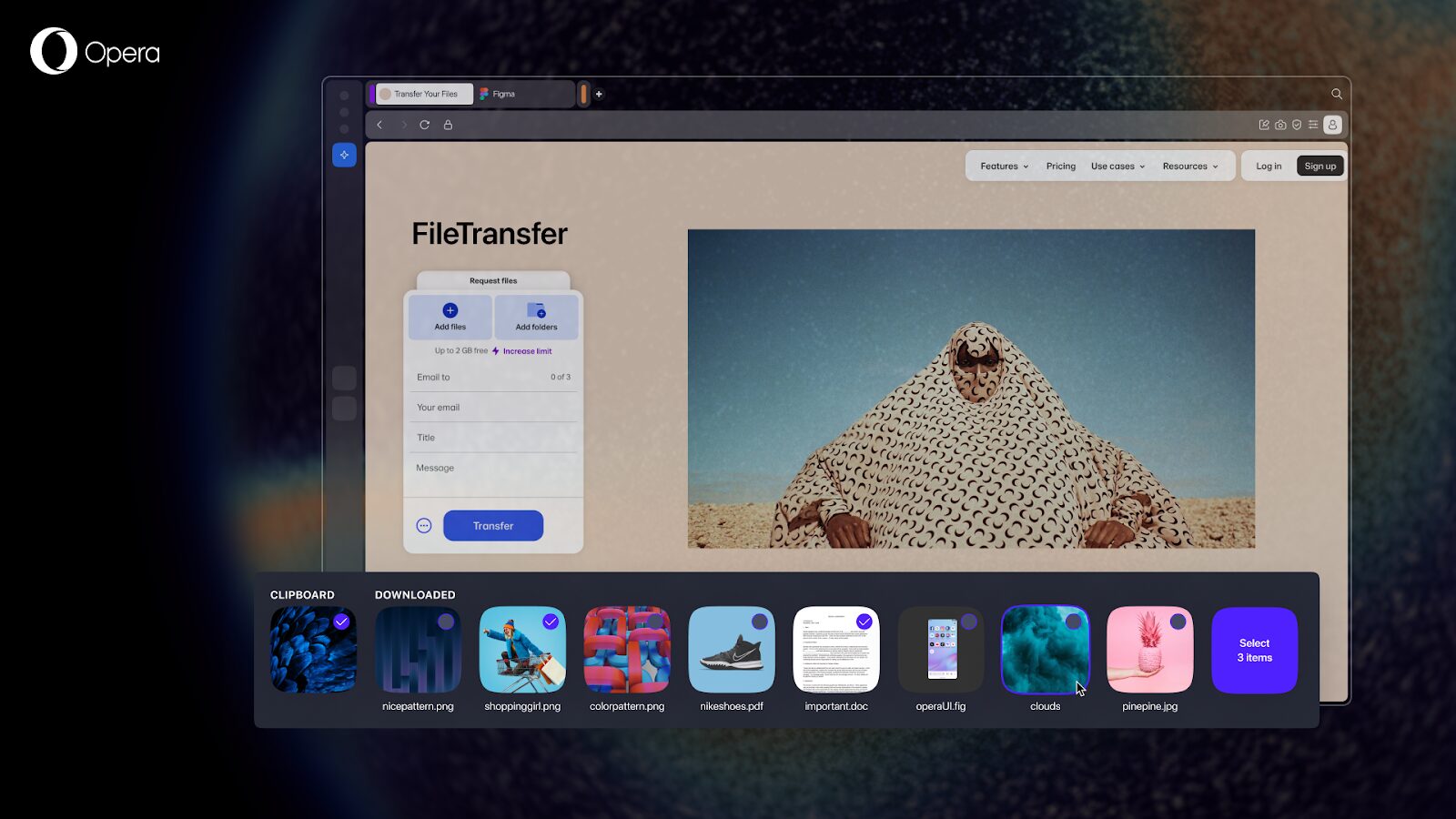
The Easy Files system now matches the modular design philosophy introduced by Opera One in 2023, and its functionality has been improved as well. When attaching or uploading a file in a website, Easy Files now appears as a module at the bottom of your screen. Because of that, you can now see more files and select multiple of them at the same time – improving the feature’s functionality.
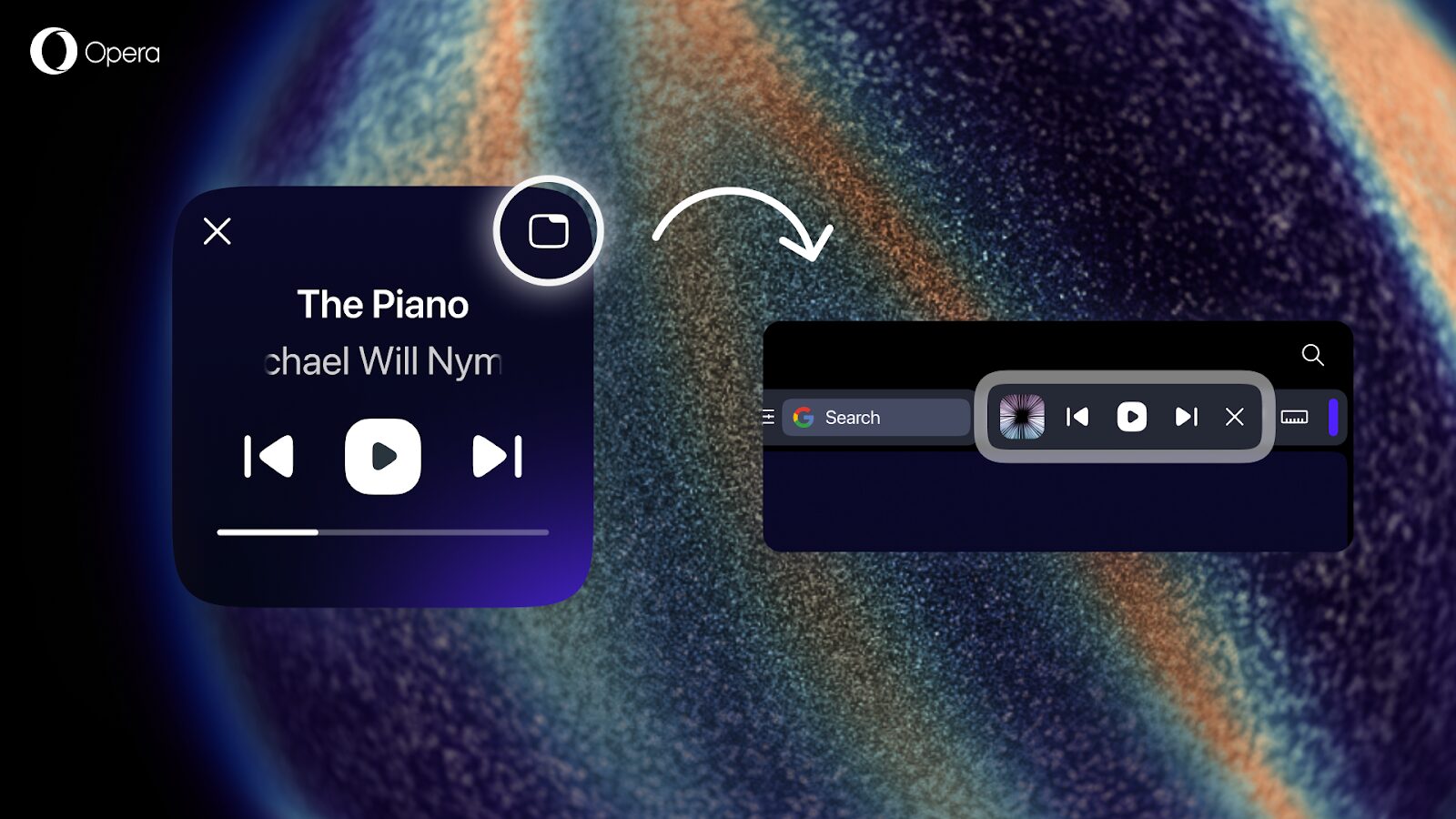
The Music Player in Opera One lets you control your music from anywhere because you can pop out the controls with a module that detaches from the sidebar. This feature is very useful when you have a some pixels to spare, but when you don’t you should still be able to control your music from within the browser at any time.
That’s why the Music Player can now be pinned to the toolbar, giving you a convenient way to control the music you’re listening to without laying over the page you’re browsing through.
Finally, Opera One R3 also comes with a built-in webpage translator that you can enable or disable in the browser settings – a feature that we’ve developed in collaboration with Lingvanex.
The internet is a palace where we all come together and share, among many things, our languages. With the built-in translator in Opera One you can translate webpages from over forty languages into your native one, and access information that would otherwise be more difficult to acquire.
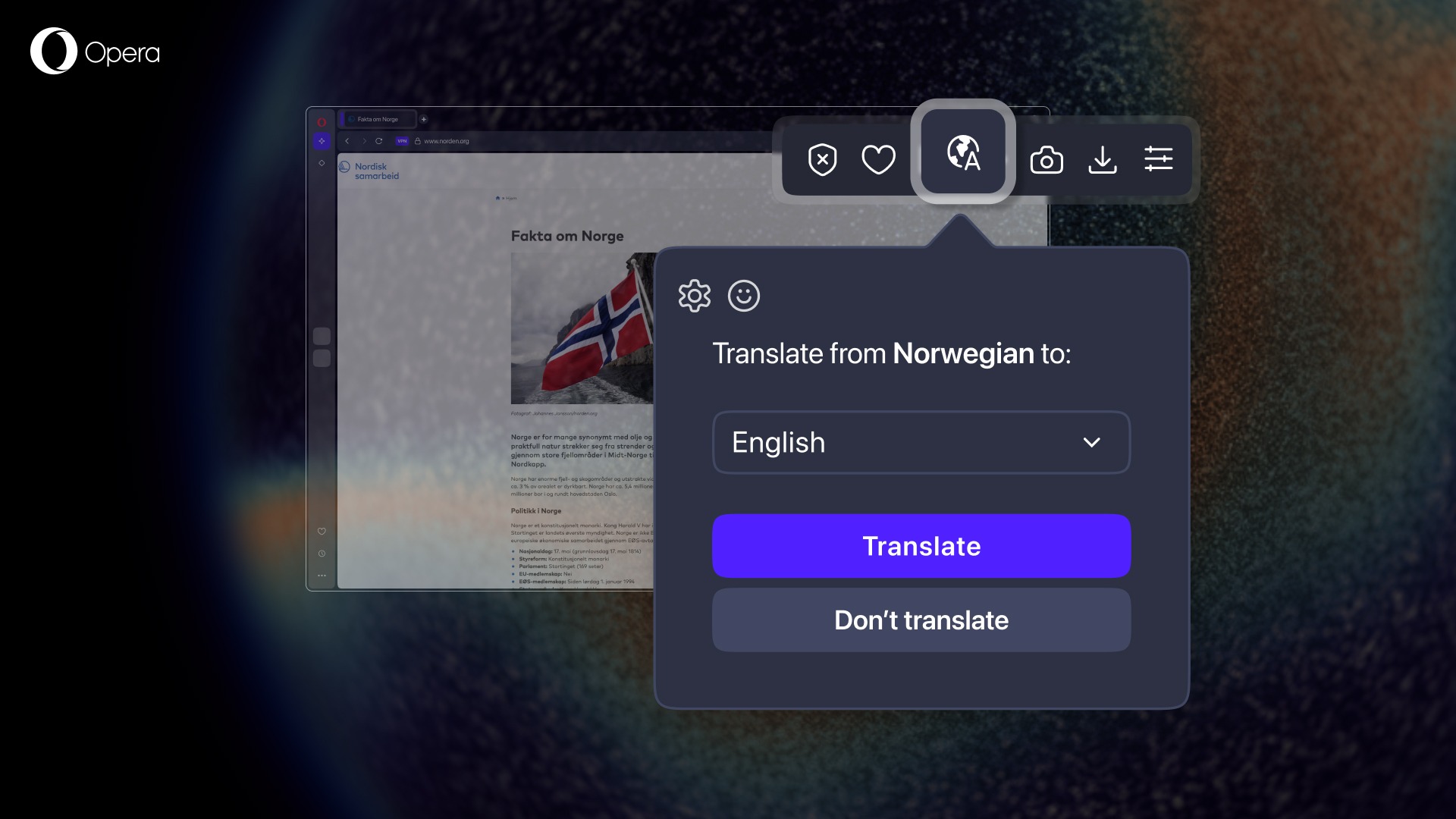
Maybe you’re travelling or living abroad and are not familiar with the local language, or you’re shopping in a store that’s not in your native language. You can choose which language you want the site to be translated into, and you can translate the site just once or set it to always translate that specific language into the one of your choosing. Additionally, you can switch back to the original language of the site by clicking on the Translate button on the toolbar.
Custom Themes for Opera One R3
With Opera One R3 also come new Themes that give your browser a completely new look, feel, and sound, they are called Radiance and Orbit. Themes are the best way to make your browser feel amazing and not just look amazing – they introduce soundscapes and visual animations to do so. Additionally, most of the Themes in Opera One are custom crafted by real artists, which literally makes the browser into a work of art for you to enjoy.
Radiance has been designed to subtly slow things down in dark mode. At its core, a luminous sphere rotates gently, wrapped in flowing bands of color that shift between warm amber, cool teal, and deep cosmic blue. The motion is subtle and continuous — never distracting, always grounding.
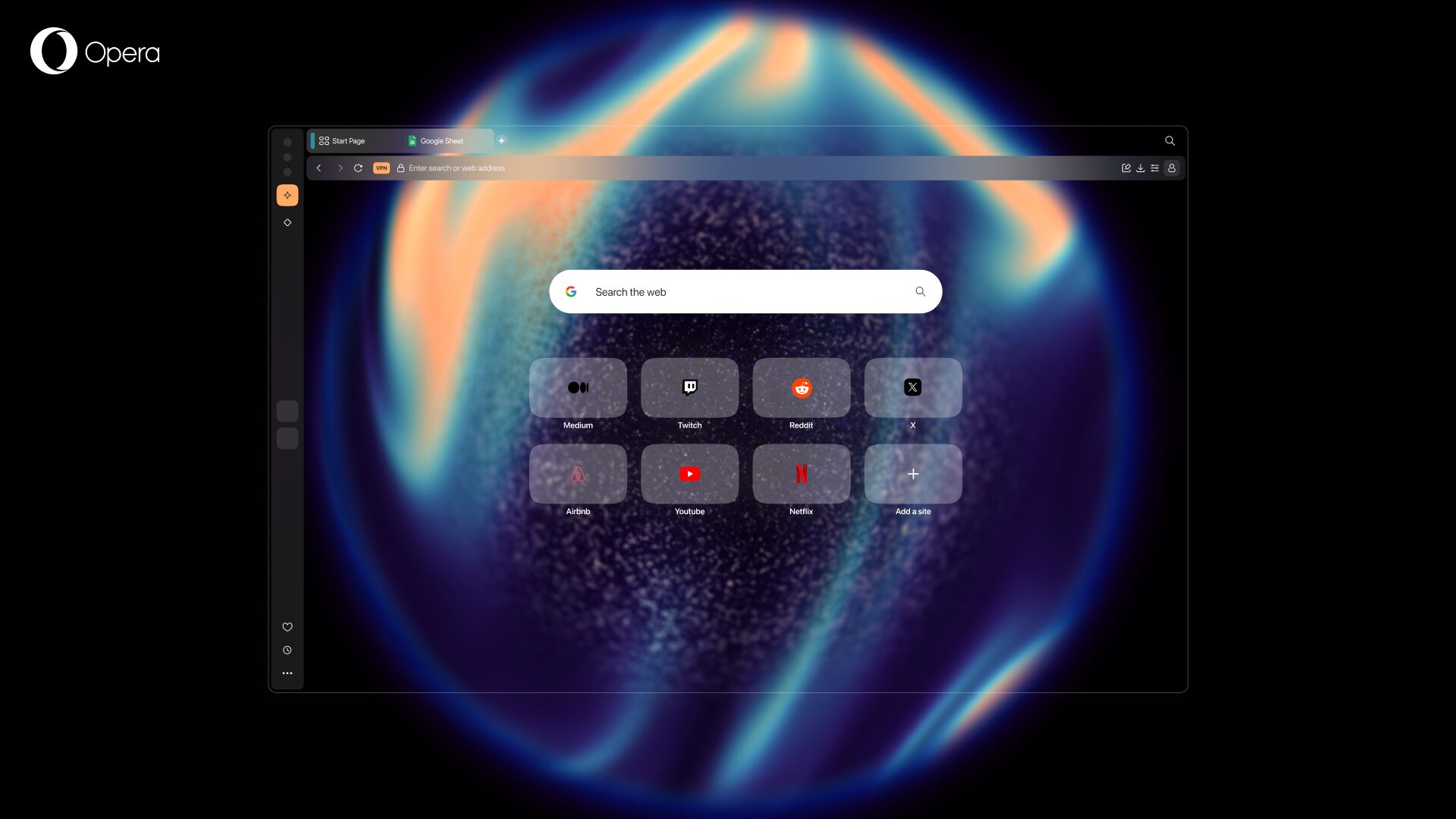
Orbit, which comes in light mode, also brings a gentle motion and soft colors that give a soothing effect to your browsing experience while keeping your focus. At its center, a luminous sphere drifts in slow rotation, wrapped in pastel tones of violet, lavender, and white that feel calm, open, and uplifting. The movement is smooth and unhasty, creating a sense of flow without pulling focus from what matters.
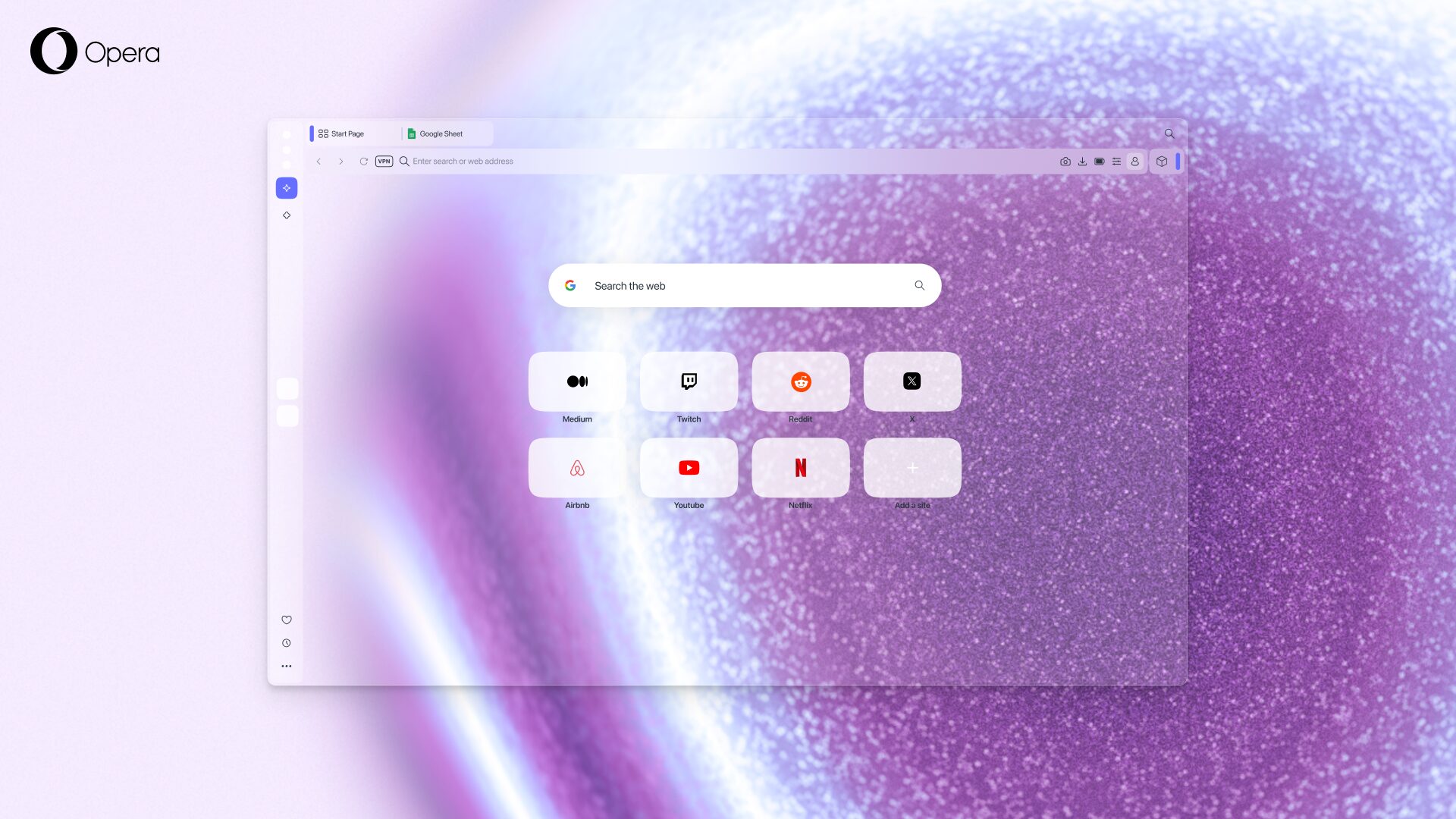
You can edit both Radiance and Orbit Themes to change the speed of the sphere’s rotation, its size, and also the accent colors of the browser. You can turn the animation on or off, as well as the background music in the Theme gallery that can be accessed through the Easy setup menu.
We’re constantly adding new custom made Themes to Opera One, for instance we recently added a music theme in collaboration with Spotify which grooves to the tunes you’re listening to in the Opera sidebar music player. Or, what about a black noir theme that goes full dark for those of you who enjoy browsing in the night? Well, we have it! Check the gallery out, there’s plenty to choose from.
Download Opera One
If you want a web browser that feels like it was tailor-made for you to be productive, and that makes you feel good when using it, then look no further! Download Opera One and enjoy the R3 update, and all the other features that are waiting for you.

User comments
You deserve abetter browser
Faster, safer and smarter than default browsers. Fully-featured for privacy, security, and so much more.


You deserve a better browser
Opera's free VPN, Ad blocker, and Flow file sharing. Just a few of the must-have features built into Opera for faster, smoother and distraction-free browsing designed to improve your online experience.