
Opera Neon now supports MCP Connector that let you control the browser through other AI clients
Share


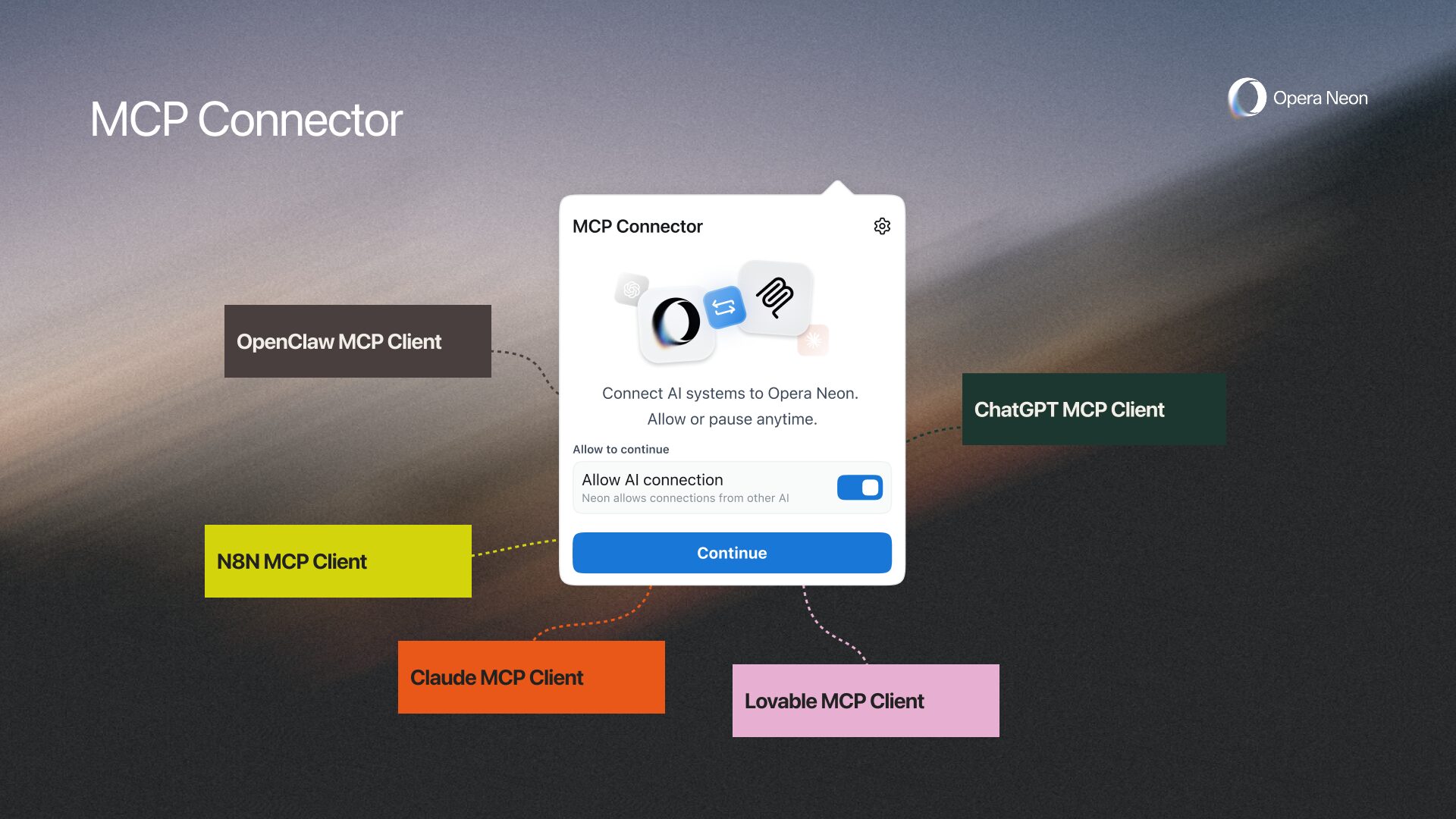
Today we’re sharing an update that you’ve been requesting for a while: Opera Neon can now act as an MCP (Model Context Protocol) server for other AI clients.
What this means in practice is that your own AI systems (not provided by Opera) that “speak” MCP can connect to your live browser session, access your real-time web context, and even perform tasks in your browser. So yes, your Opera Neon can now be controlled by your AI of choice.
Even as AI tools become incredibly smart, most still hit a wall because they are disconnected from where your actual work happens. While Neon’s built-in AI already solved this natively, external clients like Claude Code still forced you to be the manual interpreter.
You had to take screenshots, copy, paste, and manually transfer information between apps.
Now, you no longer have to be the person in the middle; your favorite external AI tools can step directly into your browser, understand the environment where you already work, and take action on your behalf if you wish to.
See it in action: build with Claude Code and Lovable in Opera Neon
With MCP Connectors, the AI can get access to your context and take action. Imagine you’re using Claude Code to plan and build a new web app, and you have a site open in Opera Neon with documentation and examples of what you want to build – instead of manually inputting all of that context – Claude Code can just reach into Neon and access it for you.
Furthermore, Claude Code can use Opera Neon to click around, take screenshots, and analyse a website – like you would do it yourself. Using this information, it can plan and build a new web app based on what it has learned from browsing with Opera Neon. But that’s not all, if you also ask Claude Code to test the web app, it can use Opera Neon to do so – no need to specify how, both apps are talking to each other and will figure it out.
Or what about using a purpose-built prototyping tool like Lovable? Your tools can now start to talk to each other, which means you save time because you’re no longer the intermediary between them. In the following example, we showcase how Lovable can use Neon in a logged-in web app to take inspiration for a prototype:
Neon is the first major AI browser to offer a built-in MCP server. Since you are already logged into your websites and web apps within Neon, any external AI system connecting through MCP can operate directly within those authenticated, real-time web sessions (headful browsing).
What you can do today with Opera Neon as your MCP server
Once connected, your AI can access Opera Neon to list tabs, read page content, screenshot the page, and take direct actions on your behalf – like clicking, filling out forms, and opening new tabs. Here are a few examples of how that can change your workflow right now:
- Claude Code: Give Claude Code full context of your open research tabs, dashboards, and authenticated pages. No manual copy-paste. No screenshots. You can ask it to automatically navigate to new sources, click around, fill forms, open new tabs, and extract data. This is useful both to gather inspiration, but also during development for testing and verification. When developing a web app, a prompt like “use Neon to test and verify” works really well, no further instructions needed.
- Lovable: Open any web app you’re logged into. Tell Lovable: “create me a UI like this”. It reads the live page and prototypes it instantly.
- N8n: Trigger automation workflows with live browser context. Neon becomes an active node that can actually click and fill forms inside your n8n flows.
How to connect AI services to Opera Neon
Allowing MCP Connectors
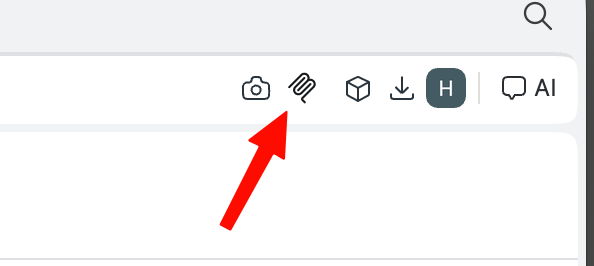
Click on the MCP logo in the top-right of the Neon Browser and choose “Allow AI connection” and click Continue.
Now you can choose from a preset of AI Clients, or configure a custom MCP Client.
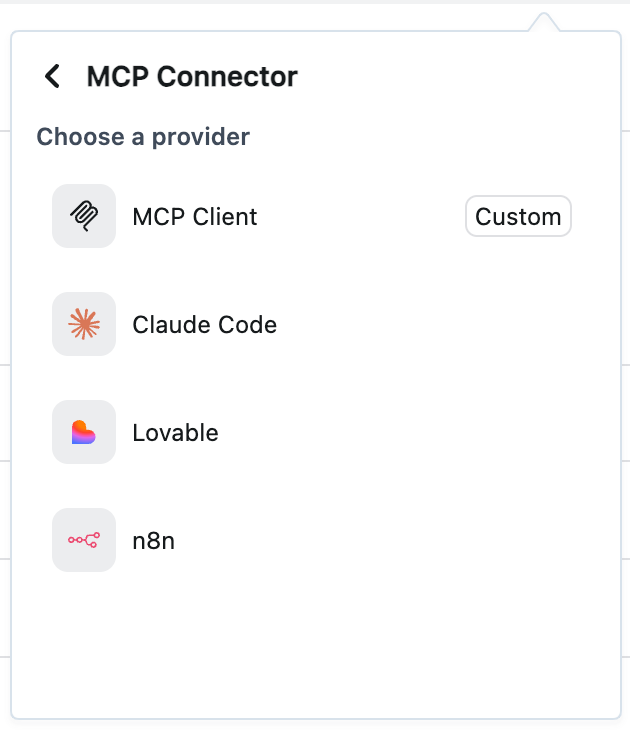
Here are some examples, but for each of the presets, you’ll find the relevant instructions in the dialogue in Neon:
Claude Code
Choose the Claude Code preset and follow the Setup guide displayed in the dialogue.
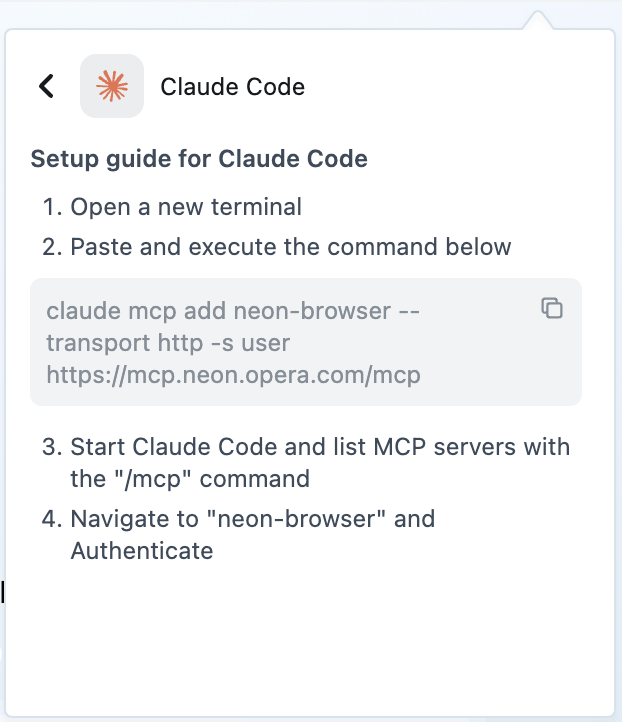
Make sure that the displayed authentication URL opens in Neon and not any other browser. If it does, copy the URL and paste it into a new tab in Neon.
Custom MCP Client
This option is, essentially, for any MCP Client not listed in the presets. The concept is to bring the MCP Server URL with you (copy the URL) and find out how to configure an MCP Connection from your AI service that can act as an MCP Client.
If your AI service of choice has a chat interface, you might get help by simply prompting it. Typically, MCP setups have names like “Connectors”, “Plugins” or “Apps”.
Beware, not all AI services can act as an MCP Client.
If there is a question about what type of authentication, choose OAuth2.
When authenticating, make sure this is done from within the Neon browser (and not any other browser).
Deciding what browsing tools should be available for the MCP clients
Find the Settings option at the top-right of the dialogue and you’ll see a list of configurations. By default, these 3 tools are enabled; Read tabs, Read page content and Screenshot page. All other tools are disabled by default.
If you want the AI system to be able to do agentic behavior, you should look at what tools to enable under the “Write tools”-list. These include tools like Switch tabs, Close tabs, Mouse clicks, Keyboard clicks, Go to previous page, Search Google, Navigate to page and Fill forms. See the Claude Code <-> Neon video above to observe how these tools are enabled.
There is also a “Read tool” that’s not enabled by default; “Read history”, which can access Neon’s browsing history when enabled.
To make this reliable, we developed two key pieces of infrastructure:
- Authentication: you connect your AI service using an MCP Server URL, ensuring only your AI connects to your Neon.
- Persistent proxy server: your laptop isn’t always on, which can cause connections that are assumed to be persistent to break. To solve this problem, we built a persistent proxy server so the MCP connection stays alive even when Neon is closed, returning a clean ‘browser not available’ signal instead.
Opera Neon is now part of your Dev Stack
Reading context is useful, but taking action is what actually drives work forward. By supporting both reading and executing (Write tools) commands, Opera Neon becomes a programmable, active layer in your software stack.
Whether you are using Claude Code to build and test web apps, Lovable to prototype UIs, or n8n to automate multi-step workflows, Neon plugs directly into the tools you already rely on. Your external AI understands your web context, and it can actively move through it – opening tabs, filling forms, and taking real actions inside your live browser session.
Connect to Opera Neon today
If you already have an Opera Neon subscription, you can start connecting your favorite AI tools today. Not a subscriber yet? Upgrade to Opera Neon now and start creating your own AI ecosystem.

User comments
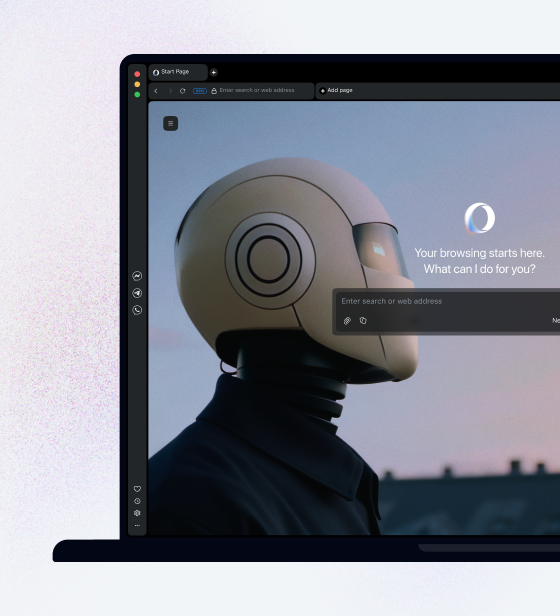
Turn ideas into action
Chat, create, and get things done with Opera Neon, the AI-powered browser that researches, builds, and acts for you.


You deserve a better browser
Opera's free VPN, Ad blocker, and Flow file sharing. Just a few of the must-have features built into Opera for faster, smoother and distraction-free browsing designed to improve your online experience.