
How to set up Opera Sync on all your devices
Share


Hey all!
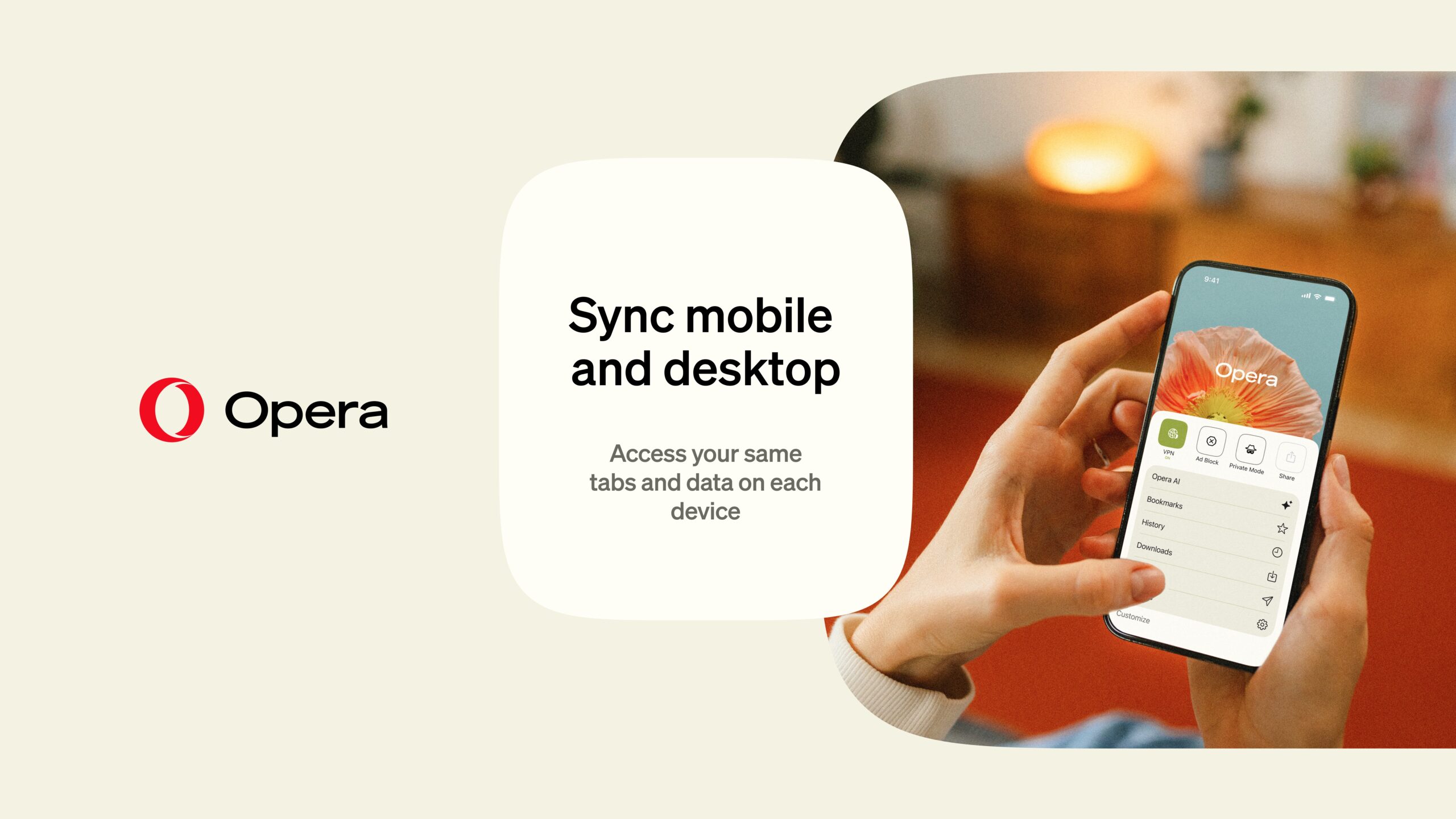
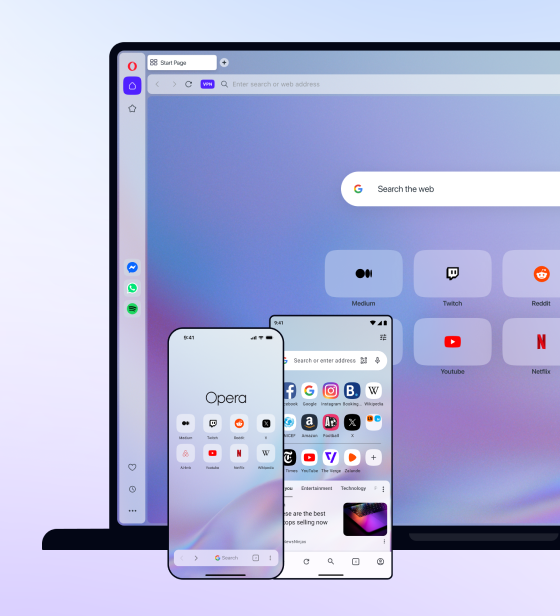
Have you ever started something on your laptop, but then you have to run for it and finish it on your phone or vice versa? With Opera Sync, your bookmarks, Speed Dials and open tabs follow you to every device where you’re signed in to Opera. You can also sync passwords, history and more. The setup takes just a few minutes.
Step 1: Create your Opera account
Sync runs through your Opera account, so you’ll use the same email and password on every device.
Create your free Opera account
Already have one? Skip to Step 2.
Step 2: Sign in on each device and turn on sync
Sign in with your Opera account on every device you want to sync, including the one you’re on now.
On your computer
- In Opera, go to Settings > Synchronization and click Sign in.
- Enter your Opera account details. Opera starts syncing right away.
- To choose what gets synced, click Advanced sync settings and toggle the data you want: Bookmarks, Speed Dials, Tabs, History, Passwords, Settings.
To see tabs from your other devices in the sidebar:
- Open Sidebar setup by right-clicking the sidebar, or by clicking the three dots at the bottom-left corner of the browser.
- Scroll down to Opera Tools.
- Check the circle next to Tabs.
A new icon appears at the bottom of the sidebar. Click it to see your open tabs from your other devices.
Using Opera GX or Opera Air? The steps are the same.
Opera on your Android
- Tap the profile icon at the bottom right, then the gear icon.
- Go to Personal data > Sync and backup.
- Turn on Sync and backup, tap Sign in and use your Opera account.
- Your passwords, bookmarks and speed dials, history and open tabs start syncing right away. Turn off anything you don’t want to sync.
Your bookmarks, Speed Dials and tabs should show up within a few minutes. Here’s where to find them:
- Tabs: open the tab gallery, tap the three dots at the bottom right and go to synced tabs.
- Speed Dials: tap Other speed dials, which appears on your start page once you’re signed in.
Opera on your iPhone
- Open the main menu and go to Settings > Account.
- Sign in with your Opera account.
- Choose what to sync: Bookmarks and Speed Dials, Tabs, Passwords and History.
- Give it a few minutes. The first sync can take a little while before all your data shows up.
Here’s where to find your synced data:
- Tabs: open the tab view and tap Synced at the top.
- Bookmarks and Speed Dials: open Bookmarks. Bookmarks from your other devices are in User Bookmarks and Bookmarks Bar, and their Speed Dials are in Other Speed Dials.
- Passwords: merged with your saved passwords in Settings > Passwords.
- History: go to Main menu > History. Only pages you visit after turning on sync will show up, so older browsing history won’t appear.
Something not syncing?
- Nothing shows up: check you’re signed in with the same Opera account on both devices, and that the data you want is turned on. The first sync can take a few minutes, so give it a moment.
- Asked for a passphrase you don’t remember: go to sync.opera.com and click Reset Passphrase. This clears your synced data from Opera’s servers, not from your devices. Sign in again afterwards and let your devices sync.
- Asked for your old password: if you recently changed your Opera account password, Opera may ask for the old one once to unlock your synced passwords.
- Want to check what’s synced? Sign in at sync.opera.com to see your synced bookmarks and Speed Dials in any browser.
Good to know: by default, your synced passwords are encrypted with your Opera account details. You can also choose to encrypt everything with your own sync passphrase. If you do, you’ll need that passphrase on every device, so keep it somewhere safe.
You’re all set
Your Opera browsers are now synced. Whenever you get a new phone or computer, just install Opera, sign in with the same account, and your bookmarks, Speed Dials and tabs will show up within a few minutes.

User comments
You deserve abetter browser
Faster, safer and smarter than default browsers. Fully-featured for privacy, security, and so much more.


You deserve a better browser
Opera's free VPN, Ad blocker, and Flow file sharing. Just a few of the must-have features built into Opera for faster, smoother and distraction-free browsing designed to improve your online experience.