
Opera for Android: The Ultimate Mobile Browser for Travelers
Share


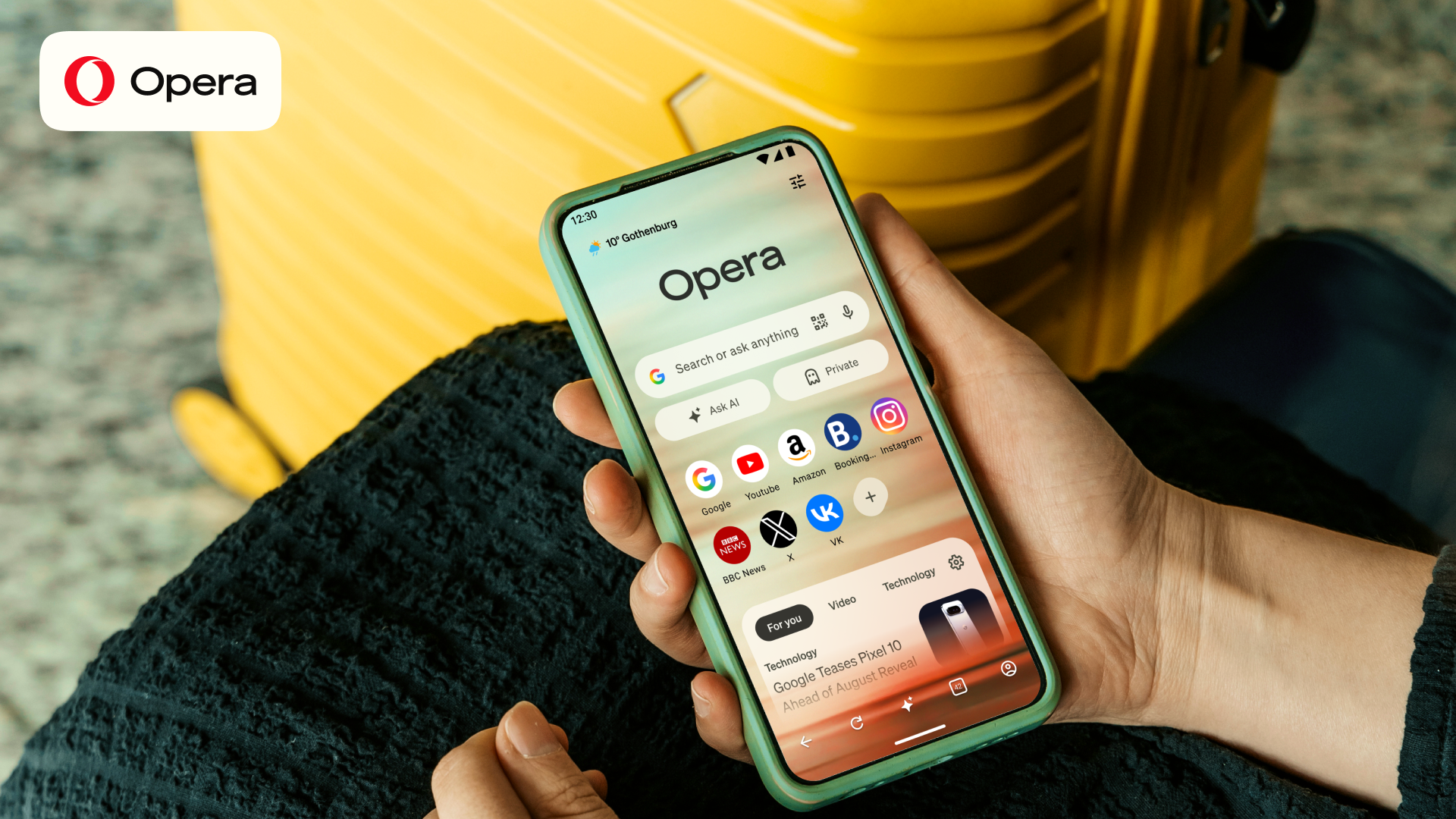
Travel changes how you use your phone. Mobile data can be expensive or hard to get, public Wi-Fi is sometimes your only connection, and long flights or train rides can mean hours without any signal.
Opera for Android has a set of built-in features designed for those moments: a travel eSIM, a free VPN, Data Saver, offline reading, and a download manager with its own media player. Here is how each one can help on your next trip.
1. A travel eSIM for when you need it
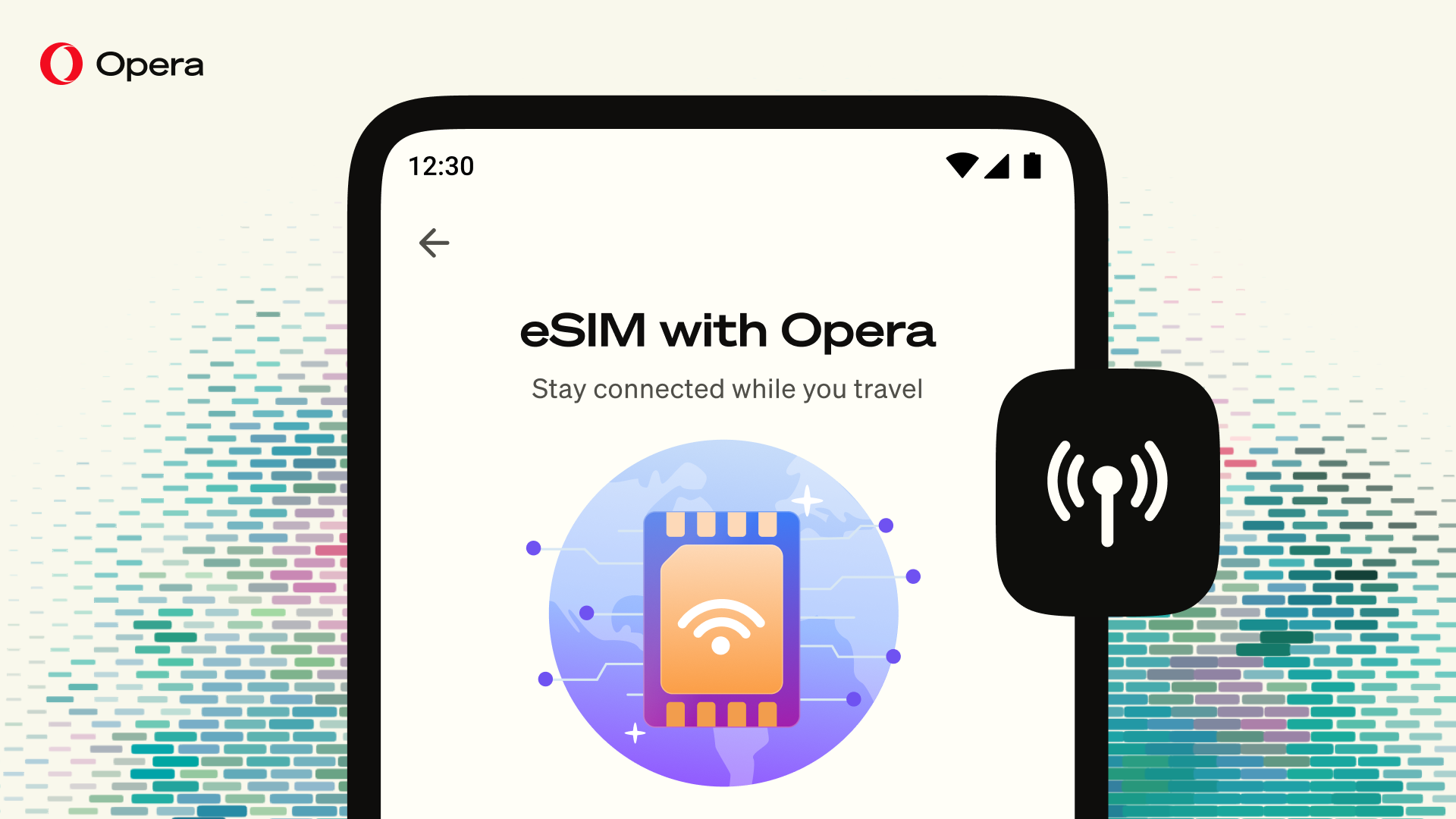
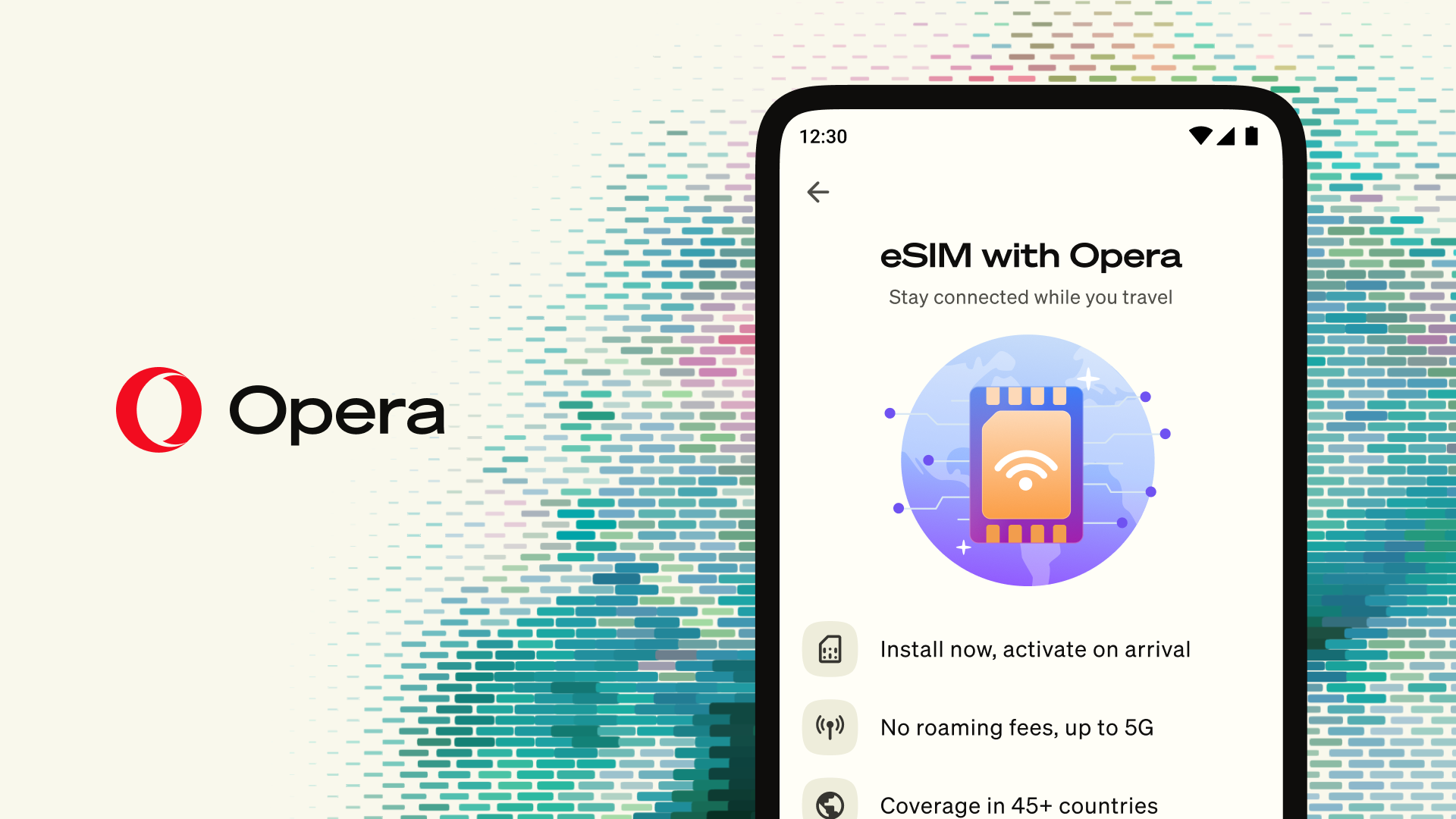
Sometimes your network does not work abroad. Sometimes it works, but the roaming charges are high. Opera for Android includes a built-in travel eSIM, which gives you local data at a known price without leaving the browser.
Choose the country you are visiting, pick a plan and switch it on. Set it up at home before you leave. It only starts counting when it first connects at your destination, and there is no separate eSIM app to install. The data covers every app on your phone, not just the browser, from maps to messaging to booking a taxi. It is data only, does not replace your phone number, and requires an eSIM-compatible, carrier-unlocked Android device.
How to: Swipe up from the bottom of the screen, or tap your profile icon, to open the menu. Tap eSIM and follow the steps.
2. A free VPN for public Wi-Fi
Airports, hotels and cafés often offer open Wi-Fi, and it is easy to connect without thinking twice. The catch is that open networks are not encrypted or private, so other people on the same network can potentially see what you do. That is not where you want to be checking your banking, logging into a hotel portal or looking at your bookings.
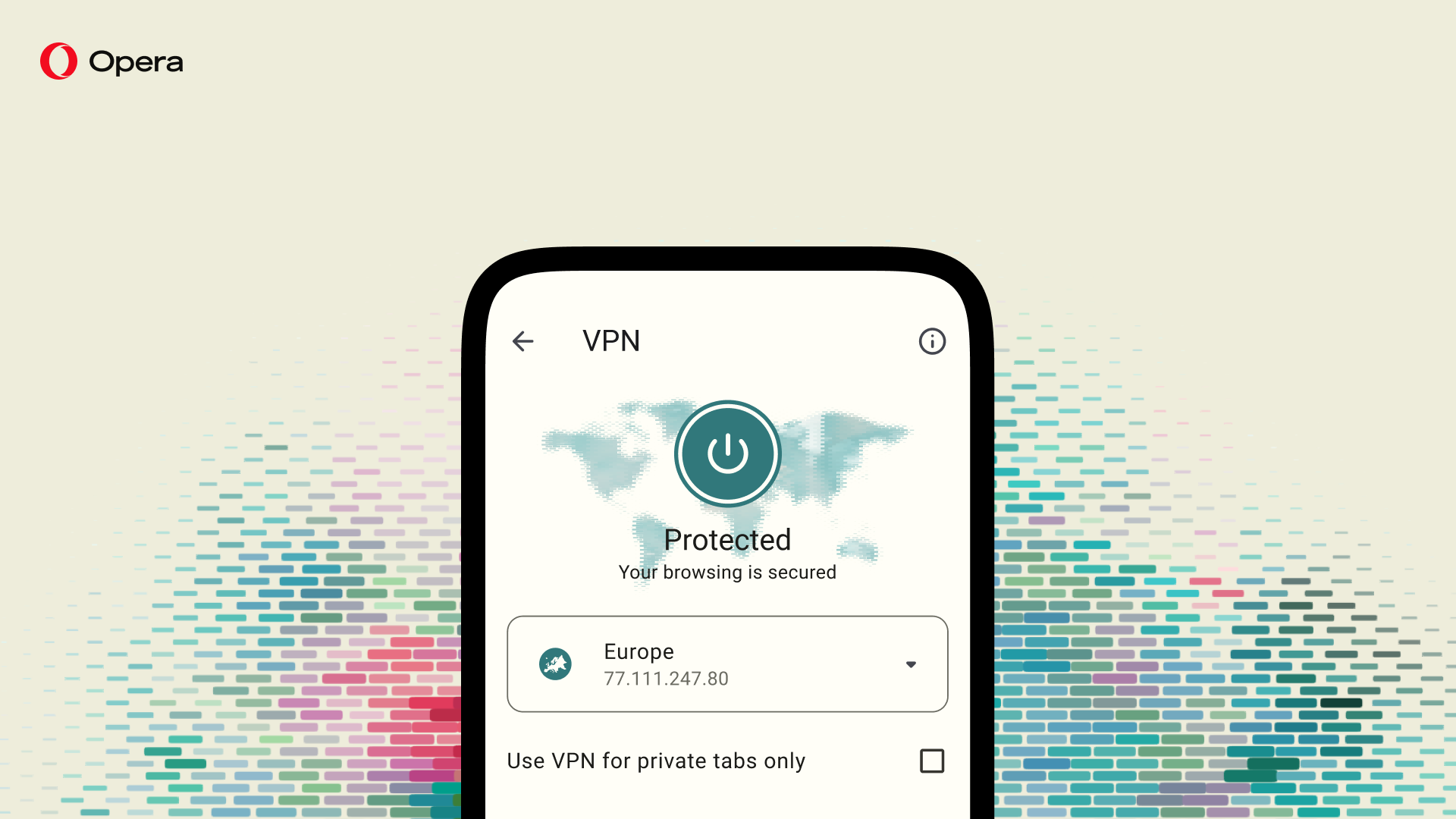
Opera for Android has a free, built-in VPN to protect your browsing. A VPN creates a secure tunnel between your phone and a server, so your traffic is encrypted with AES-256, the industry standard, and your IP address and location are hidden. It protects your browsing in Opera, so use Opera for anything sensitive on public Wi-Fi. You do not need a subscription or an account. Opera also follows a no-log policy: it does not collect or store your browsing activity.
Turn the VPN on as soon as you join an open network, then handle your bookings and logins inside Opera as normal.
How to: Swipe up from the bottom of the screen, or tap your profile icon, to open the menu. Tap the VPN icon to turn it on or off.
3. Data Saver and the built-in ad blocker
Opera’s Data Saver compresses web pages and shrinks images before they reach your phone, so each page uses less of your allowance. This makes your data abroad last even longer. Opera also has a built-in ad blocker that removes ads and trackers, leaving less to load. Together they help pages open faster when the connection is weaker.
How to: Open the same menu. Data Saver and the ad blocker sit alongside the VPN. Tap to turn each one on or off.
4. Offline reading
Flights and rail journeys can mean hours without a signal. Opera’s offline reading feature lets you save any web page and open it later without a connection, even in airplane mode. Before a trip, that might be your hotel’s check-in instructions, a train timetable, a walking route for the day or something long to read on the flight.
How to: Open the page, tap the three dots at the top, tap Add to, then choose Offline pages.
5. Download manager and media player
Opera’s download manager keeps everything you download in one place, and it comes with its own media player. You can play audio and video files without installing a separate app.
Before a trip, you could download an audio or video tour of your destination, a favorite podcast, an audiobook or a few videos, and play them offline from the browser. The player lets you queue up files and set them to play in random order.
How to: Download a file from any site that offers one. Swipe up from the bottom of the screen, or tap your profile icon, and tap Downloads. Everything you have downloaded is listed there. Tap a file to play it in the built-in player.
6. Send trip details from your laptop with Flow
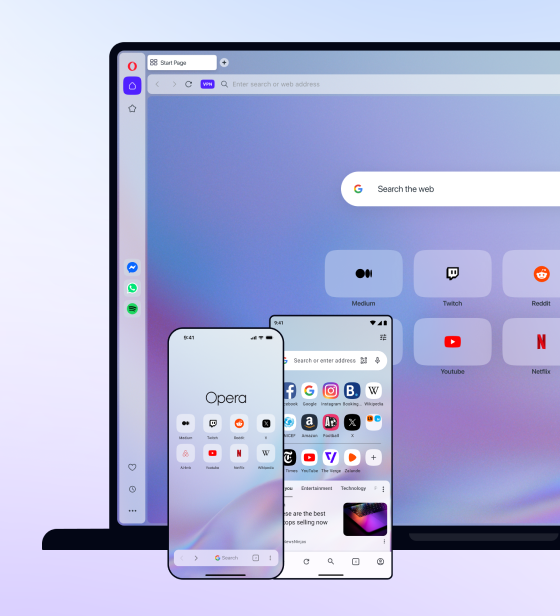
Flow is Opera’s simple and secure way to connect Opera on your computer with Opera on your phone. Plan your trip on a laptop or desktop, then send ticket PDFs, hotel confirmations, map links, videos and notes straight to your phone. Opera needs to be installed on your computer as well as your phone.
Flow works as temporary shared storage between your devices, so sharing files is quick and easy. Files, pictures, videos, notes and links appear on your connected devices as soon as you send them. Everything is encrypted on its way between devices. Shared items are deleted from Flow after 24 hours, but if you need anything for the whole trip, download it with a single tap to store it on your phone alongside your other downloads.
To set up Flow, you scan a QR code with the device you want to connect. There is no account, login or password to remember.
How to: On Opera for desktop, open the Easy Setup menu at the top right and make sure Flow is on. Click the Flow icon in the sidebar and reveal the QR code. Tap the search bar or settings in Opera on your phone to scan it. Then click the Flow icon next to the address bar to send a page, or use the upload icon in Flow to send files.
Why Opera for Android
Most of what a trip asks of your phone is already built into Opera for Android. A travel eSIM gets your whole phone online, and a free VPN protects your browsing on public Wi-Fi. Data Saver and the ad blocker help a small data plan last, offline reading and the download manager cover the hours without a signal, and Flow moves your plans from laptop to phone. It all lives in one app you may already use, with nothing extra to install.
That is why Opera for Android is the ultimate mobile browser for travelers.
Happy browsing.
Download Opera for Android

Gary Fogarty
User comments
You deserve abetter browser
Faster, safer and smarter than default browsers. Fully-featured for privacy, security, and so much more.


You deserve a better browser
Opera's free VPN, Ad blocker, and Flow file sharing. Just a few of the must-have features built into Opera for faster, smoother and distraction-free browsing designed to improve your online experience.