
Opera One adds Gemini and Google Translate to the sidebar
Share


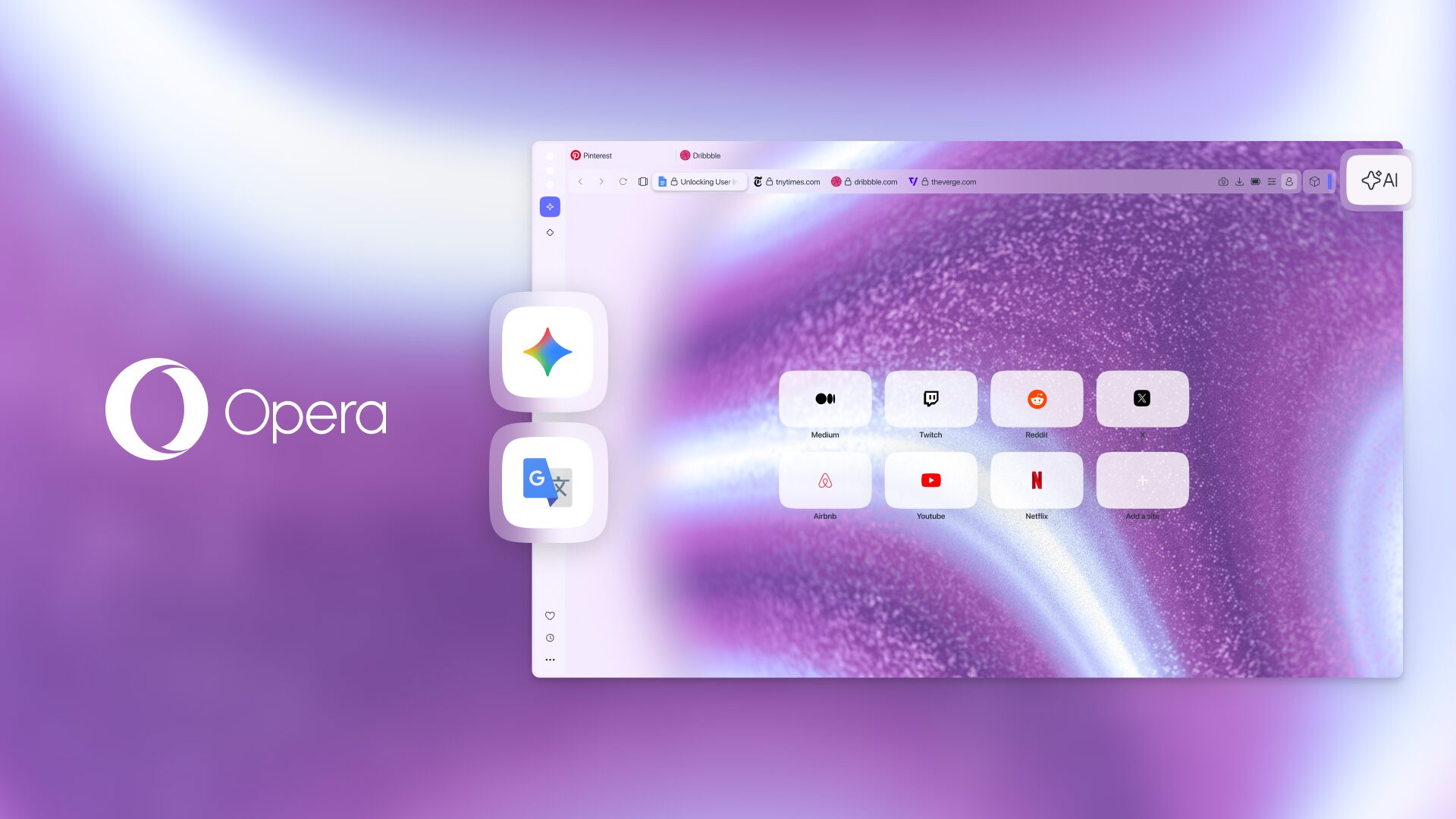
Earlier this year we released the latest version of our flagship browser, Opera One R3, and today we’re bringing an exciting update that expands on that.
First, we’re integrating Gemini and Google Translate in the sidebar of Opera One. Some of the most popular services out there, we use them every day for personal and professional purposes. Now, no more losing them in your tab bank – they deserve a special place in your browser where you can access them easily.
Additionally, we brought the expanded Split Screen feature out of Early Bird (our experimental playground where you can play with the coolest updates ahead of official release). Opera One now lets you split your screen into four!
So, whether you’re a student juggling a thesis, a professional managing a bunch of projects at once, or just someone who – like me – uses AI and translation services on a daily basis, this update is for you.
Expanding your AI kit in Opera One with Gemini
In 2026 the AI race shifted from a single contender to various companies with very capable models. Google’s Gemini has become one of the most popular AI services with over 750 million monthly users. That’s precisely why we are bringing it to the sidebar of Opera One.
Starting today, you don’t have to open a separate tab every time you want to interact with Gemini. Now you have an entire AI toolkit a click away that includes Opera browser AI, Gemini, and ChatGPT.
It’s all about having the exact tool you need, exactly when you need it. You save a lot of time with Opera One since there’s no tab-switching required – just open the Gemini app from Opera’s sidebar and pin the panel. Then you can work with Gemini and your open tab at the same time.
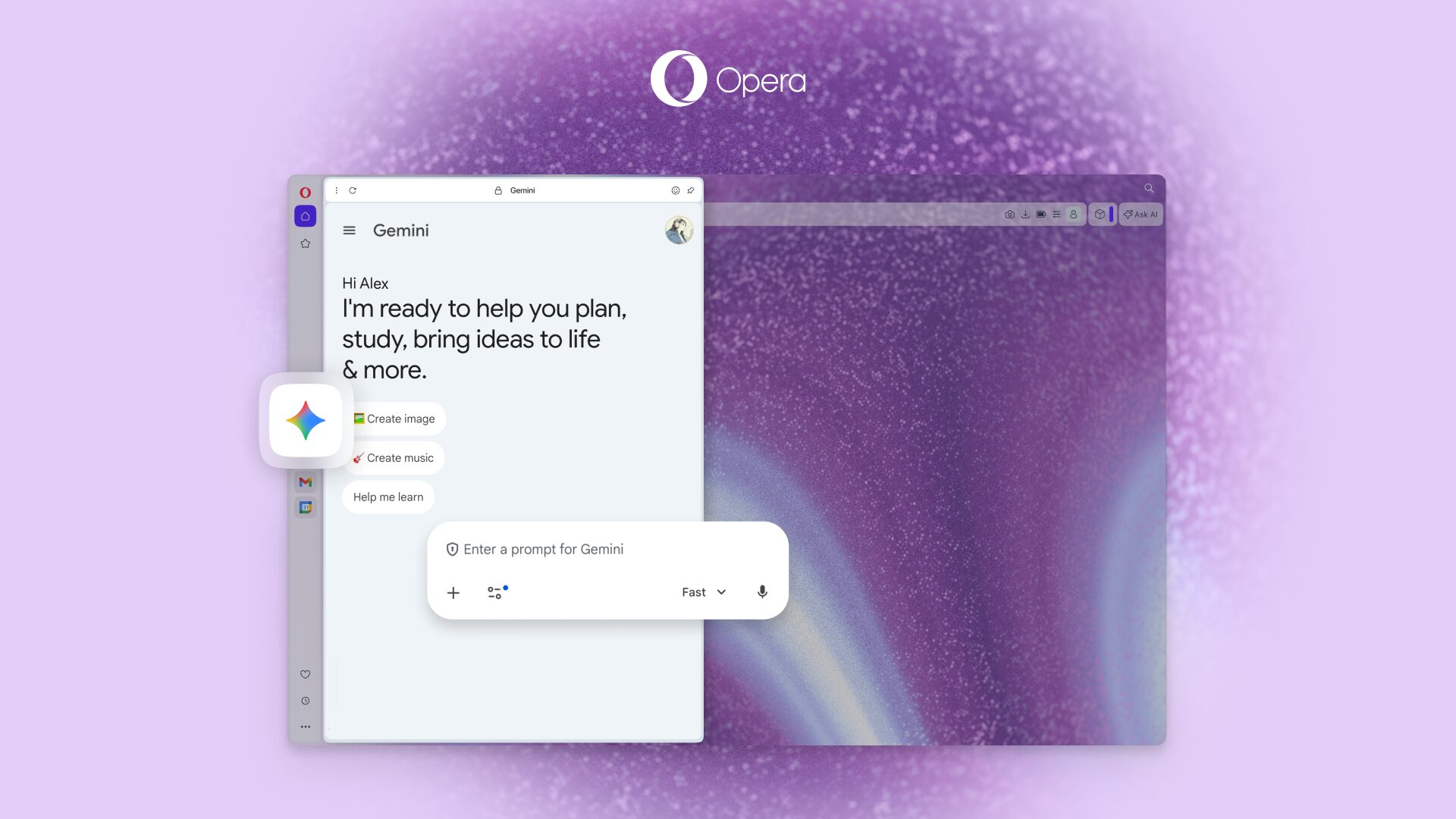
And whether you prefer using Gemini or ChatGPT, they’re right there in your sidebar for instant easy access. So when you want to check and compare results between different AIs without juggling endless tabs, we’ve got you.
With this update we want to give you the flexibility to use the right AI tool for the right job. Opera’s browser AI not only uses different AI models depending on your request, ensuring you get exactly what you’re looking for, but it’s also tab-context aware. This means that it considers the content of your open tabs when performing operations for you, saving you from explaining each detail but still getting exactly what you need.
Besoin d’aide? Google Translate is just one click away!
Opera One already comes with a built-in website translation feature, which is most handy when you need to instantly translate entire websites – for instance, when you’re reading news or researching something in another language.
But what happens when you need to write something back?
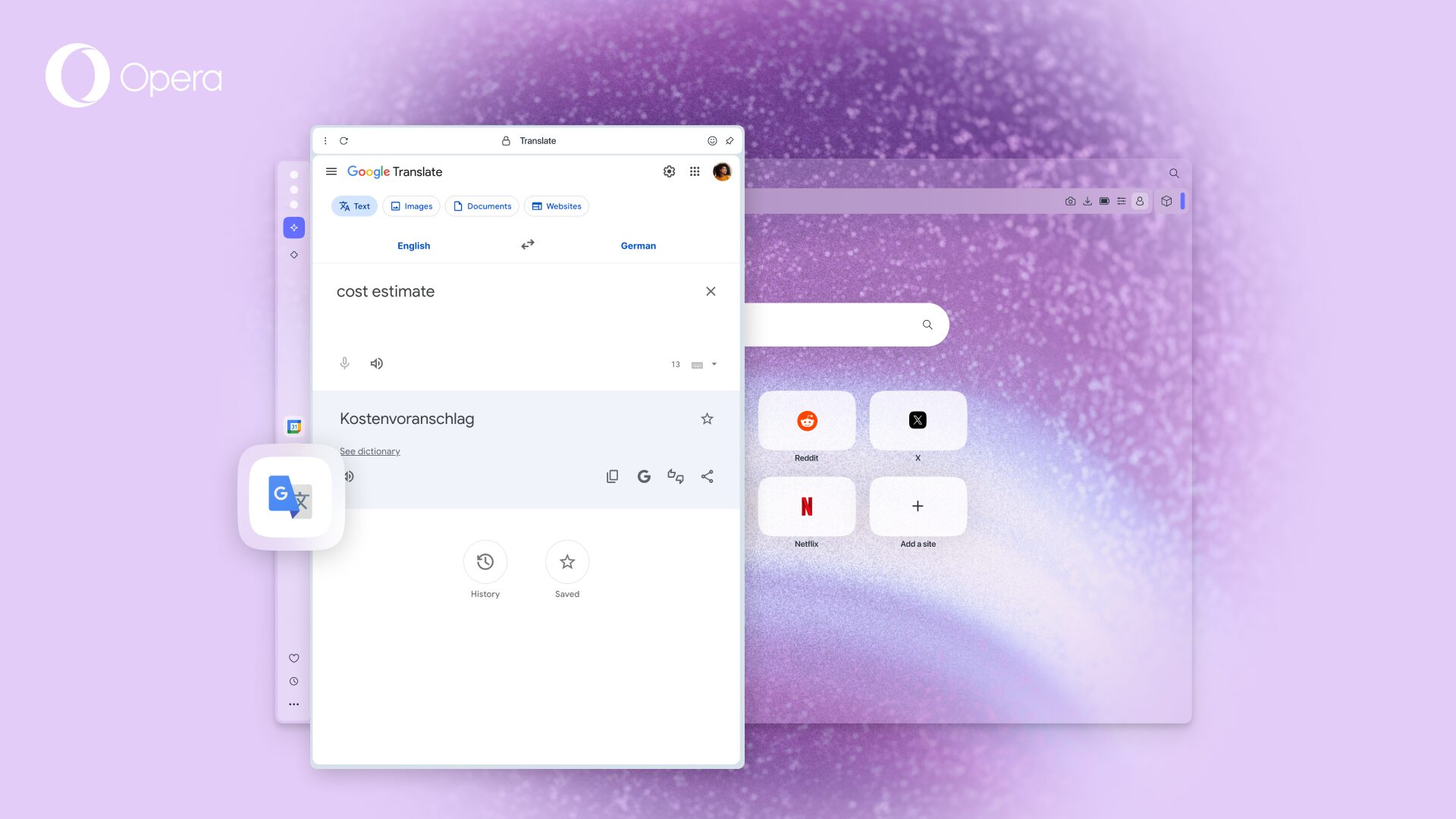
Whether you’re trying to message your Airbnb host or you’re drafting an email to an international client, you no longer need to break your flow and open a dedicated translation tab. Just click on the Google Translate icon in the sidebar and voilá – you’re multilingual now!
How to add Gemini and Translate to the sidebar
To add Gemini and Translate to the sidebar of Opera One you need to:
- Open the Sidebar setup menu by clicking on the three dots at the bottom of it.
- Navigate to the section called “Google services” (for Translate) or “AI services” (for Gemini).
- Click on the circle in front of Gemini and Google Translate and they’ll show up in your sidebar.
Yes, it’s really that easy!
Split Screen expanded “four-the-win”
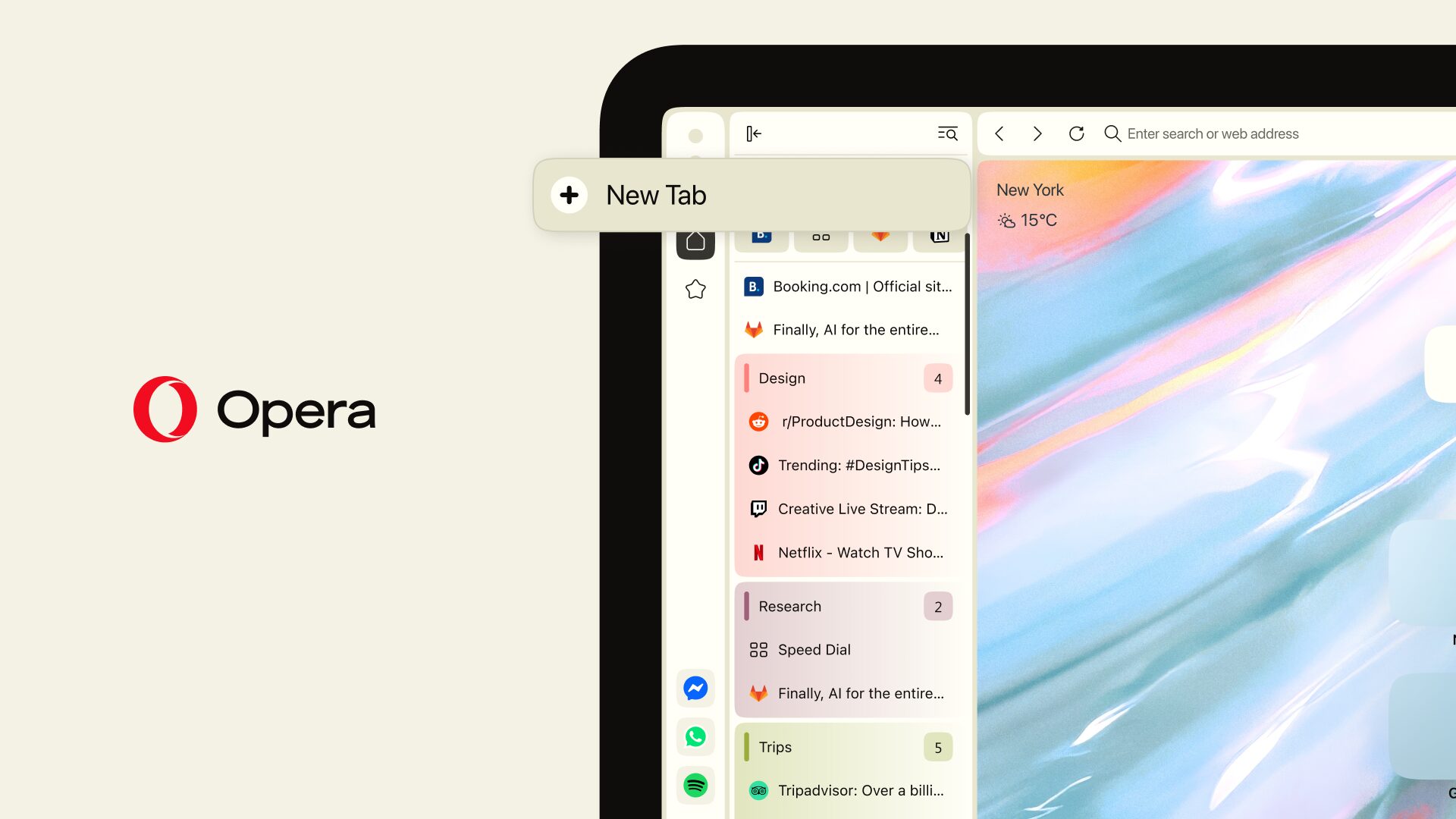
Since we introduced the Split Screen feature last year, you’ve shown us it’s an absolute go-to for productivity. Up until now, the feature let you snap two tabs side-by-side, which saves the headache of constantly switching between the two tabs you’re working on.
But what happens if you’re working on more than two tabs at the same time? Say, for example, four tabs? Well, Split Screen now supports up to four tabs at once, allowing you to arrange your tabs horizontally, vertically, or in a grid layout.
Whether you’re a student keeping a lecture video, a Google Doc, Gemini, and a research paper open all at once, or a professional juggling a spreadsheet alongside a chat thread – this is your new command center. Even if you’re just trying to compare prices across four different stores for the ultimate online shopping deal, why not?
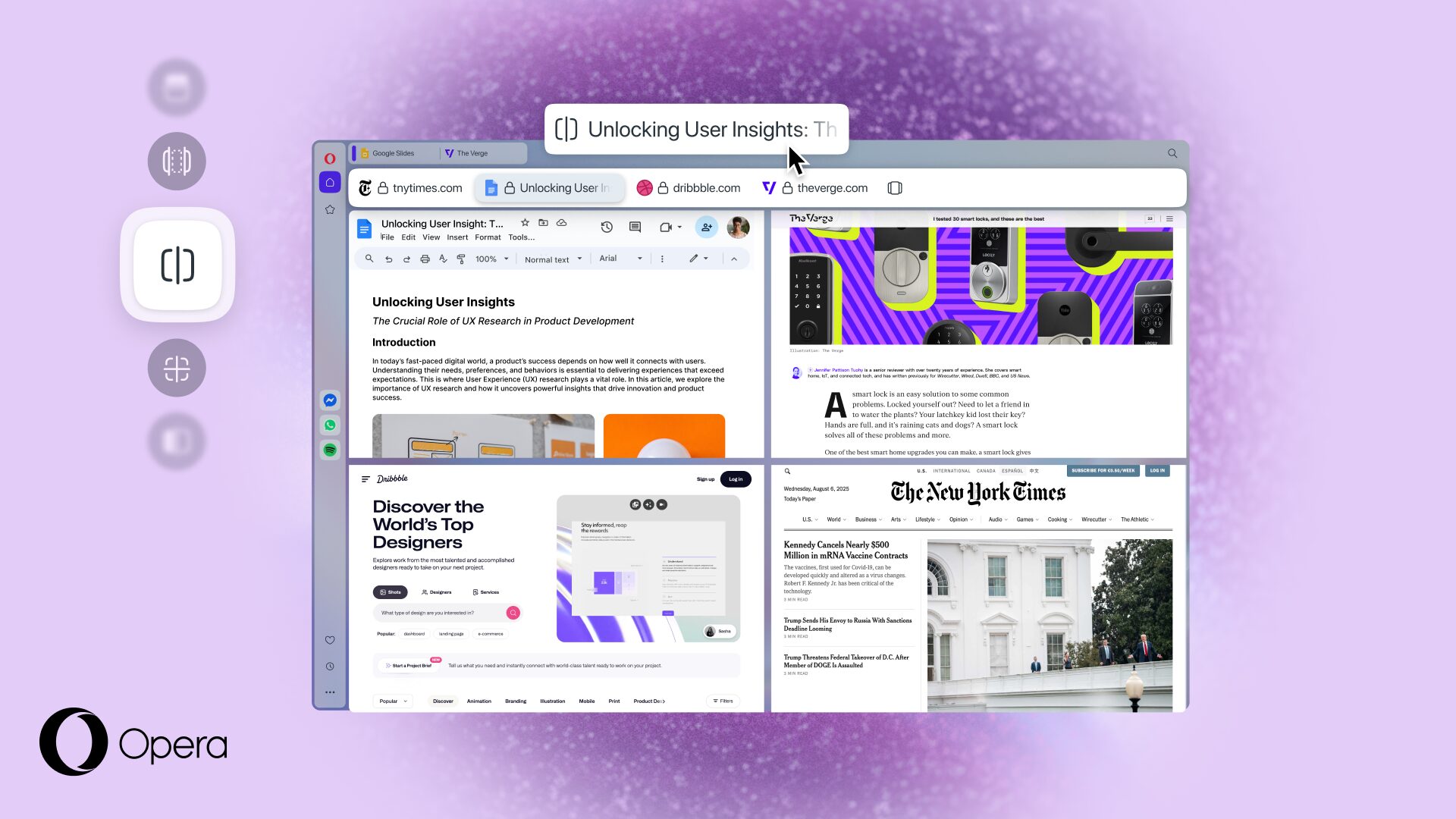
To get started, simply drag and drop your tabs like you’re used to already – there will be a prompt indicating where you can drop them to create each possible layout. Alternatively, you can select the tabs you want to view together by holding ctrl/cmd and clicking on them, right-clicking, and selecting “Create Split Screen.”
Two new Dynamic Themes
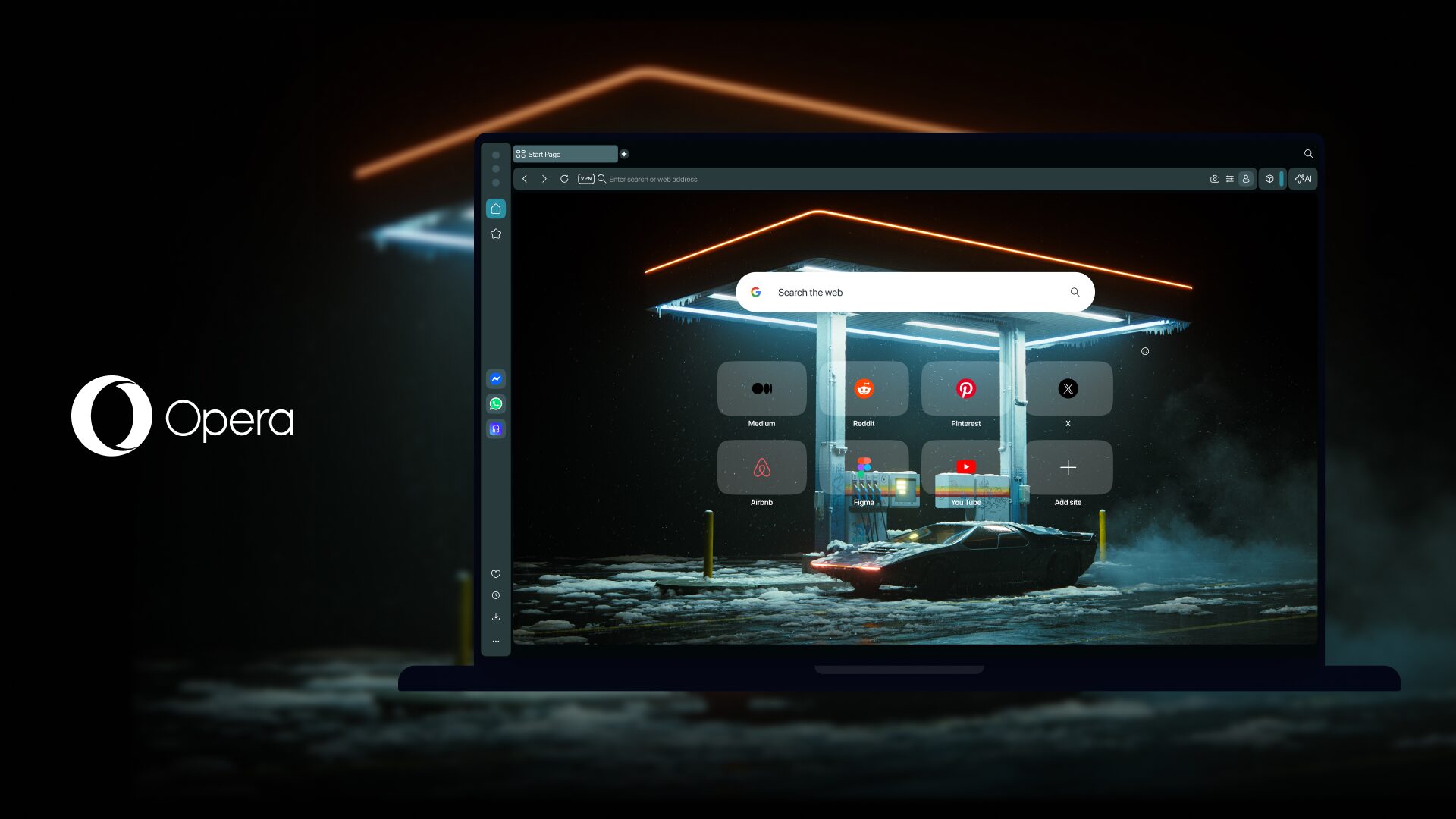
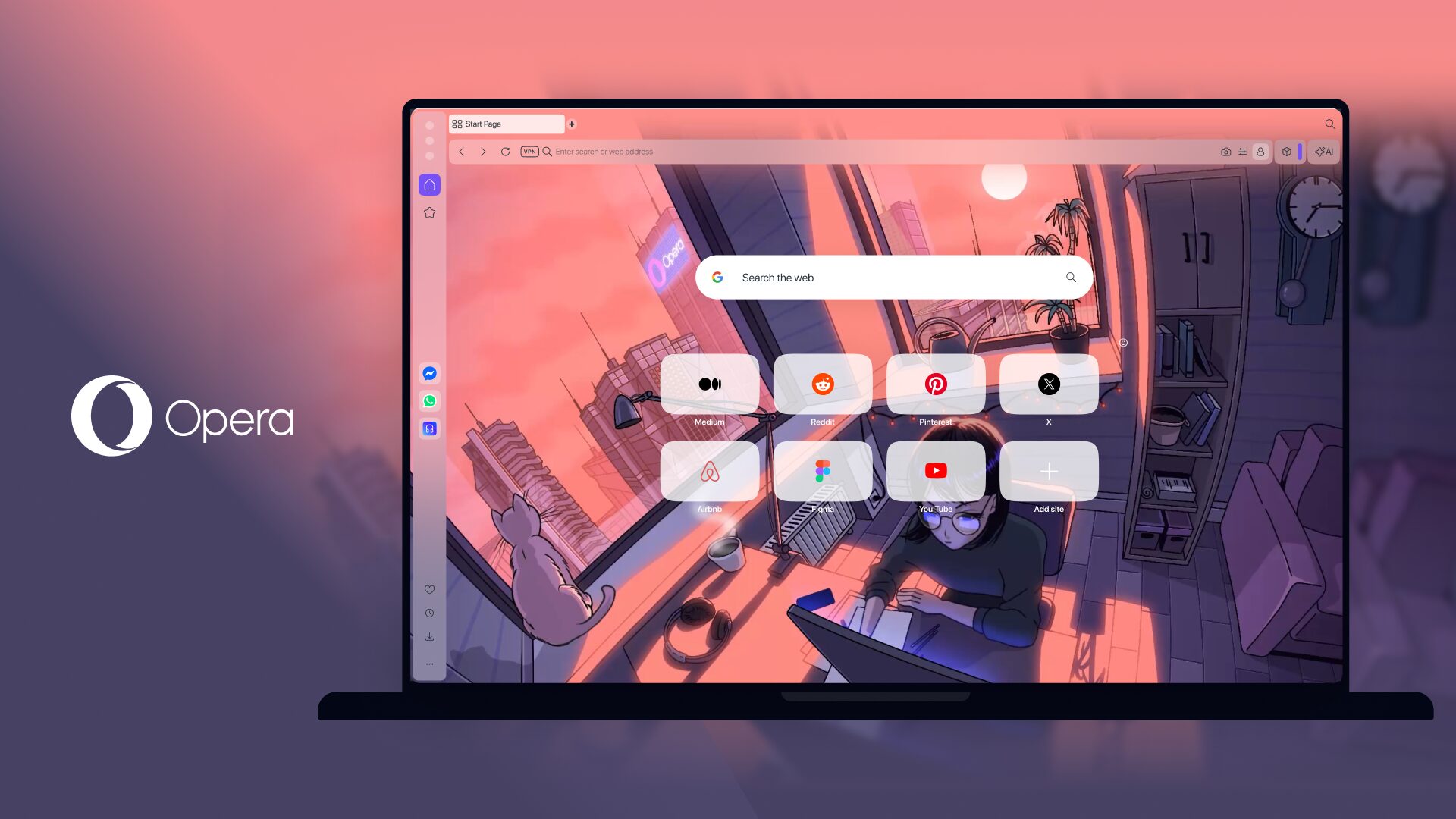
This update also features two new Dynamic Themes that let you personalize your browser with new vibes: Cybervroom, and Mizumi. Because they are both dynamic, they’re each animated, include browser and keyboard sounds, and also background music.
On one hand, Cybervroom comes in dark mode and, as its name suggests, brings a vroom-vroom machine with a cyber punk aesthetic right into your browser.
And on the other one, Mizumi brings a more chilled vibe perfect for studying and cozying up with your browser. This Theme comes both in dark mode and light mode.
The best Google integrations are in Opera One
Get your Opera Browser by downloading it here and enjoy the best integrations that will help you browse without having to switch tabs like a maniac – a hundred tabs? Easy.

User comments
You deserve abetter browser
Faster, safer and smarter than default browsers. Fully-featured for privacy, security, and so much more.


You deserve a better browser
Opera's free VPN, Ad blocker, and Flow file sharing. Just a few of the must-have features built into Opera for faster, smoother and distraction-free browsing designed to improve your online experience.