
Opera GX adds streaming profile to prevent stream fails before they happen
Share


We’ve all felt it. Those seconds of panic when you switch scenes and your browser is on screen. Is your personal YouTube homepage showing? Did you close that tab with your Amazon shopping cart? Are your DMs about to pop up on the sidebar?
Going live shouldn’t be a source of anxiety. Your focus should be on your content and your community, not on whether you’re about to accidentally leak your browsing history to a thousand people.
We heard you and we went directly to the source – content creators like you, to understand these pain points. The feedback was clear. You need a simple, powerful way to make your browser clean, private, and stream safe in an instant.
That’s why we built the Streaming Profile. It’s a tool designed to solve these exact issues and put you in total command of what your audience sees.
Your private life, kept private
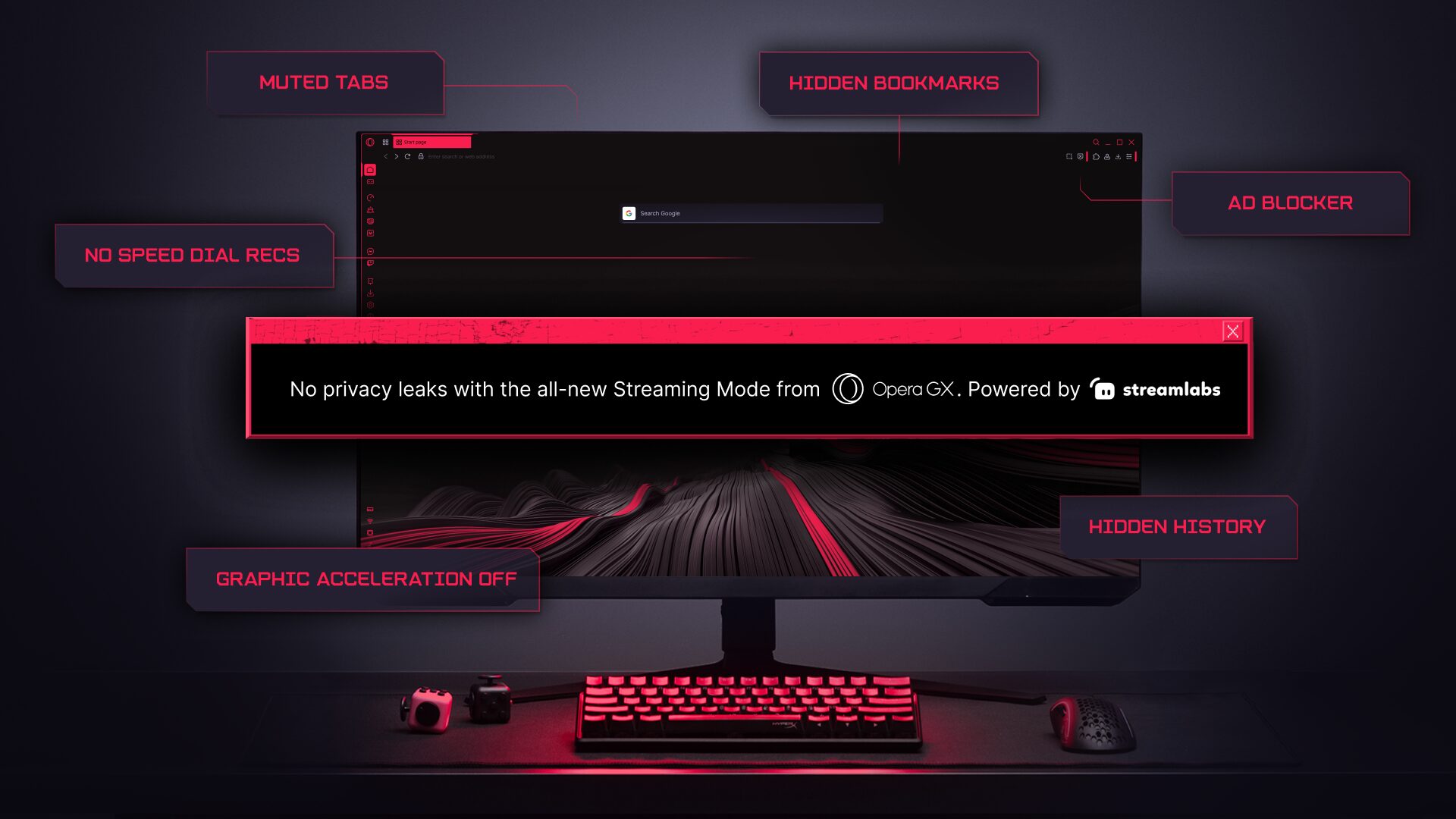
The new Streaming Profile is loaded with privacy shields to prevent those accidental reveals that can derail a broadcast. When activated, it automatically:
- Hides your browsing history: Say goodbye to suggested sites based on your history and recent searches popping up in the address bar or search box. Your night sessions stay yours.
- Clears away shopping suggestions: The profile removes any “recently viewed items” from online shops on your start page. Your secret gift list or shopping sprees are safe from prying eyes.
- Wipes the slate clean: To complete the look, all widgets and suggested speed dials are hidden from the start page. It’s a completely clean, professional start page every time you go live.
Create a distraction free zone
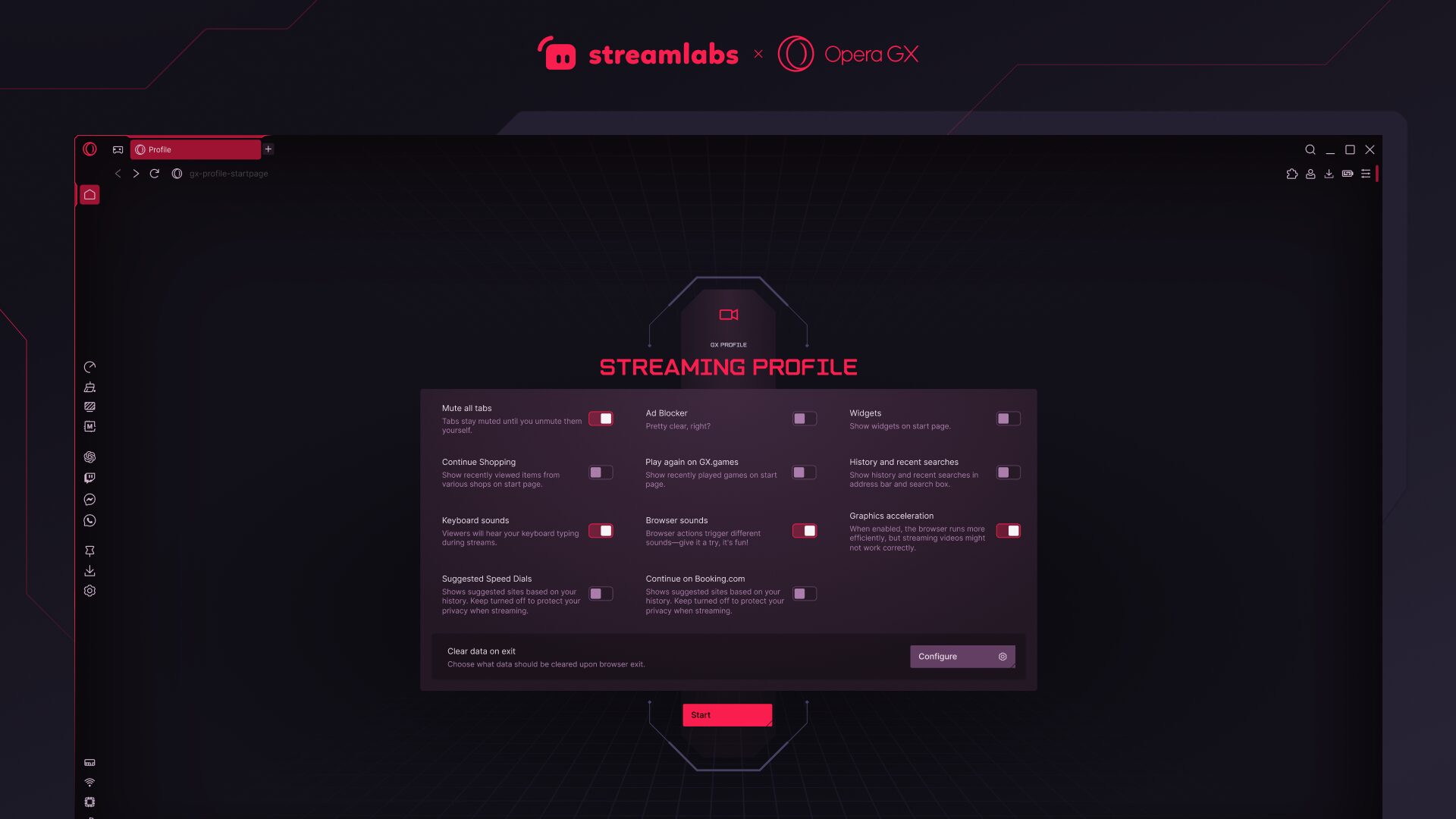
Beyond privacy, the Streaming Profile is about creating a clean, professional broadcast. You can still mute all tabs to avoid rogue audio, use the built-in Ad Blocker to kill popups, and keep your sidebar messengers hidden from your screen share. We also included the option to disable hardware acceleration, which can help improve compatibility with some capture cards and screen recording software.
Once you’ve customized your settings, Opera GX creates a dedicated desktop shortcut for your Streaming Profile. No more pre-stream checklists. No more manually closing a dozen tabs or opening a different browser. Just one click, and you launch directly into a clean, secure, and distraction free streaming environment. It’s all in one place.
How to activate your streaming profile
Ready to stream without fear? To activate it on Windows, users can simply click the Opera GX logo in the top-left corner of the browser to open the menu, and select “Profiles” and add a new one by selecting the Streaming Profile option. As for the Mac version, click on “Profiles” from the upper tab menu and follow the same steps.
To help you create the best content possible, we’re partnering with Streamlabs to offer an exclusive discount for the GX community. Opera GX users get $12 off a monthly subscription or $39 off an annual plan for Streamlabs Ultra.
Download the latest version of Opera GX and let us know what you think. Now go create something awesome.

User comments
Make the web your playground
No lag, no clutter, just play. Squad up on Discord, stream on Twitch, and sprinkle GX with mods to make it your own.



You deserve a better browser
Opera's free VPN, Ad blocker, and Flow file sharing. Just a few of the must-have features built into Opera for faster, smoother and distraction-free browsing designed to improve your online experience.