



OFA, Opera for Android, Opera Mini
Your Guide to Tab Management in Opera for Android
Share
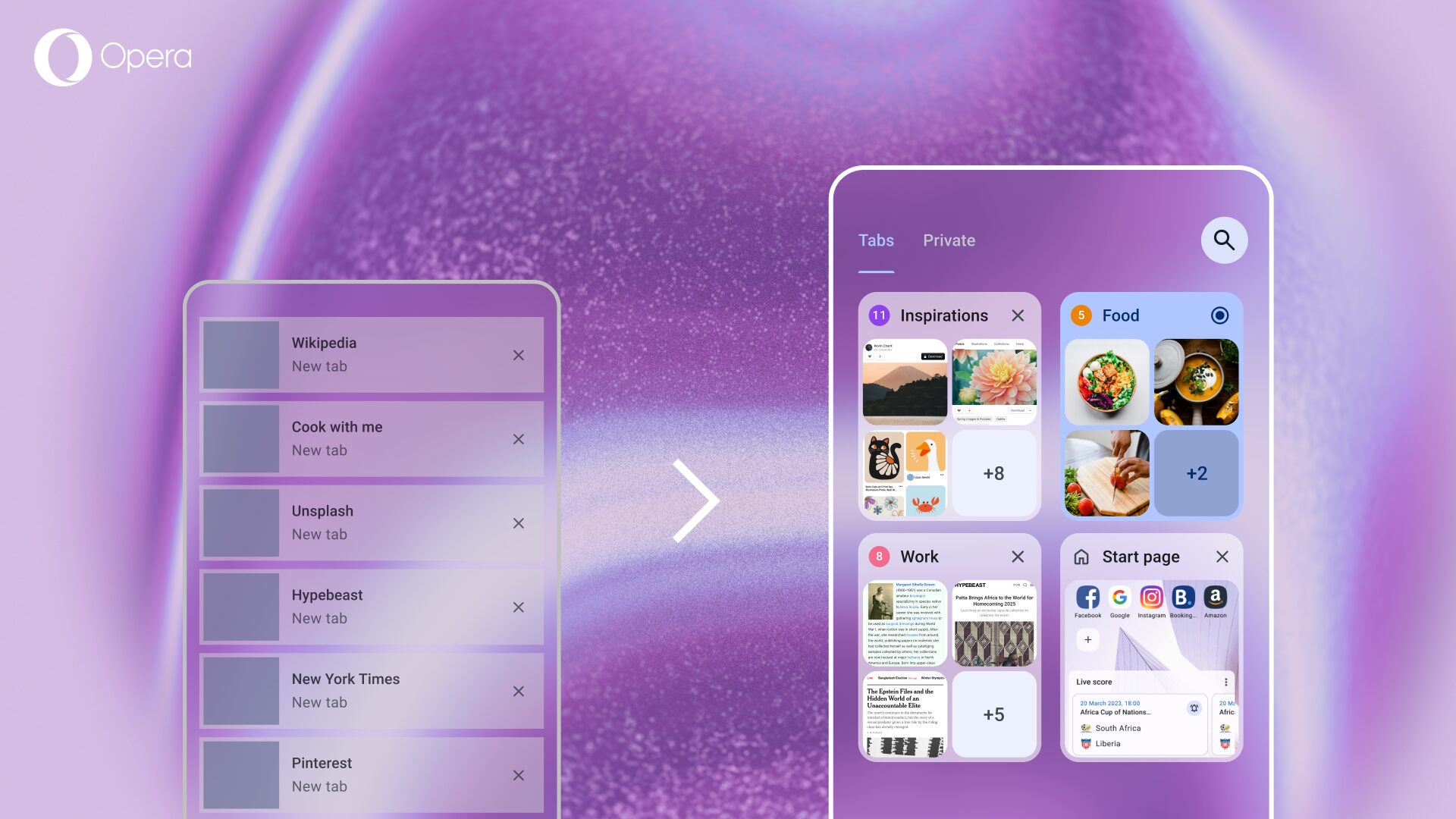
Let’s be honest: tabs pile up. A few Wikipedia articles for the rabbit hole you’re currently in, some shopping links and a recipe you want to try later, maybe a YouTube video you don’t have time to watch right now. Before you know it, your phone’s browser is a mess of open tabs with no clear way to find what you need.
The good news? Opera for Android comes with a complete set of tab management features designed to bring order to that chaos. From customizing how you view your tabs to grouping related ones together and quickly finding that one tab you need now, we’ve built tools to make tab management feel effortless.
Let’s dive into how you can take control of your tabs!
Find your perfect tab view with layout customization
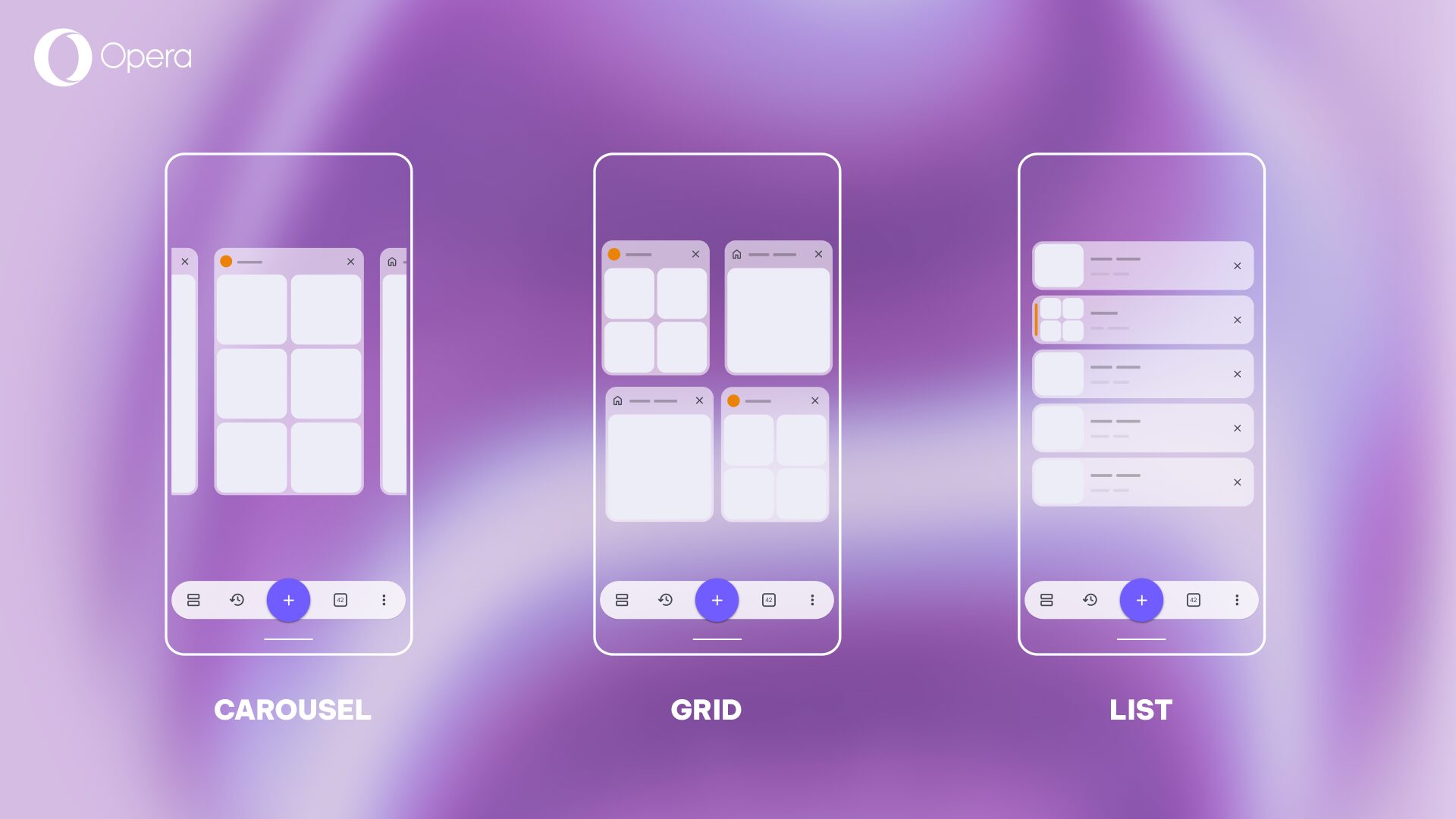
Everyone browses differently, so we’ve given you three distinct ways to view your tabs in Opera for Android. Simply tap on the square tab counter icon in the bottom toolbar to open your tab gallery. Once you’re there, you’ll notice an icon in the bottom left corner- tap it to cycle through these layouts:
- Carousel: This is the classic view you’re already familiar with, showing large tab previews that give you a clear visual of each page. Great if you recognize tabs by how they look.
- Grid: A middle ground that displays your tabs in a neat grid layout, allowing you to see more tabs at once while still getting visual previews. Perfect for when you want the best of both worlds.
- List: The most compact option, optimizing how many tabs you can see on screen at once. Ideal when you’re managing a lot of tabs and just need to scan through titles quickly.
The beauty of this feature is that you can switch between layouts anytime based on what you’re doing. Prefer a visual overview? Use Grid. Need to quickly scan 40+ tab titles? Switch to List. It’s your browser, your way.
Keep related tabs together with Tab Islands
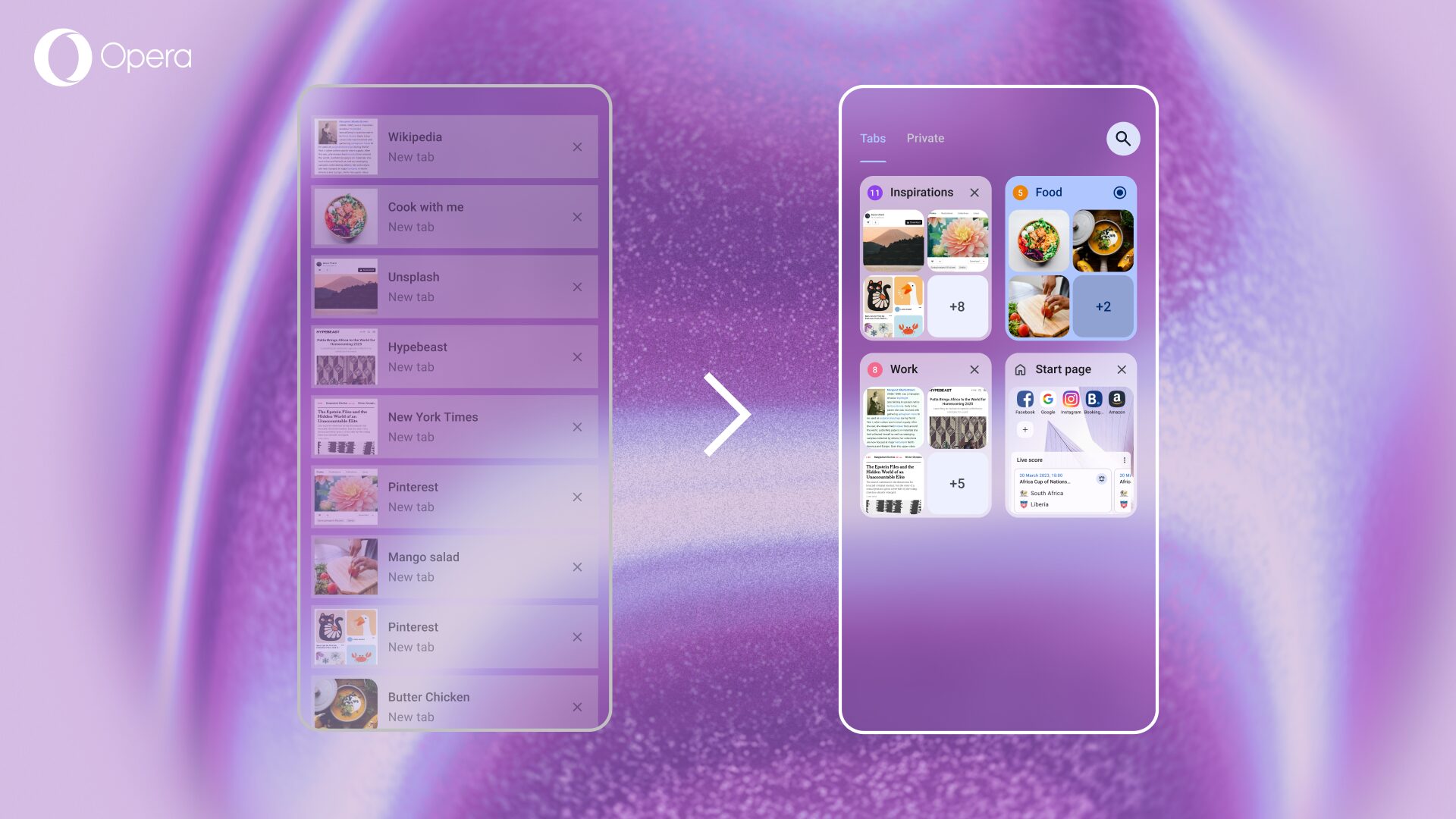
Now that you’ve chosen your preferred layout, it’s time to talk about grouping tabs – also known as Tab Islands in Opera for Android. This feature lets you bundle related tabs together so you can keep different aspects of your browsing neatly separated.
Creating a Tab Island is simple:
- Open the tab gallery by tapping the tab counter icon
- Choose a tab you want to group and long-press on it until you can drag it
- Drag that tab directly on top of another tab you want in the same group
- Release the tab, and voilà – you’ve created a Tab Island!
- Tap the three dots at the top right of the group to name it, add more tabs, or manage the group
- Add additional tabs by dragging them onto the group preview, or open new tabs within the group using the + icon
Here’s where it gets even better: Tab Islands can be created automatically for you. When you’re browsing a webpage and open a link in a new tab, Opera will group those tabs together. Let’s say you’re planning a trip and start opening tabs for hotels, flights, and things to do- it will automatically cluster those into one group. Once you’ve booked everything and you’re done, simply close the entire Tab Island and clear them all at once.
Prefer manual control? You can disable automatic grouping in Settings > Browser if you only want to create groups yourself. You can switch this back on anytime.
Why this helps: Instead of 40 random tabs, you can have organized groups like “Recipes to try,” “Work stuff,” or “Trip ideas” that you can expand or collapse as needed.
Never lose a tab again with recently closed tabs
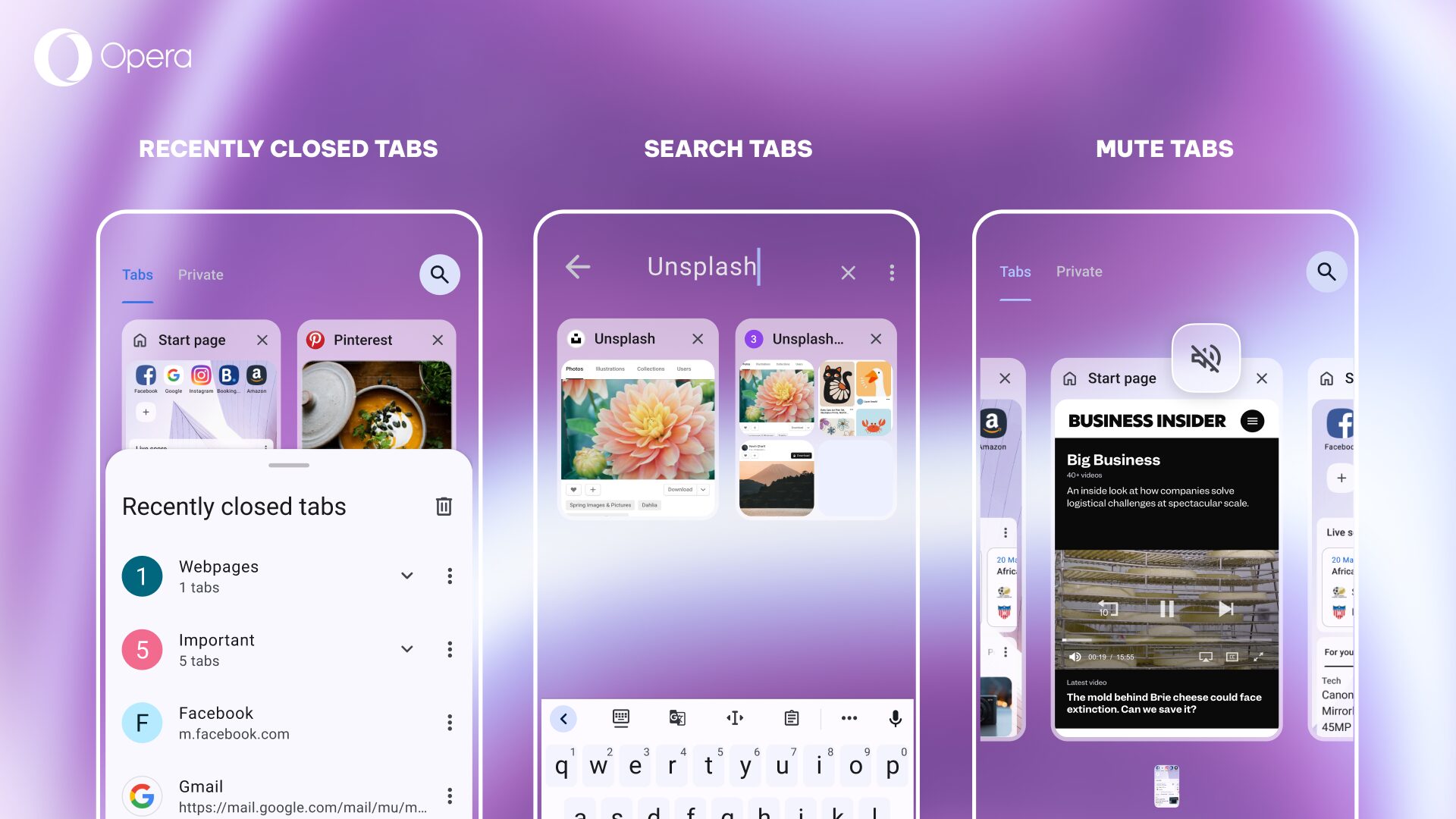
We’ve all been there – you’re cleaning up your tabs and accidentally close something important. With Opera for Android, recovering closed tabs is quick.
To restore a recently closed tab:
- Open the tab gallery
- Tap the “recently closed tabs” button (left of the + icon)
- Scroll through the list to find the tab you closed
- Swipe right on it to restore it
Opera remembers up to 100 recently closed tabs, so even if you closed something days ago, there’s a good chance you can recover it. This also works for Tab Islands so if you accidentally close an entire group, you can restore the whole thing.
That article you were reading this morning? Still there. The shopping link you closed by mistake? Easy to get back. Just tap, swipe, and restore.
Find any tab in seconds with search
You’ve been apartment hunting and now you have 25 different listings open across your tabs. Which one was the studio with the balcony? Good question. Instead of playing tab roulette, Opera for Android cuts through the clutter and lets you search for specific tabs.
Here’s how to use it:
- Open the tab gallery by tapping the tab counter icon
- Tap the magnifying glass icon in the top right corner
- Type a keyword related to the tab you’re looking for – this could be part of the page title, the website name, or even a word from the URL
- Tap the tab you want from the filtered results
Instead of relying on visual memory or scrolling, you can jump straight to what you need using just a few keywords

Make tab chaos a thing of the past
Opera for Android’s tab management tools give you the flexibility to organize tabs your way. Customize your view, group related tabs, recover closed ones, and search instantly. All designed to make mobile browsing less chaotic and more productive.
Ready to take control of your tabs?
Download Opera for Android and experience tab management that actually works.
User comments
You deserve abetter browser
Faster, safer and smarter than default browsers. Fully-featured for privacy, security, and so much more.



You deserve a better browser
Opera's free VPN, Ad blocker, and Flow file sharing. Just a few of the must-have features built into Opera for faster, smoother and distraction-free browsing designed to improve your online experience.